
Desktop app overview and installation
This page explains what the Gonggong Space desktop app is, how to install it, what to do the first time you open it, and how it relates to the gg command line.
What the desktop app is
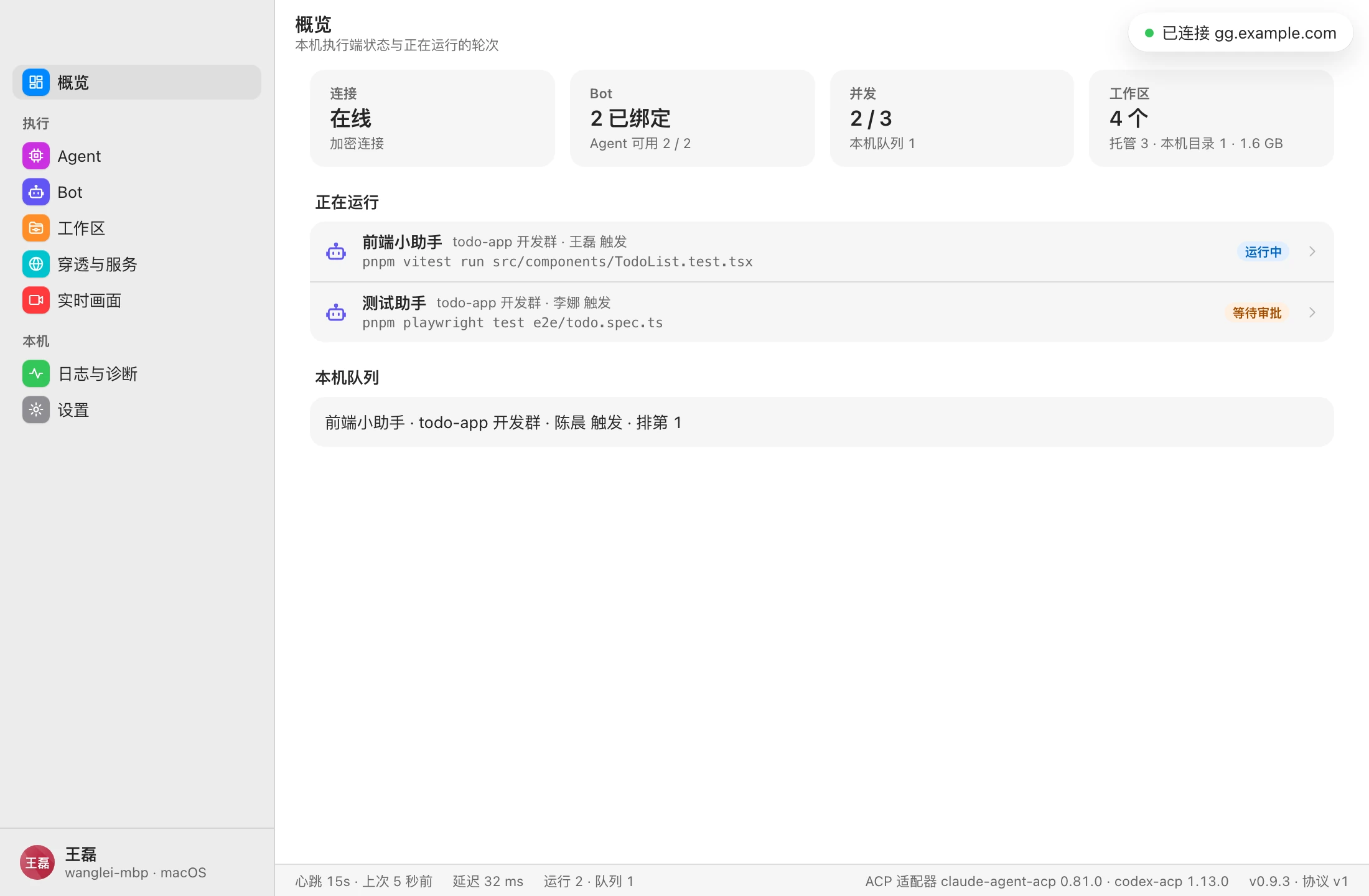
The desktop app is a macOS application with a built-in daemon. Once it's installed, you don't need the gg command line, and you don't need to keep a terminal window open:
- Built-in daemon: the app itself is this machine's executor. It receives tasks that groups dispatch to Bots on this machine and runs them with the local Claude Code / Codex.
- Stays in the menu bar: closing the window leaves the app running in the background. The menu bar icon has two items, 「打开」 (Open) and 「退出」 (Quit). Clicking the Dock icon also brings the window back.
- Graphical management: you can view and manage this machine's Agent tools, Bots, workspaces, previews and services, live views, logs and diagnostics, and settings in the window. See Pages.
- Streaming component included: gg-cast, which Bots use to stream live views of desktop apps and mini programs, is bundled with the app. No separate download is needed.
Supported platforms
Only macOS installers are available at the moment. Installers are built per chip architecture, so pick the matching one. On Linux and Windows, use the gg command line.
Installation
Download the installer from GitHub Releases or ask your admin. The file name looks like
Gonggong_<version>_<arch>.dmg:- Apple silicon (M1/M2/M3…): the architecture in the file name is
aarch64, e.g.Gonggong_0.1.0_aarch64.dmg - Intel: the admin needs to build a separate installer on an Intel Mac
Not sure which chip you have? Click the Apple menu in the top-left corner → 「关于本机」 (About This Mac).
- Apple silicon (M1/M2/M3…): the architecture in the file name is
Double-click the dmg and drag 共工空间 into the 「应用程序」 (Applications) folder.
Open 共工空间 from Applications and complete binding by following First-run setup.
App name
After installation, the app appears as 「共工空间」 in Finder, System Settings, the window title, and the menu bar. Earlier versions were named Gonggong. After installing the new version, you can delete the old Gonggong from Applications. Binding information is stored in ~/.gonggong and is not affected. If system permissions show as not granted, re-grant them by following Permissions and system settings.
Admins: building the desktop app yourself
On a Mac, run this from the repository root (run pnpm install first, and have Rust and the Xcode command line tools installed):
bash scripts/release.sh --only desktopThis builds an installer for the local machine's chip architecture; the output goes to dist/<version>/. If the local keychain has a "Developer ID Application" certificate, the script signs with it automatically; if the environment variables required for Apple notarization are set, it notarizes as well. For the full release process, see Upgrading and releasing clients.
Blocked by macOS on first launch
How the app behaves on first launch depends on how the installer was signed:
- Signed and notarized: double-click to open.
- Unsigned or not notarized: macOS says the app "can't be opened" or that it "can't verify the developer". To get past this:
- Double-click the app once, then close the alert.
- Open 「系统设置 → 隐私与安全性」 (System Settings → Privacy & Security), scroll to the bottom, and click 「仍要打开」 (Open Anyway).
- Enter your password when prompted. After that the app opens normally.
Builds without a Developer ID signature
macOS ties Screen Recording and Accessibility permissions to the app's signature. Installers without a Developer ID signature have a different signature for every version, so these two permissions stop working after an upgrade and must be granted again. See Permissions and system settings.
Quitting and launch at login
- Closing the window doesn't quit: the daemon keeps running in the background and this machine's Bots stay online.
- Quitting completely: click the 共工空间 icon in the menu bar and choose 「退出」 (Quit). After you quit, this machine's Bots show as offline and group messages queue up until it's back.
- Launch at login: turn on 「开机启动」 (Launch at login) in 「设置」 (Settings) to have the app run in the background automatically after you log in.
Desktop app or gg command line: pick one
The desktop app and the command-line gg run share the same local data (~/.gonggong/), including binding information. As a result:
- Only one daemon can run per machine. If you open the desktop app while the command-line
gg runis running, the Overview page shows 「daemon 未运行」 ("daemon not running"), meaning another daemon (gg runor the desktop app) is already running on this machine. Stopgg runfirst, then click 「重试」 (Retry). - If the machine is already bound with
gg login, the desktop app reuses that binding when you open it; you don't need to bind again. - Mac users should use the desktop app; use the command line on Linux, Windows, servers, and other environments without a GUI.
| Desktop app | gg command line | |
|---|---|---|
| Platforms | macOS | macOS / Linux / Windows |
| Background operation | Stays in the menu bar after closing the window; can launch at login | Requires keeping the gg run process running |
| Live view streaming component | Bundled | Downloaded from the server the first time you stream |
| Upgrades | Install the new installer | Downloads the new version and replaces itself automatically |