
First-run setup
This page walks through binding the desktop app the first time you open it: give the desktop app a connect link, check the server, and click 「绑定」 (Bind).
If this machine isn't bound yet, the desktop app opens straight to the 「绑定到团队服务器」 (Bind to team server) page.
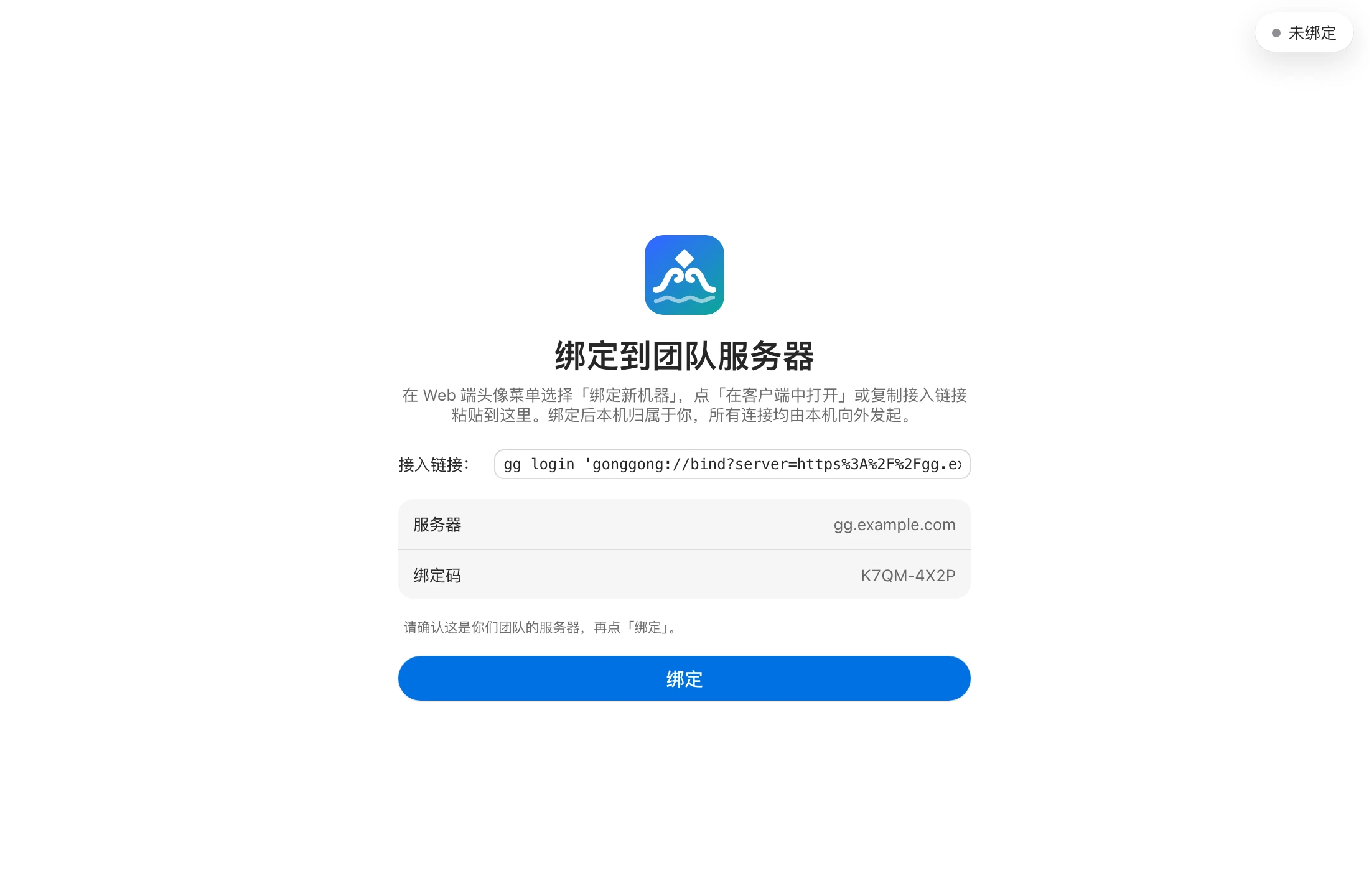
Step 1: Generate a connect link on the web
- Sign in to the Gonggong Space web app in your browser.
- Click your avatar in the top-right corner → 「绑定新机器」 (Bind new machine). The web app generates a one-time connect link and shows a countdown.
- Choose one:
- Click 「在客户端中打开」 (Open in client): the browser launches the desktop app and fills in the link automatically.
- Click 「复制接入链接」 (Copy connect link): switch back to the desktop app and paste it into the 「接入链接」 (Connect link) field.
For details on the web dialog, see Bind a machine.
Auto-fill
When the setup page opens, and every time you switch from the browser back to the desktop app window, the desktop app reads the clipboard if the field is empty. If the clipboard contains a valid connect link or gg login command, it's filled in automatically.
Step 2: Paste and check
The 「接入链接」 (Connect link) field accepts any of the following (leading/trailing spaces and quotes are ignored):
- A connect link, like
gonggong://bind?server=…&code=… - The command copied under 「使用命令行」 (Use the command line) on the web, e.g.
gg login 'gonggong://bind?…'orgg login --server https://gg.example.com --code K7QM-4X2P
Once recognized, the parsed result is listed below:
| Item | Description |
|---|---|
| 服务器 (Server) | The address of the team server to bind to |
| 绑定码 (Bind code) | One-time bind code in the format XXXX-XXXX |
If the content can't be recognized, the reason appears below the field, e.g. 「绑定码格式错误,应为 XXXX-XXXX」 ("invalid bind code format, should be XXXX-XXXX").
Make sure this is your team's server, then click 「绑定」 (Bind). The desktop app never binds automatically: even when launched from a link, you must click Bind yourself.
HTTP and HTTPS
The server address can use https:// or http://. The desktop app accepts any server certificate (self-signed included) without verifying it; http:// connections aren't encrypted. See HTTPS and certificates.
Step 3: Done
After you click Bind, the desktop app exchanges the bind code for this machine's long-lived credentials and starts the daemon. On success:
- You land on the main window, with 「已连接 服务器地址」 ("Connected <server address>") shown in the top-right corner.
- On macOS, if Screen Recording and Accessibility aren't granted yet, the 「授予系统权限」 (Grant system permissions) page opens next. These two only affect live views and remote control, so you can click 「稍后」 (Later) for now. See Permissions and system settings.
- Back on the web, the 「绑定新机器」 dialog shows that binding is complete. You can now create a Bot and assign it to this machine.
FAQ
What if the bind code has expired? A connect link is valid for one use only. Once it expires, generate a new one on the web.
Opening a connect link says 「本机已绑定到 …,请先在设置中解绑」 ("This machine is already bound to …; unbind it in Settings first")? This machine is already bound. To rebind it to a different server or account, click 「解除绑定…」 (Unbind…) in 「设置」 (Settings) first, then open the link again.
Already bound with gg login? The desktop app and the command line share the same binding information, so opening the desktop app takes you straight to the main window without first-run setup.