
Bind a machine
Bots run on members' own machines. This page covers how to bind a machine to your account, view machine details, and revoke a machine.
Before you start
Install the Gonggong Space client on the machine first. Choose one:
- Desktop app 「共工空间」 (macOS): Bundles the daemon, no terminal needed — see Desktop app.
- Command line
gg(macOS / Linux / Windows): See CLI installation.
You don't need to install Claude Code, Codex, or Node.js beforehand; after binding you can install them with one click on the web — see Agent tools and providers.
Generate a connect link
- Click 「绑定新机器」 (Bind new machine) in the avatar menu (or click 「+」 next to 「我的机器」 (My machines) in the sidebar, or 「绑定机器」 (Bind machine) on the welcome page).
- The dialog automatically generates a one-time connect link, valid for 10 minutes, with a countdown shown below.
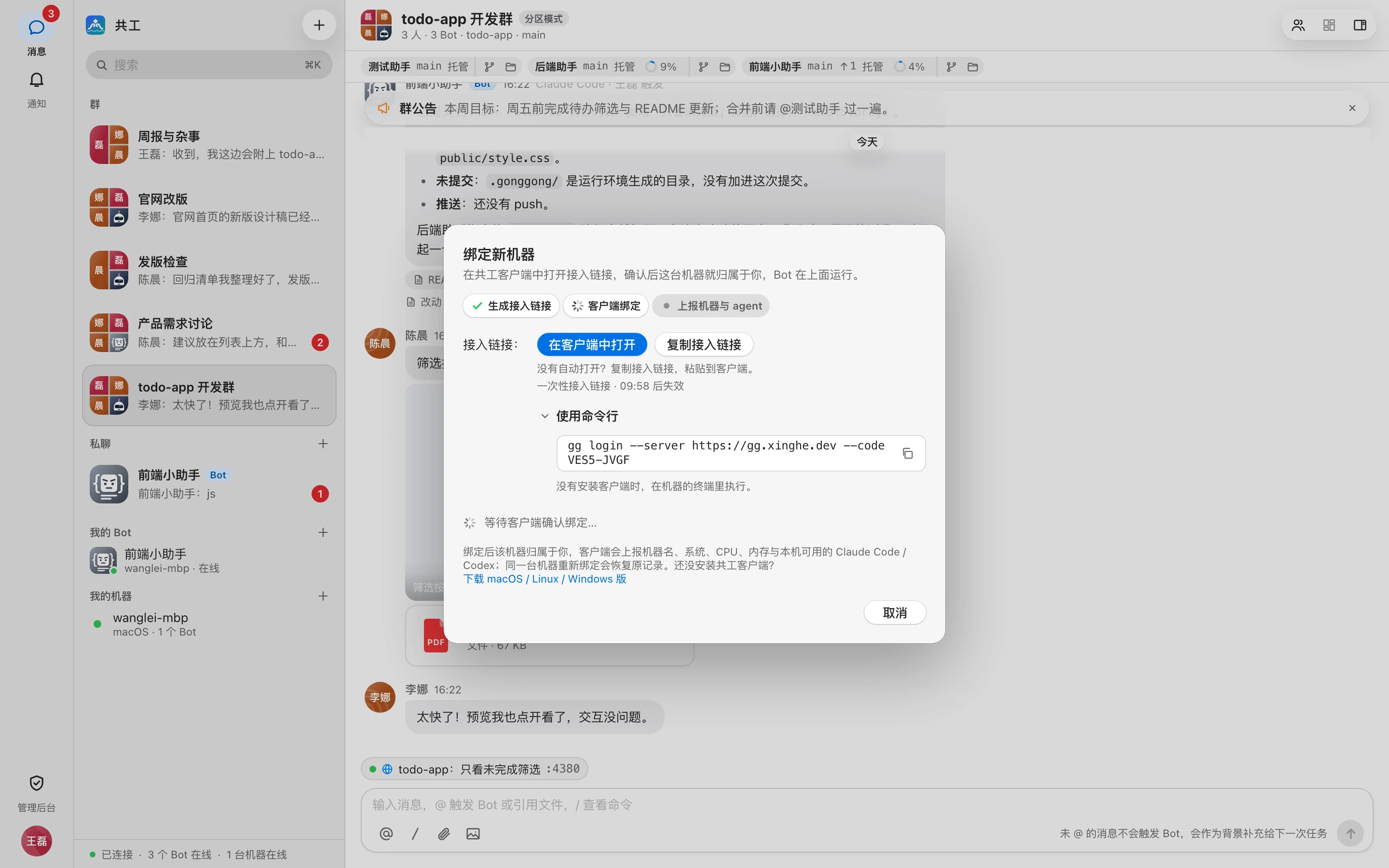
The step bar at the top of the dialog shows progress: 「生成接入链接」 (Generate connect link) → 「客户端绑定」 (Client binds) → 「上报机器与 agent」 (Report machine and agents).
TIP
When the connect link expires, the dialog shows 「接入链接已失效」 ("connect link expired"); click 「重新生成」 (Regenerate). Each link can be used only once.
Complete binding on the machine
Option 1: Desktop app
- Open the web page on the Mac you want to bind and click 「在客户端中打开」 (Open in client); the desktop app picks up the link automatically.
- Or click 「复制接入链接」 (Copy connect link) and paste it into the 「接入链接」 (Connect link) field in the desktop app's first-run setup.
The desktop app shows the server address and bind code. Once you've confirmed it's your team's server, click 「绑定」 (Bind). See Desktop first-run setup.
Option 2: Command line
Expand 「使用命令行」 (Use the command line) in the dialog, click the copy button, and run the command in the machine's terminal. It looks like:
gg login --server https://gg.example.com --code ABCD-EF23On the public demo server, the server address is http://gg.uyoqu.com:
gg login --server http://gg.uyoqu.com --code ABCD-EF23You can also pass the connect link straight to gg login:
gg login 'gonggong://bind?server=…&code=…'On success, the terminal prints 「绑定成功:本机已归属 王磊(…)」 ("bound: this machine now belongs to 王磊 (…)"). Then start the daemon to keep the machine online:
gg rungg run runs in the foreground, so closing the terminal takes the machine offline. To keep it running in the background, see Command line.
Binding complete
Once binding succeeds, the web dialog switches to 「绑定成功」 (Bound) and lists the Claude Code / Codex versions detected on the machine. Click 「完成」 (Done) to close it. The machine then appears under 「我的机器」 (My machines) in the sidebar.
Common errors
- 「绑定码已失效(已过期或已被使用),请在 Web 端重新生成」 ("bind code invalid (expired or already used), regenerate it on the web"): Go back to the web app and generate a new connect link.
- 「尝试次数过多,绑定码已锁定」 ("too many attempts, bind code locked"): Too many wrong attempts from the same network in a short time. Wait 10 minutes and regenerate.
Connection security
The client accepts whatever certificate the server presents (self-signed included) and doesn't verify it, so binding works the same whether the server uses https:// or http://. With https://, traffic is encrypted; with http://, it isn't. When the server is reached over an untrusted network, ask your admin to use HTTPS and connect over a trusted network or VPN — see Security model.
Multiple machines
One account can bind several machines (for example, an office Mac and a Linux cloud host); generate a connect link for each. When creating a Bot, you choose which machine it runs on — see Create a Bot.
- Rebinding the same machine: Restores the original machine record and its Bots; the web app shows 「已恢复原有机器」 ("existing machine restored").
- Machine changing owners: If the machine previously belonged to someone else and still has their Bots, binding is refused. The previous owner must delete those Bots first.
Machine details
Click a machine under 「我的机器」 (My machines) in the sidebar to open 「机器详情」 (Machine details).
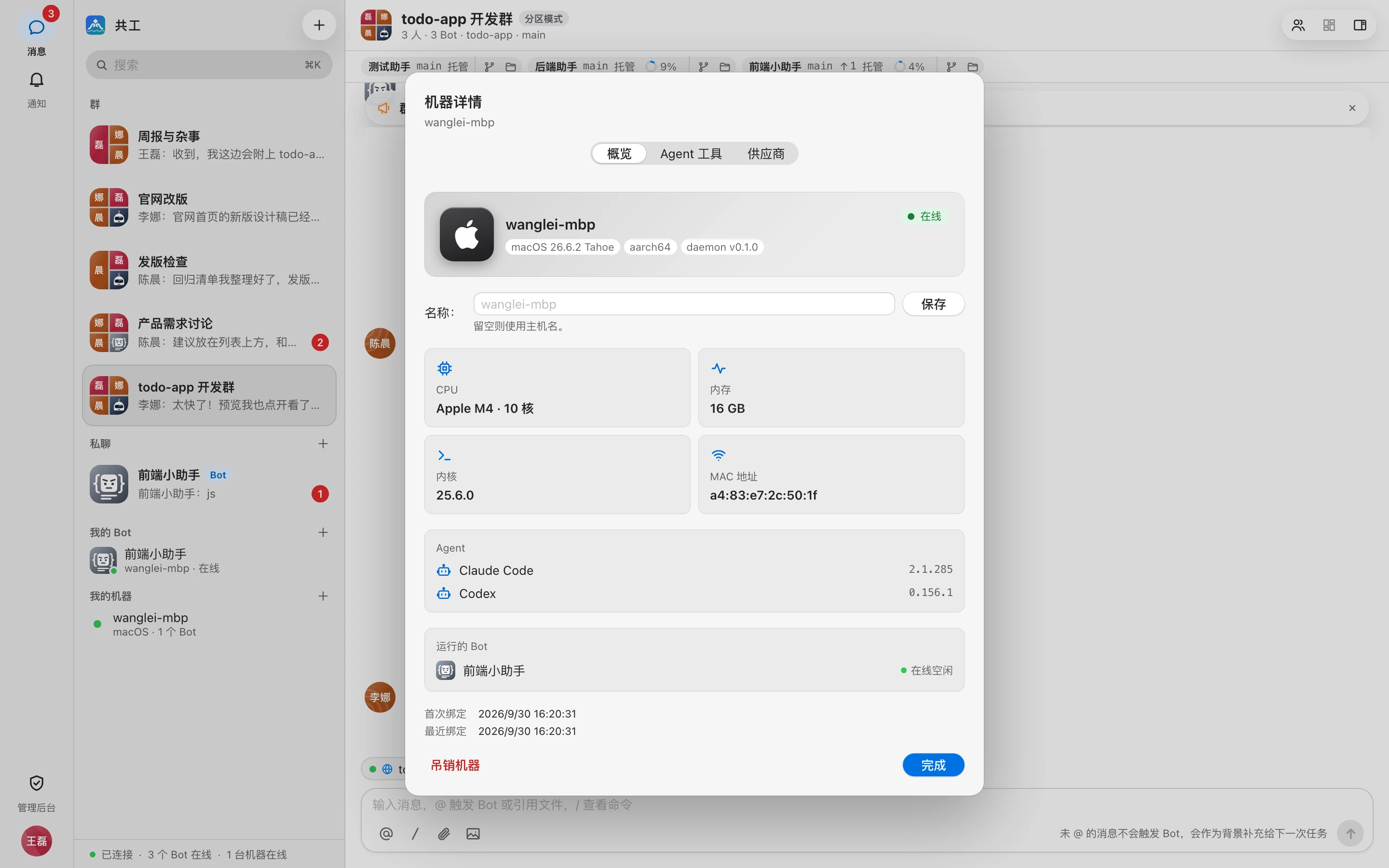
The 「概览」 (Overview) page shows:
- Hostname, OS version, architecture, daemon version, and 「在线 / 离线」 (Online / Offline);
- Name: Rename it to something recognizable (up to 64 characters); leave it empty to use the hostname. Click 「保存」 (Save);
- CPU, memory, kernel, MAC address;
- Agent: Detected Claude Code / Codex versions, or 「未安装」 (Not installed);
- Running Bots: Bots on this machine and their status; click one to open its Bot overview page;
- Last online time (when offline), first bound, and most recently bound.
The other two pages, 「Agent 工具」 (Agent tools) and 「供应商」 (Providers), are visible only to the machine owner and require the machine to be online — see Agent tools and providers.
Revoke a machine
When you no longer use a machine, click 「吊销机器」 (Revoke machine) in the bottom-left of machine details and confirm with 「吊销」 (Revoke):
- The machine's daemon disconnects immediately;
- The daemon cleans up the managed workspaces on the machine; directories set with
/cdand backups are kept; - To use the machine again later, generate a new connect link and bind it.
WARNING
You can't revoke a machine that still has Bots; you'll see 「还有 N 个 Bot 绑定在这台机器上,请先删除」 ("N Bots are still bound to this machine, delete them first"). Delete those Bots first in Bot settings.
If you just want the machine offline temporarily, stop gg run or quit the desktop app — no need to revoke. Running gg logout on the machine deletes the local credentials; a later gg login restores the machine and its Bots.