
Skill market and plugins
This page covers how to give Bots new abilities: picking, publishing, and reviewing Skills and plugins in the market, and installing them for yourself, a group, a repository, or a team; 「我的 Skill」 (My Skills); managing Skills and MCP at each layer; what plugins can include and how to enable them; and authorizing plugin code.
- Skill: a folder containing a
SKILL.mdthat tells the Agent how to do a certain kind of task; it's delivered to the Agent with each run. - Plugin: a folder containing a
gonggong-plugin.json. It can include Skills, as well as creation templates and design systems, MCP services, slash commands, canvas instructions, and provider presets, or it can add support for a new kind of Agent.
After a Skill or plugin changes, the affected Bots pick it up from the next turn; running tasks aren't interrupted.
Market
Click 「市场」 (Market) in the left sidebar to open it (the entry appears only for users who own a machine or Bot, or who are a team or group admin).
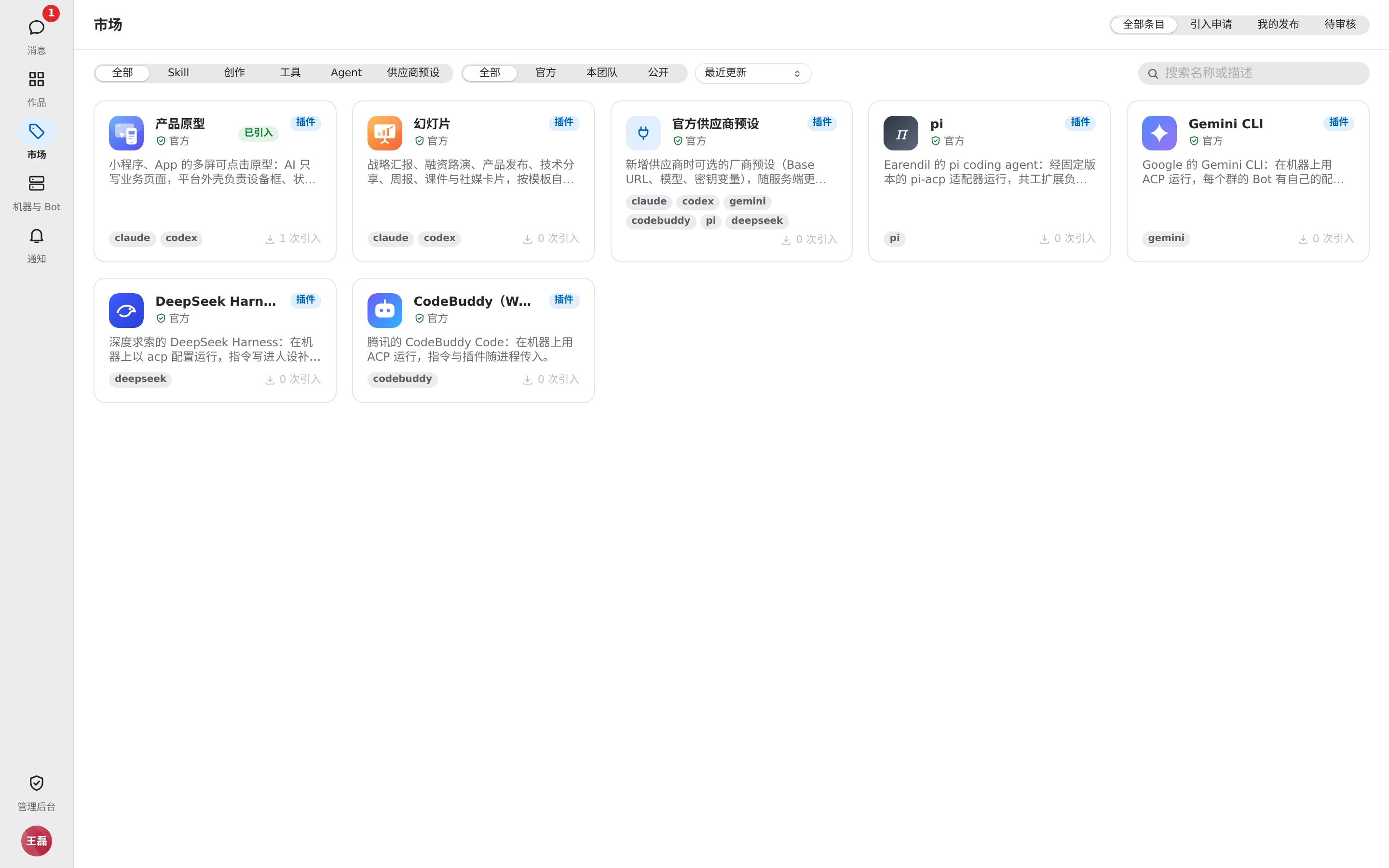
There are several tabs at the top:
| Tab | Contents |
|---|---|
| 全部条目 (All listings) | Approved Skills and plugins you can see |
| 引入申请 (Install request) | Requests 「待我处理」 (Waiting for me), and 「我的申请」 (My requests) |
| 我的发布 (My publications) | Listings you've published; see below |
| 待审核 (Pending review) | Visible only to reviewers; see below |
In 「全部条目」 (All listings) you can:
- Filter by 「类型」 (Type): 全部 (All), Skill, 创作 (Create), 工具 (Tools), Agent, 供应商预设 (Provider presets);
- Filter by 「来源」 (Source): 官方 (Official), 本团队 (My teams), 公开 (Public);
- Sort by 「最近更新」 (Recently updated) or 「引入最多」 (Most installed), or search names and descriptions.
Click a listing to see its details: description, files, and version history (release notes for each version; use 「查看变更」 (Changes) to compare with the previous version). Plugins also list the permissions and MCP services they need. Listings you've already installed are marked 「已引入」 (Installed), with 「已引入到:…」 ("Installed in: …").
Install
- In the listing details, click 「引入到…」 (Install to…).
- Under 「引入到」 (Install to), choose 「我的 Skill」 (My Skills), 「群」 (Group), 「团队」 (Team), or 「仓库」 (Repository), then pick the specific target. Plugins can't be installed to 「我的 Skill」 (My Skills).
- Under 「版本」 (Version), choose 「跟随最新」 (Follow latest) or 「锁定当前版本 rN」 (Pin current version rN).
- Click 「引入」 (Install).
| Install to | Applies to |
|---|---|
| 我的 Skill (My Skills) | Only runs you start; follows you into every group; takes precedence over same-named Skills at the group, repository, and team layers |
| 群 (Group) | All Bots in this group |
| 仓库 (Repository) | Groups that use it as their main repository; takes precedence over the team layer and can be overridden at the group layer |
| 团队 (Team) | All groups in the team |
Markers next to a target:
- 「需申请」 (Request): you're not an admin there, so installing first submits a request to the admins; you can fill in a 「申请说明」 (Note).
- 「同名冲突」 (Name taken): a Skill with the same name already exists there; remove it in that place's settings first, then install.
- 「已申请」 (Requested): a request is already pending; just wait for an admin to handle it.
- 「已引入」 (Installed): already installed.
Admins approve or reject requests in 「引入申请 → 待我处理」 (Install request → Waiting for me) (they can write a 「拒绝原因」 (Reason), which the requester sees); requesters can 「撤回」 (Recall) them in 「我的申请」 (My requests).
Manage installed listings
Every place you can install to has an 「已引入」 (Installed) list in its settings: 「设置 → 我的 Skill」 (Settings → My Skills), 「Skill」 and 「插件」 (Plugins) in the group settings, the team settings, and so on.
- Listings following the latest show 「跟随最新 · rN」 (Follow latest · rN); pinned ones show 「锁定 rN」 (Pinned rN), and when there's a new version you'll see 「有新版本 rN」 (rN available) and can click 「升级到 rN」 (Upgrade to rN).
- When a listing is banned, you'll see 「已封禁,下一轮起停止加载,建议移除」 ("Banned. It stops loading from the next run; consider removing it"); when it's unlisted, the current version keeps working but there won't be new versions.
- 「移除」 (Remove) only removes the install in that place; the listing itself stays. 「从已有条目引入…」 (Install existing…) lets you install directly without going through the market.
My Skills
Manage them under 「设置 → 我的 Skill」 (Settings → My Skills) in the avatar menu. These Skills apply only to runs you start yourself, follow you into every group, and take precedence over same-named Skills at the group, repository, and team layers. When they're used, the run card shows 「使用了 N 个「我的 Skill」」 ("Used N from My Skills").
Publishing and review
Publish
- In 「我的发布」 (My publications), click 「发布…」 (Publish…).
- Choose a source: 「选择文件夹…」 (Choose folder…), 「选择 zip…」 (Choose zip…), 「粘贴 SKILL.md」 (Paste SKILL.md), or 「GitHub 链接」 (GitHub link). The root of the folder or zip must contain
SKILL.md(Skill) orgonggong-plugin.json(plugin). - Choose the visibility: 「公开」 (Public) or 「仅本团队」 (Team only); fill in the 「更新说明」 (Changelog), which both reviewers and installers see.
- Before publishing, a check reminds you 「请确认没有泄露密钥或本机路径」 ("Make sure no secrets or local paths leak"); if the content is identical to the latest uploaded version, no new version is created.
- 「保存草稿」 (Save draft), then 「提交审核」 (Submit for review); it appears in the market only after it's approved.
Publishing with the same name within the same team creates a new version (r1, r2, …). In 「我的发布」 (My publications) you can also:
- See the status of each version: 草稿 (Draft), 待审核 (Pending review), 已通过 (Approved), 已驳回 (Rejected, with the rejection reason);
- 「下架」 (Unlist) / 「重新上架」 (List again), and 「设为公开」 (Make public) / 「设为仅本团队」 (Make team only);
- For listings imported from GitHub, 「检查上游更新」 (Check upstream) creates a new draft when upstream has new commits, or use 「同步上游更新」 (Sync upstream).
Review
Public listings are reviewed by platform admins; team-only listings are reviewed by team admins. Reviewers, in the 「待审核」 (Pending review) tab:
- Open a version to see the description, files, and 「对比 rN 的变更」 (Changes since rN);
- Fill in the 「审核意见」 (Review note) (required when rejecting) and click 「通过」 (Approve) or 「驳回」 (Reject).
Reviewers can also 「封禁」 (Ban) a listing from its details (a reason is required, which maintainers see): once banned, all installs stop loading it from the next turn, it no longer appears in the market, and it can't be newly installed. 「解封」 (Unban) restores the state before the ban.
New versions, review results, requests, and bans in the market all send notifications.
Desktop app
The desktop app's 「市场」 (Market) page lets you browse listings, versions, and ban status read-only; actions take you to the web app. See Desktop app pages.
Skills and MCP at each layer
Besides the market, Skills and MCP services can be configured directly at each layer; on a name clash, the lower layer overrides the upper one:
| Layer | Where to configure | Who can change it |
|---|---|---|
| Platform | 「配置中心」 (Configuration) in the admin console; see Configuration center | Sysadmins |
| Team | Team settings | Team admins |
| Group | 「MCP」 and 「Skill」 in the group settings | Group admins (other members read-only) |
| Personal | Settings → 「我的 Skill」 (My Skills) | Yourself |
Skill
Group settings → 「Skill」:
- 「添加 Skill…」 (Add Skill…): upload the folder or zip containing
SKILL.md; the name and description come from the frontmatter at the top ofSKILL.md. Text files can be edited online; each save creates a new version, and you can view the history and 「回滚到此版本」 (Roll Back to This Version). - Skills 「继承自团队/平台」 (Inherited from team / platform) are read-only; turning one off in this group affects only this group.
- When it clashes with a same-named Skill that ships with the repository, the team version is skipped and the run card notes it.
MCP
Group settings → 「MCP」:
- The MCP configuration that ships with the repository is the baseline; the platform, team, and group layers stack on top in that order, without modifying repository files.
- 「添加 MCP…」 (Add MCP…): fill in the name and transport. For the command-line transport, fill in 「命令」 (Command), 「参数」 (Arguments, one per line), and 「环境变量」 (Environment variables); for the network transport, fill in the URL (starting with
http://orhttps://) and 「请求头」 (Headers). - Values of environment variables and headers can only reference secrets, written as
${secret:NAME}, and are replaced with the real values at run time; see Knowledge base and secrets. - Each service can be enabled or disabled individually; inherited ones can also be turned off for just this group.
- Gonggong Space's built-in gonggong tools (questions, chat history, group info, etc.) are always injected, regardless of layer.
- After saving, the affected Bots pick up the change in a new session on the next turn; check 「强制相关 Bot 下一轮开新会话」 (Force affected Bots to start a new session next run) to make existing sessions switch to the new configuration right away, and the card notes the reason.
Bots can also view and change Skills and MCP for you with built-in tools; when a secret is needed, they send a 「填写密钥」 (Fill in secrets) card asking the requester to fill it in.
Plugins
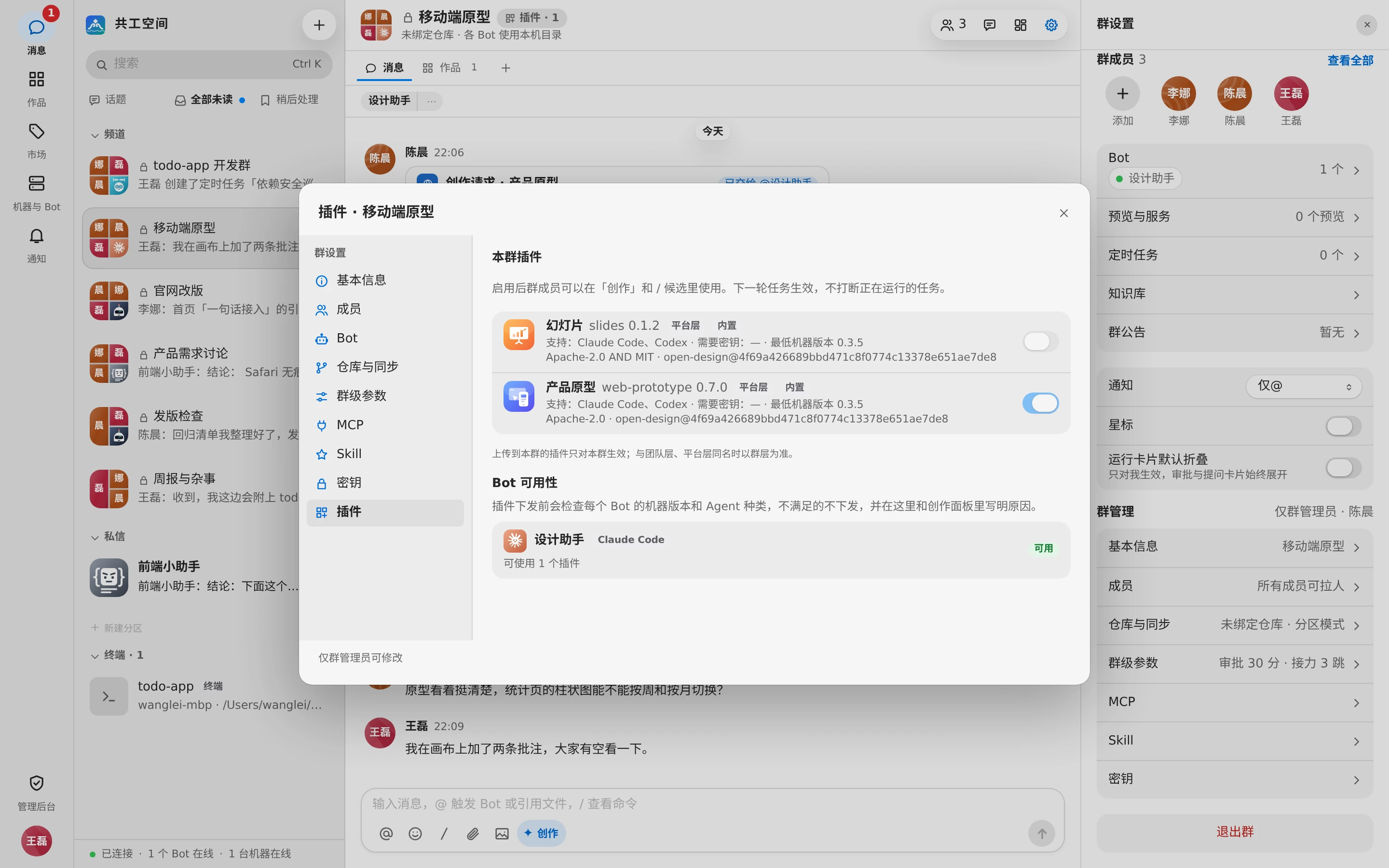
What plugins can include
| Content | Where it's used |
|---|---|
| Skill | Delivered with runs, like regular Skills |
| Creation templates and design systems | The 「创作」 (Create) panel of the input box; see Prototypes, canvas, and works |
| Slash commands | The / suggestions in the input box |
| Canvas instructions | The canvas 「生成」 (Generate) menu and / menu in works made with this plugin |
| MCP services | Provided to the Agent at run time, named 「插件名-服务名」 ("plugin-name-service-name") |
| Provider presets | Vendor presets you can pick when adding a provider; see Agent tools and providers |
| Agent | Adds support for a new kind of Agent |
Built-in plugins are installed automatically with the server:
- 「产品原型」 (Prototypes) and 「幻灯片」 (Slides): creation plugins.
- 「Gemini CLI」, 「CodeBuddy(WorkBuddy)」, 「pi」, 「DeepSeek Harness」, and 「Antigravity CLI」: Agent plugins that let machines run these Agents.
- 「官方供应商预设」 (Official provider presets): vendor presets are pushed to all machines with server updates, without waiting for a client release.
Turn on and enable
- A sysadmin turns on the 「插件」 (Plugins) switch in System parameters (off by default). When it's off, no plugin entry points are shown and no plugins are sent to machines; uploaded plugins are kept.
- Plugins come in three layers: platform plugins (「配置中心 → 插件」 (Configuration → Plugins) in the admin console, visible to all teams), team plugins (team settings, visible to all groups in the team), and group plugins (apply only to that group). On a name clash, the group layer takes precedence over the team layer, and the team layer over the platform layer.
- A group admin enables a plugin by turning on its switch under 「本群插件」 (Plugins of this group) in 「群设置 → 插件」 (Group settings → Plugins); group members can then use it from 「创作」 (Create) and the
/suggestions. You can also 「上传文件夹…」 (Upload folder…) or 「上传 zip…」 (Upload zip…) here, which applies only to this group.
「Bot 可用性」 (Bot availability) lists how many plugins each Bot in the group can use. Before a plugin is sent, the Bot's machine version and Agent type are checked; if they don't qualify, the plugin isn't sent and the reason is shown, such as 「不支持」 (Unsupported), 「需升级」 (Upgrade needed), or 「缺密钥」 (Missing secrets).
The root of an uploaded folder or zip must contain gonggong-plugin.json; uploading a plugin with the same name again creates a new version. Uploads are restricted by a path allowlist, and on the machine, hooks, .mcp.json, commands, and agents are removed from the plugin directory.
Plugin code and machine owner authorization
Plugins that need to run code on the machine, such as ones with a local MCP service, must also meet two conditions:
- A sysadmin turns on the 「插件代码」 (Plugin code) switch in the system parameters;
- The machine owner authorizes each plugin on their own machine: the first time a plugin runs code on that machine, the machine owner gets a notification and can 「允许」 (Allow) or 「拒绝」 (Deny); a new plugin version needs confirming again.
Until authorized, the Bot shows 「待授权」 (Awaiting permission) in the creation panel. In the 「插件授权」 (Plugin permissions) tab of the machine details, the machine owner can see the permissions (run code, network access) and MCP services each plugin version requests, and 「撤销」 (Revoke) them at any time; after revoking, you'll be asked to confirm again the next time it's used. See My machines and Bots.