
Previews
This page covers how Bots publish the web pages, services, desktop apps, and mini programs they build as previews, and how group members view and interact with them directly in the browser.
Bots work on members' machines, and the services they start listen only on those machines. Previews deliver the results to group members' browsers through a tunnel between the machine and the server, so nobody needs to visit localhost.
Preview types
Previews are published by the Bot itself during a run; there's no button to create one manually. Just tell the Bot what you want to see, for example:
@前端助手 把 todo-app 跑起来,发个预览给大家看看(This asks 「前端助手」 (Frontend Assistant) to get todo-app running and share a preview with everyone.)
| Type | Use case | Shown on the card |
|---|---|---|
| Web page / service | Dev servers and API services started by the Bot (HTTP and WebSocket both work) | :port and path |
| Static page | HTML reports and build output in the workspace, no server needed | :port and path |
| Desktop app | Live view of the windows of a desktop app such as Electron or Tauri | 桌面应用 · 服务名 (Desktop app · service name) |
| Mini program | Opened in WeChat DevTools on the machine, streaming the simulator view | 小程序 · 页面路径 (Mini program · page path) |
Notes:
- Starting a service (a managed service) and opening a mini program project both run code, so they're handled by the permission tier and command approval rules just like running a command; see Approvals and questions.
- Managed services are run by the Bot's machine and keep running after the turn ends. Each Bot can host at most 5 services at a time.
- Only one preview card is kept per port, per desktop app, and per mini program project. When a mini program is published again, the existing card switches to the new page.
- For desktop apps, only that app process's windows are streamed, not the whole screen.
Preview cards
After a Bot publishes a preview, a preview card appears in the group showing a screenshot of the first screen (a simulator screenshot for mini programs), the status, and the address.
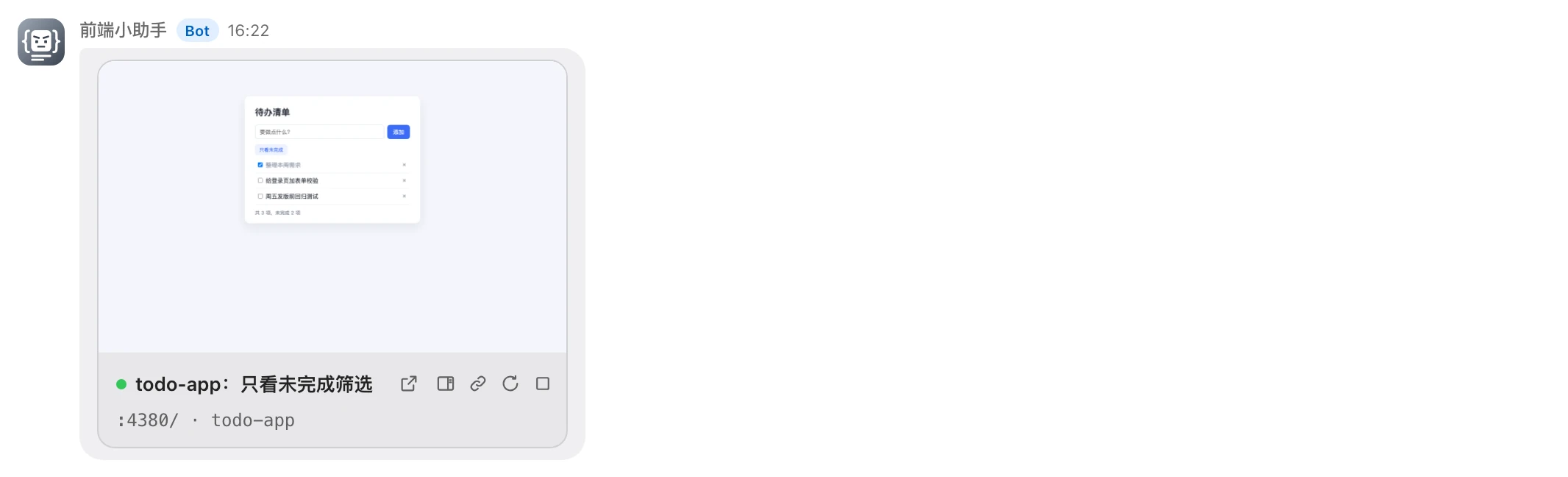
Card states:
| State | Meaning |
|---|---|
| 在线 (Online) | Can be opened |
| 离线 (Offline) | The Bot's machine isn't online |
| 服务已停止 (Service stopped) | The service behind the preview has exited; the card is kept |
| 已关闭 (Closed) | The preview has been closed |
Click the screenshot to open the preview in the workbench (only when online). Buttons on the card:
| Button | What it does | Who can use it |
|---|---|---|
| 打开 (Open) | Opens in a new browser tab (web types) | Group members |
| 在工作台打开 (Open in workbench) | Opens in the workbench on the right | Group members |
| 启动服务 (Start service) | Restarts the service when it has stopped | Bot owner, group admins |
| 公开链接 (Public link) | Generates a link for outside people; see Public sharing | Bot owner, group admins |
| 重新截图 (Retake screenshot) | Refreshes the card's screenshot (not for desktop apps) | Bot owner, group admins |
| 停止穿透 / 停止穿透和服务 / 关闭预览 / 关闭预览并停止应用 (Stop tunnel / Stop tunnel and service / Close preview / Close preview and stop app) | Closes the preview and stops the service or app behind it | Bot owner, group admins |
| 重新开放 (Reopen) | Reopens a closed card and restarts the service | Bot owner, group admins |
Other entry points
- All open previews in a group appear as chips above the input box; click a chip to see the screenshot and actions.
- 「群设置 → 预览与服务」 (Group settings → Previews and services) lists all of the group's previews and managed services. From there you can 「在工作台打开」 (Open in workbench) or 「关闭」 (Close) a preview, or 「停止」 (Stop) a managed service.
Preview workbench
Previews open as tabs in the workbench on the right, alongside diff, file, and other tabs.
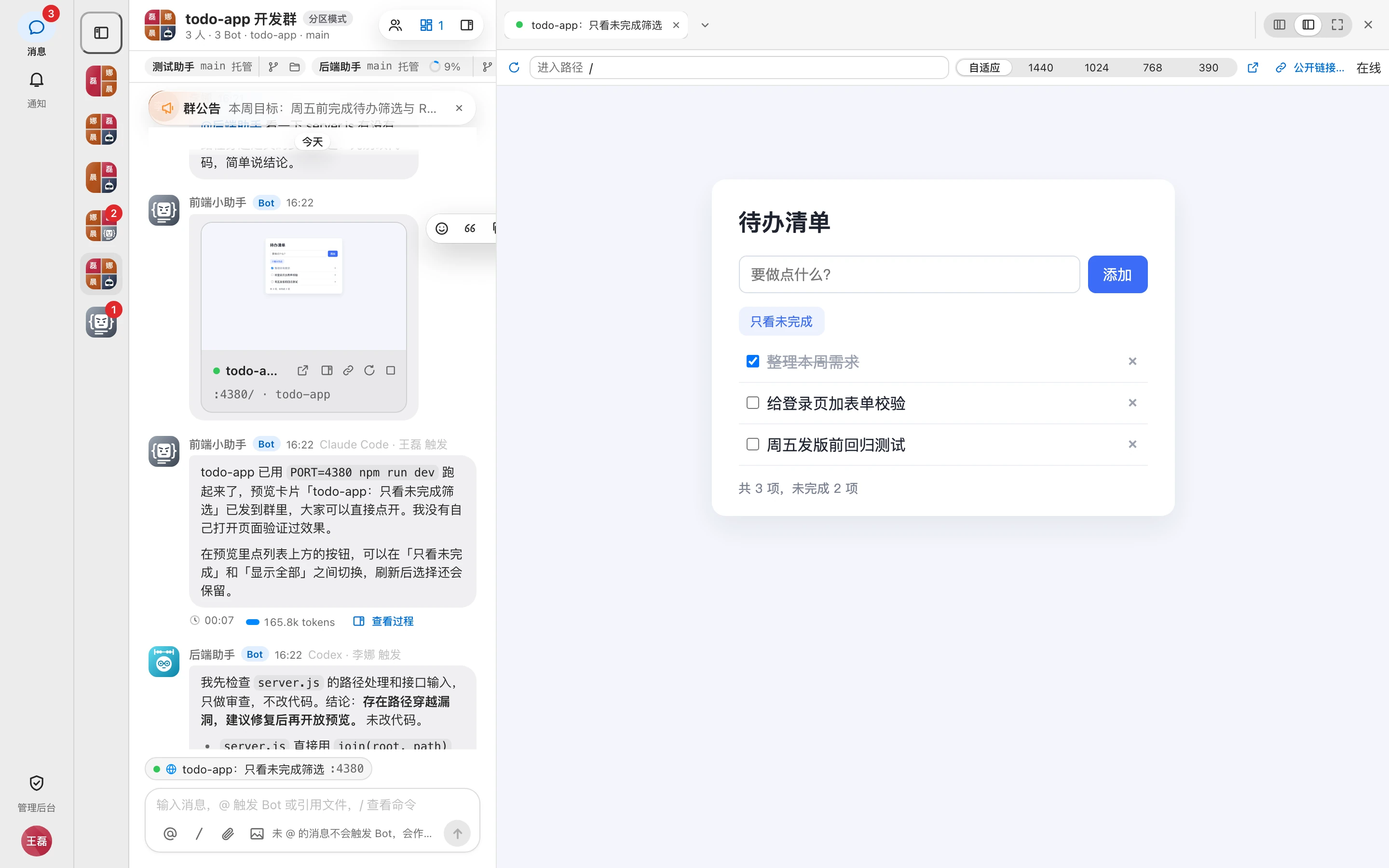
- 「布局」 (Layout) switches between 「分栏」 (Split), 「专注」 (Focus), and 「全屏」 (Full screen). Shortcuts: ⌘\ toggles between split and focus, ⌘⇧\ for full screen.
- ⌃Tab / ⌃⇧Tab switch tabs, and ⌥W closes the current tab. Right-click a tab to 「关闭」 (Close), 「关闭其他标签页」 (Close other tabs), or 「关闭右侧标签页」 (Close tabs to the right).
- You can have up to 12 tabs open at once. Only the 4 most recently used web tabs stay loaded; the rest go to 「休眠」 (Sleeping) and reload when you switch back.
- On phones, the workbench is full screen; tap 「返回聊天」 (Back to chat) to return to the group.
Web tab toolbar:
| Control | What it does |
|---|---|
| 刷新 (Refresh) | Reloads the page |
| 进入路径 (Go to path) | Type a path and press Enter to re-enter from that path; navigation inside the page isn't synced here |
| 视口尺寸 (Viewport size) | Responsive / 1440 / 1024 / 768 / 390, remembered per preview |
| 新窗口打开 (Open in new window) | Opens in a new browser tab |
| 公开链接… (Public link…) | Generates a public link (Bot owner, group admins) |
When the service stops, it shows 「服务已停止 · 等待 Bot 重新发布」 ("Service stopped · waiting for the Bot to republish"), and reloads automatically once it's back online.
Live view for desktop apps and mini programs
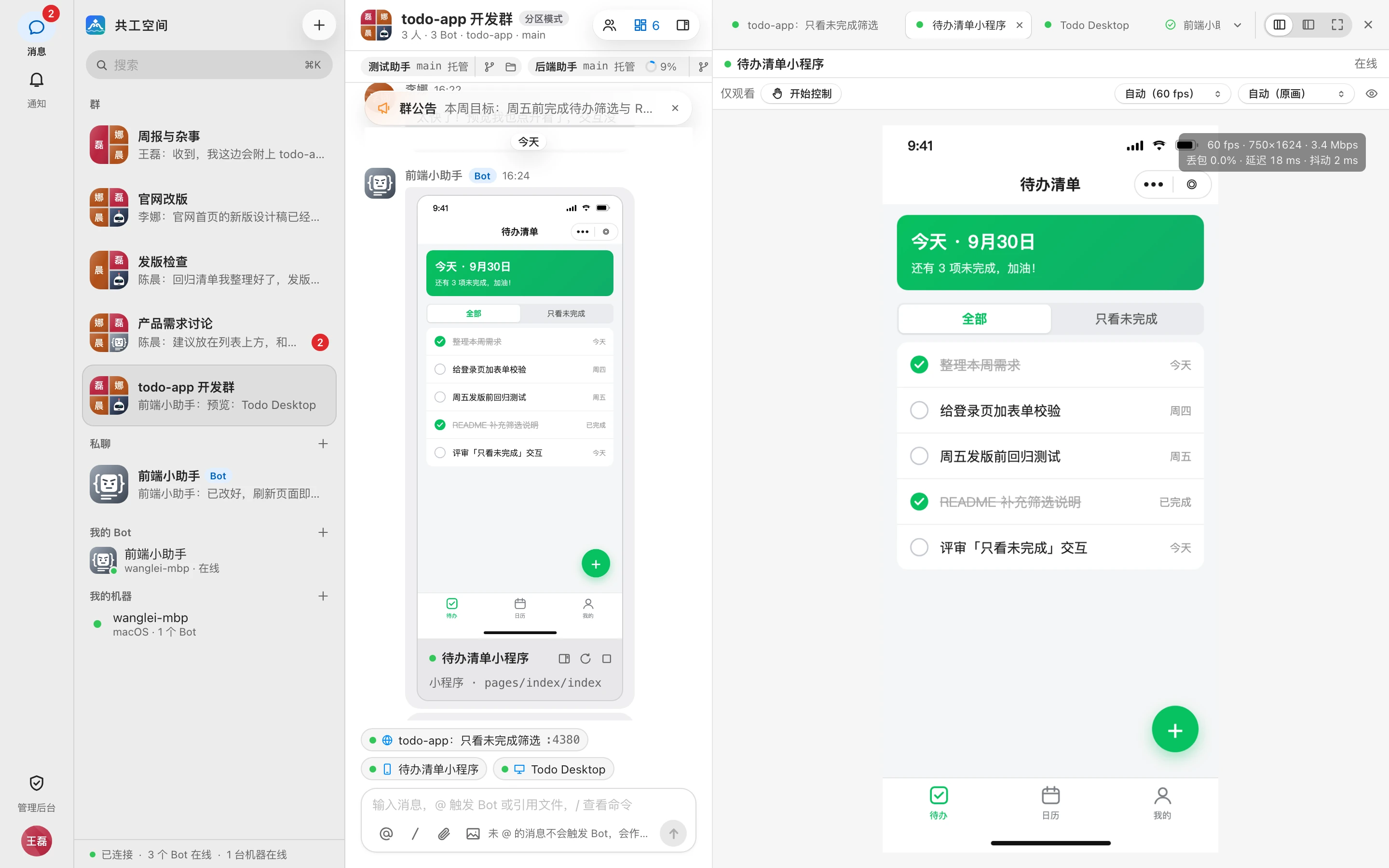
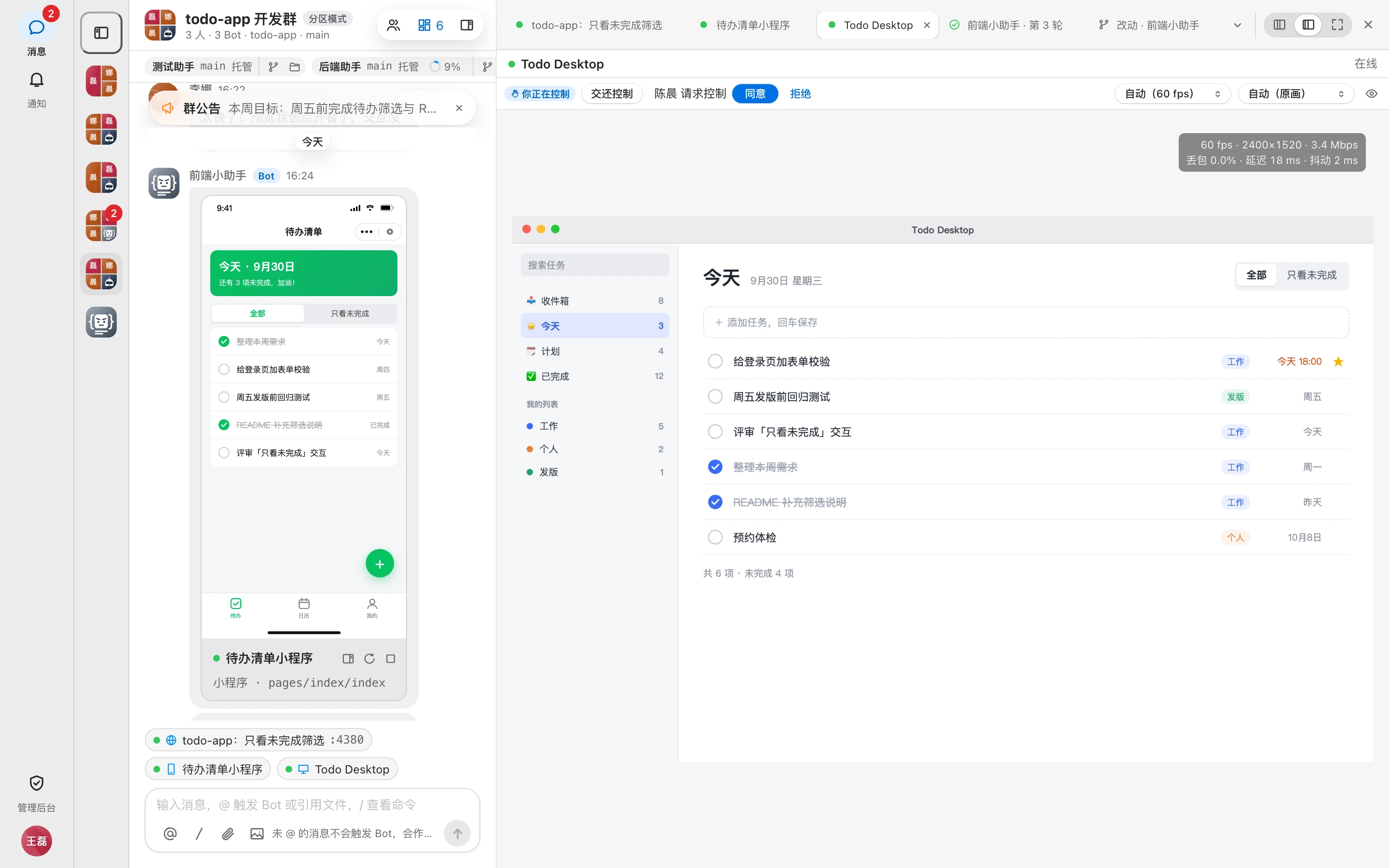
Desktop app and mini program previews open as a live view. The machine streams frames only while someone is watching.
Remote control
All group members can watch, but only one person can control it at a time:
- Members click 「请求控制」 (Request control), and the Bot owner or a group admin clicks 「同意」 (Allow) or 「拒绝」 (Deny) on the view.
- The Bot owner or a group admin can 「开始控制」 (Take control) directly; while someone else is in control, they can 「接管控制」 (Take over control) or 「收回控制」 (Revoke control).
- The person in control sees 「你正在控制」 ("You're in control") and clicks 「交还控制」 (Release control) when done. If you stop watching, you lose control automatically.
While in control, you can click, drag, scroll, and type on the keyboard (including with Chinese input methods).
In the toolbar you can adjust 「帧率」 (Frame rate: auto / 90 / 60 / 30 fps) and 「画质」 (Quality: 自动 auto / 原画 original / 超清 ultra / 高清 high), and show stream stats (frame rate, resolution, bitrate, packet loss, latency, jitter).
Platform limitations
| Scenario | Limitation |
|---|---|
| Desktop apps | macOS and Windows stream the app's windows; Linux can only stream apps in a virtual display, which requires the Bot to start the service with a virtual display |
| Mini program live view | Currently supported only on macOS and Windows |
| macOS permissions | Streaming requires the 「屏幕录制」 (Screen Recording) permission; remote control requires the 「辅助功能」 (Accessibility) permission |
When the view shows 「机器未授权屏幕录制」 ("Machine hasn't granted Screen Recording") or 「机器未授权辅助功能,远程操作不会生效」 ("Machine hasn't granted Accessibility; remote control won't work"), ask the Bot owner to grant it on the 「实时画面」 (Live view) page of the Gonggong Space desktop app; see Permissions and system settings.
When the view disconnects, it shows 「N 秒后自动重试」 ("Retrying in N seconds"); you can also click 「立即重试」 (Retry now).
WeChat DevTools guidance
Mini program previews depend on WeChat DevTools on the Bot's machine. If it gets stuck at a step, guidance appears on the view saying 「请 Bot 主人在运行 Bot 的电脑上操作」 ("Bot owner: please do this on the computer running the Bot"):
| Message | What to do |
|---|---|
| 请开启微信开发者工具的服务端口 ("Enable the service port in WeChat DevTools") | Open WeChat DevTools → menu bar 「设置 → 安全设置」 (Settings → Security) → turn on 「服务端口」 (Service port) |
| 请在微信开发者工具里允许共工空间访问 ("Allow Gonggong Space access in WeChat DevTools") | Switch to WeChat DevTools and click 「允许」 (Allow) in the 「Gonggong」 authorization dialog |
| 请在微信开发者工具里信任此项目 ("Trust this project in WeChat DevTools") | Switch to WeChat DevTools and click 「信任并运行」 (Trust and run) in the 「您信任此项目的作者吗?」 ("Do you trust the author of this project?") dialog; if there's no dialog, check the DevTools compile output |
It continues automatically once done. The first open requires compiling, which can take anywhere from tens of seconds to a minute or two.
If DevTools isn't signed in, the card shows 「微信开发者工具未登录,请用微信扫码登录」 ("WeChat DevTools isn't signed in; scan the QR code with WeChat to sign in"). Only the Bot owner and group admins can see the QR code; other members see 「等待 Bot 主人登录微信开发者工具」 ("Waiting for the Bot owner to sign in to WeChat DevTools"). After scanning, the card switches to the simulator view automatically.
Who can access previews
- Previews are open only to members of the group. When you open one from the card or the workbench, Gonggong Space verifies your identity automatically, so you don't need to sign in again.
- Sending the preview address directly to someone outside the group won't work. To show it to outside people, the Bot owner or a group admin generates a public link.
- Common messages: 「请从共工空间的预览卡片打开这个预览。」 ("Please open this preview from its preview card in Gonggong Space."), 「预览不存在或已关闭。」 ("The preview doesn't exist or has been closed."), 「链接已失效,请回到共工空间重新打开预览。」 ("The link has expired; go back to Gonggong Space and reopen the preview."), 「预览所在的机器离线,稍后再试。」 ("The preview's machine is offline; try again later.").
Idle auto-close
A preview that nobody visits for a while is closed automatically, after 24 hours by default. Admins can adjust this with the system parameter 「预览无人访问后自动关闭」 (Auto-close previews with no visitors); see System parameters.
- Opening the page, watching the live view, and retaking the screenshot all count as visits.
- When a preview is closed, its service is also stopped if no other preview is using the same service.
- The card is kept. It can be restored when the Bot restarts the service, or when the Bot owner or a group admin clicks 「重新开放」 (Reopen) on the card.
For admins
Whether preview addresses use a dedicated domain or a port range is determined by the server deployment; see Reverse proxy and preview domain.