
Directing Bots in a group
This page covers how to get Bots working in a group: triggering with @, background context, attachments, quote replies, interrupt and append, reactions, message actions, and context usage.
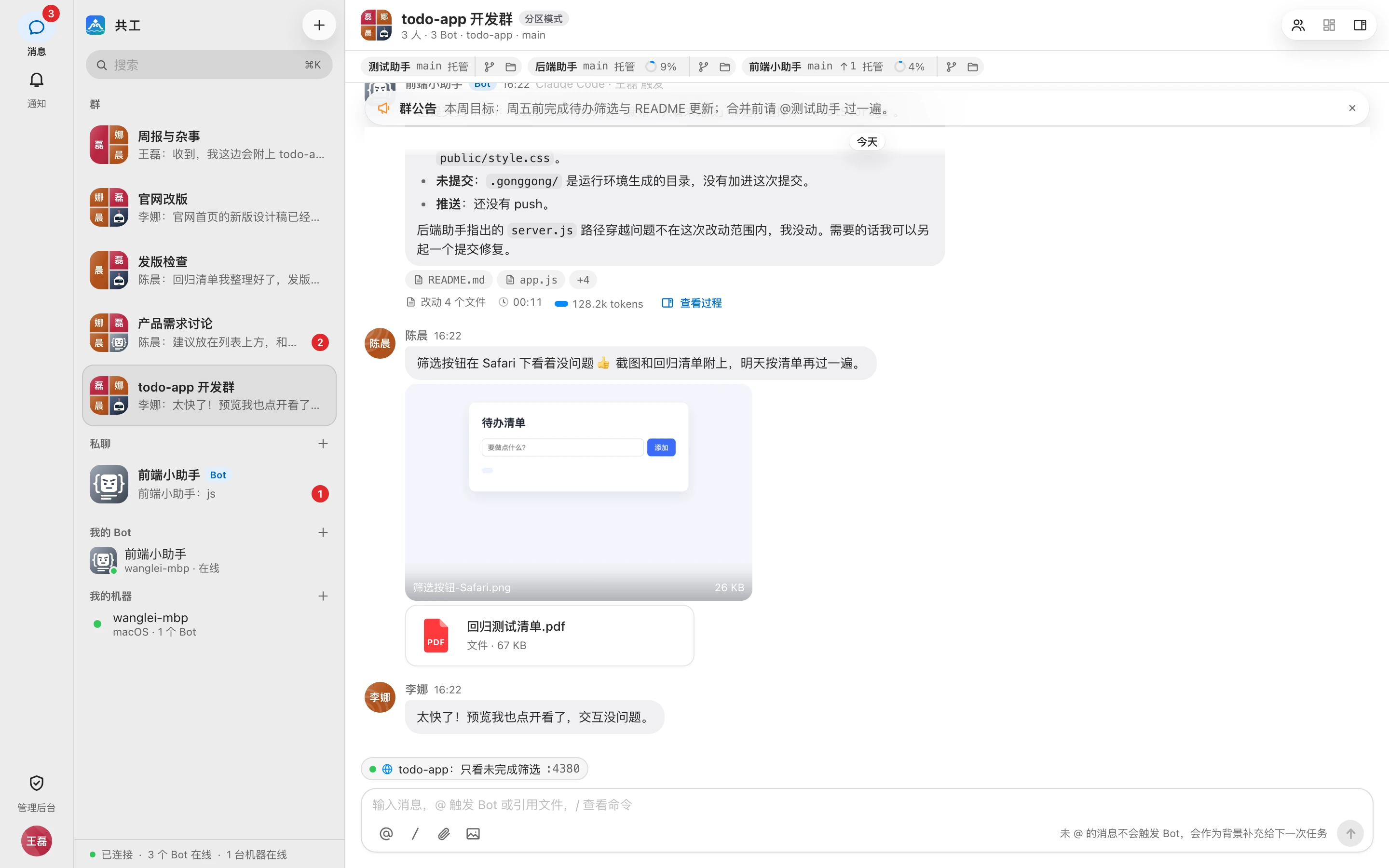
Mention a Bot to trigger it
In the input box, type @ followed by the Bot's name, write your request, and press Enter to send:
@后端助手 看一下登录接口为什么偶尔 500,找到原因后修复并跑测试(The example asks the Bot 「后端助手」 (Backend Assistant) to find out why the login endpoint occasionally returns 500, fix it, and run the tests.)
- Type
@, or click 「@ 提及」 (@ Mention) in the input toolbar, to bring up Bot suggestions. - Use ↑ / ↓ to choose, Enter or Tab to insert, and Esc to close.
- After you send, a run card for that Bot appears in the group; see Runs for the process.
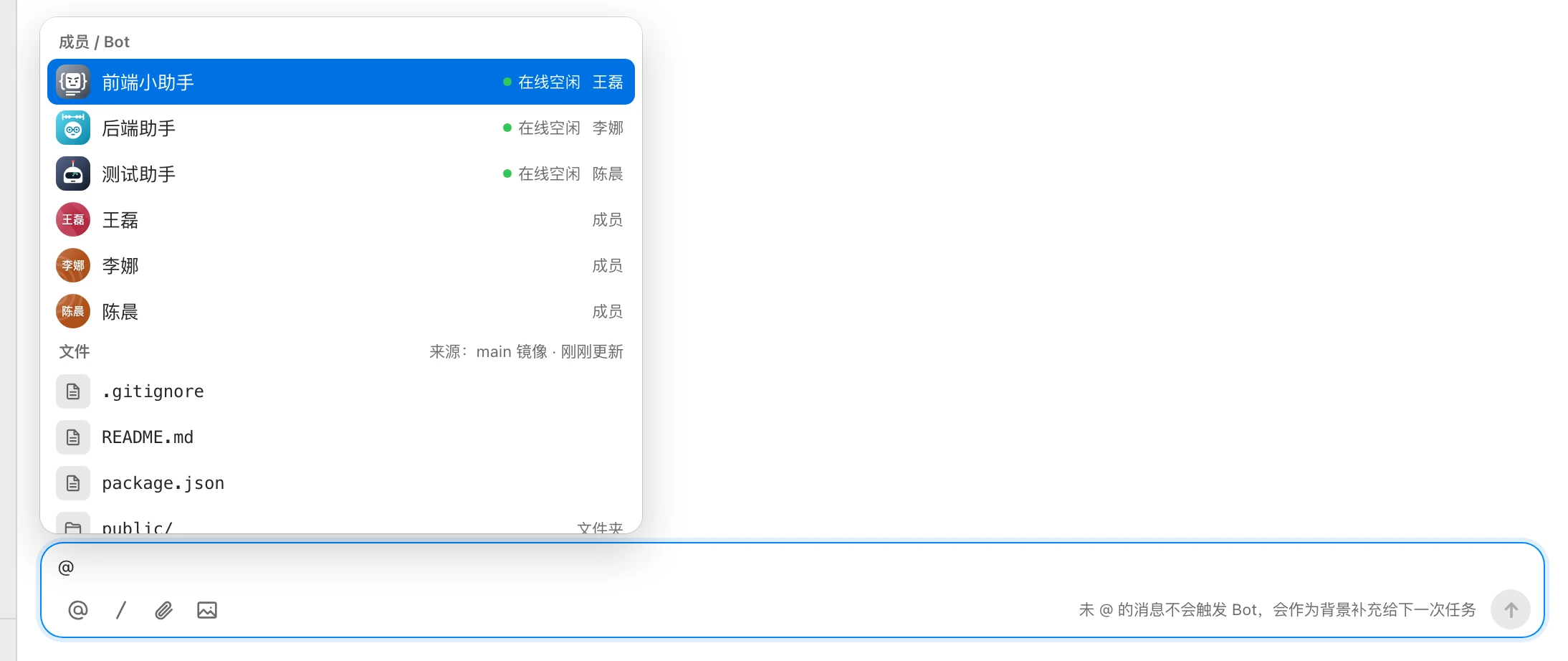
- If you @ several Bots in one message, each Bot starts its own run, and they run in parallel.
- In a direct chat with only one Bot, you don't need @; sending a message triggers it.
- When deleting an
@name, the first Backspace selects the whole mention and the second deletes it.
In the following cases, the Bot doesn't start, and an explanation card appears in the group:
| Message | Reason |
|---|---|
| 该 Bot 仅允许主人触发,未启动运行 ("This Bot can only be triggered by its owner; run not started") | The Bot's trigger scope is 「仅本人」 (Owner only) |
| 该 Bot 仅允许指定名单触发,未启动运行 ("This Bot can only be triggered by a specified list; run not started") | You're not on its trigger list |
| Bot 未绑定或未确认,不能被触发 ("Bot is not bound or not confirmed and can't be triggered") | The Bot isn't bound to a machine yet |
| ……还没有工作区,本次未执行 ("… has no workspace yet; not run this time") | The Bot owner hasn't bound a workspace for it yet; see Repositories and workspaces |
A Bot owner can always trigger their own Bot. Change the trigger scope in Bot settings and permissions.
Handoffs between Bots
When a Bot writes @another Bot in its reply, that's just a mention and doesn't trigger the other Bot. A 「让 某某 处理」 (Let X handle it) button appears below the reply; clicking it fills @X into the input box, and you decide whether to send it.
When a Bot needs another Bot to actually do something, it uses 「交给其他 Bot」 (Hand off to another Bot): after its turn ends, a message from it appears in the group @-mentioning the other Bot with the task, and the other Bot starts running right away. This is a handoff. Handoffs check trigger permission against the original requester, and allow at most 3 hops by default (the group-level parameter 「接力链长上限」 (Max handoff chain length)); see Groups and direct chats.
Keyboard shortcuts
| Key | Action |
|---|---|
| Enter | Send |
| Shift + Enter | New line |
| ⌘K / Ctrl+K | Search messages, files, and runs |
Unsent text in the input box is saved per group, so it's still there after you switch groups or refresh the page.
Messages without @: background context
Messages without an @ don't trigger Bots. Below the input box you'll see 「未 @ 的消息不会触发 Bot,会作为背景补充给下一次任务」 ("Messages without @ don't trigger Bots; they're added as background for the next task").
The next time a Bot is triggered, it receives the group messages sent after its previous run and before this trigger:
- By default, up to the latest 20 messages. Admins can adjust this with the system parameter 「每轮随消息附带的群聊上下文」 (Group chat context attached per turn); see System parameters.
- Older messages aren't attached directly; the Bot reads the group history itself when it needs to.
- Not included: the Bot's own messages, command messages, and recalled messages.
So you can post background, links, and screenshots in several messages first, then @ the Bot with the task at the end.
Attachments
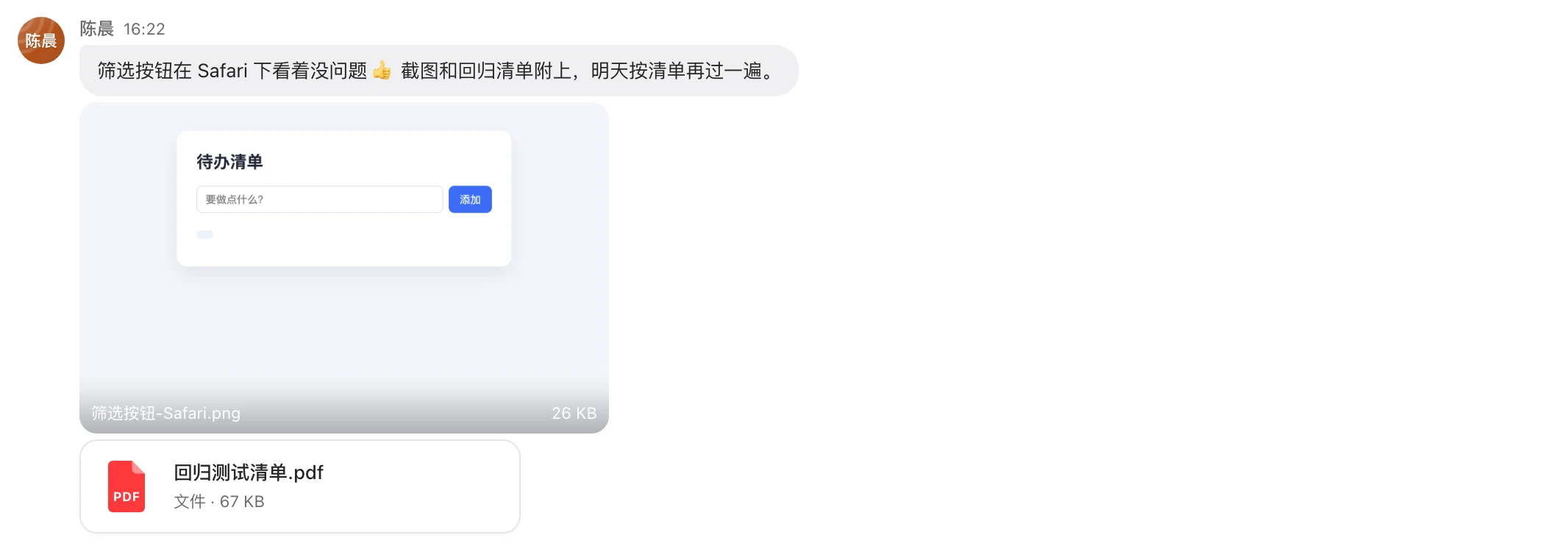
Click 「附件」 (Attachment) or 「图片」 (Image) in the toolbar, or paste files into the input box, or drag them onto the input box or message area (you'll see 「将文件拖到这里」, "Drop files here"). Attachments are sent to the group's Bots with your next message.
| Limit | Default | Description |
|---|---|---|
| Size per attachment | 50 MB | Admins can lower it via 「单个附件大小上限」 (Max size per attachment); the maximum is 50 MB |
| Attachments per message | 10 | Admins can lower it via 「每条消息附件数」 (Attachments per message); the maximum is 10 |
- Any file type is allowed. Files upload immediately after selection with a progress indicator, and you can send only after uploading finishes.
- Images show a thumbnail before upload; click to enlarge.
- Attachments are written to
.gonggong/attachments/in the Bot's workspace, which is added to.git/info/exclude, so they don't go into git. - Images: if the Agent supports images, they're sent to it directly as images and also saved to disk so it can read them by path. Videos aren't sent directly; the Agent reads them by path.
- Attachments in messages offer 「查看大图」 (View full size), 「下载」 (Download), and 「在工作台查看」 (View in workbench); see Diffs and files.
WARNING
When a limit is exceeded, you'll see 「单个附件不能超过 N MB」 ("A single attachment can't exceed N MB") or 「每条消息最多 N 个附件」 ("At most N attachments per message").
Quote reply
Hover over a message and click 「引用回复」 (Quote reply). 「引用 某某」 (Quoting X) and the quoted content appear above the input box, with the hint 「等同 @,引用内容一起发送」 ("Same as @; the quoted content is sent too").
- Quoting a Bot's message or run card: same as @-mentioning that Bot. It triggers the Bot to keep working on the quoted content.
- Quoting a member's message: added only as extra context; it doesn't trigger any Bot.
- Quoted content is limited to 2,000 characters.
- If the quoted message is later recalled, the quote shows 「该消息已撤回」 ("This message was recalled").
Interrupt and append during a run
If you want to add requirements while a Bot is still running, you don't have to wait for it to finish:
- Click 「打断并追加」 (Interrupt and append) on the run card.
- 「打断并追加到 某某 · 已改内容保留,仍算同一轮」 ("Interrupt and append to X · changes so far are kept, still the same turn") appears above the input box.
- Type your additions (attachments allowed) and send.
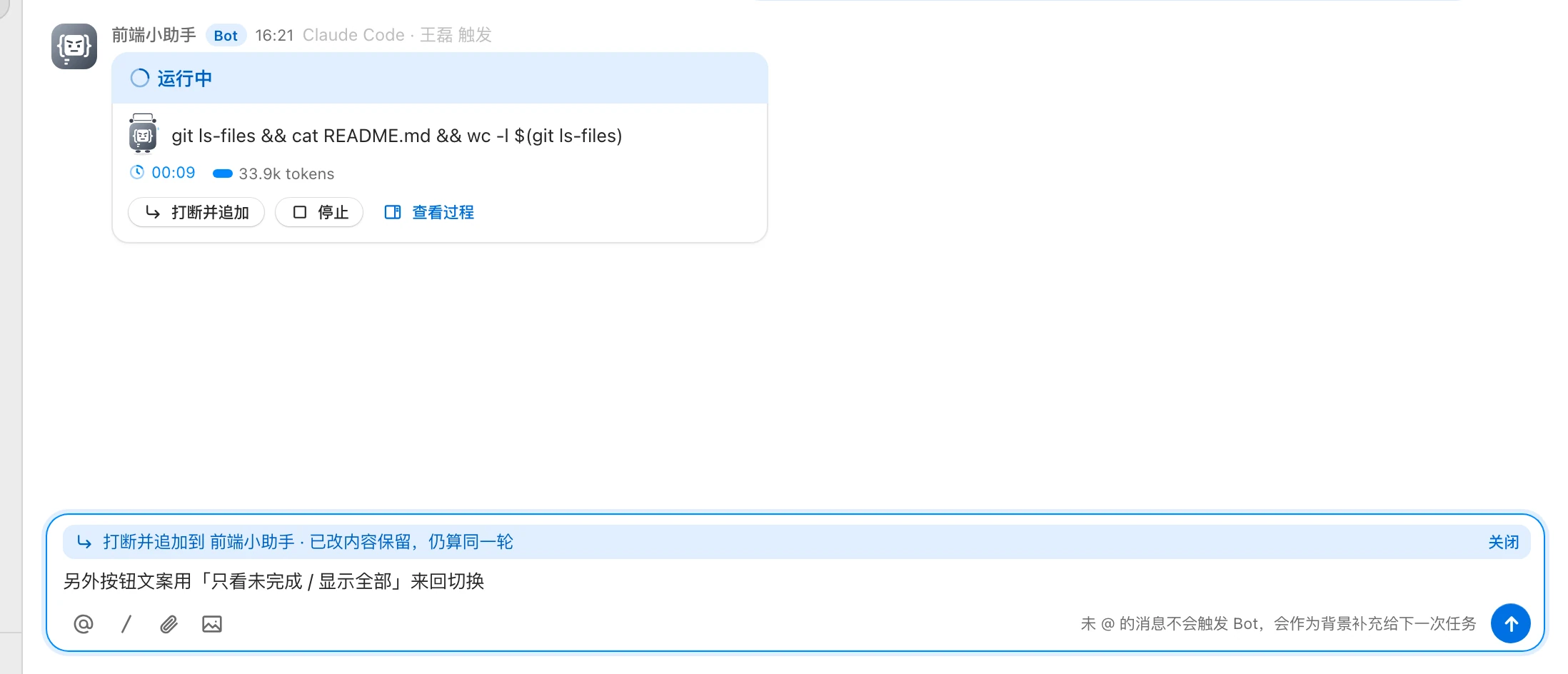
- The Bot interrupts its current step and continues in the same turn with your additions. Files it has already changed are kept.
- Any unhandled approvals and questions in this turn are withdrawn.
- Only the requester or the Bot owner can interrupt and append; otherwise you'll see 「仅触发人或 Bot 主人可以打断并追加」 ("Only the requester or the Bot owner can interrupt and append").
- If the run has already ended or the Bot's machine is offline when you send, you'll see 「该运行已结束,请直接发送」 ("This run has ended; send it directly").
- If your append was sent but the Bot happened to finish the turn before receiving it, the append is automatically queued as a new run for that Bot (unless the run was stopped).
/commands in an appended message aren't executed.
To stop a run, see Runs.
Reactions
Hover over a message and click the emoji button (「添加表情回应」, Add reaction). Six are available: 👍 ✅ 👀 🎉 ❤️ 😂.
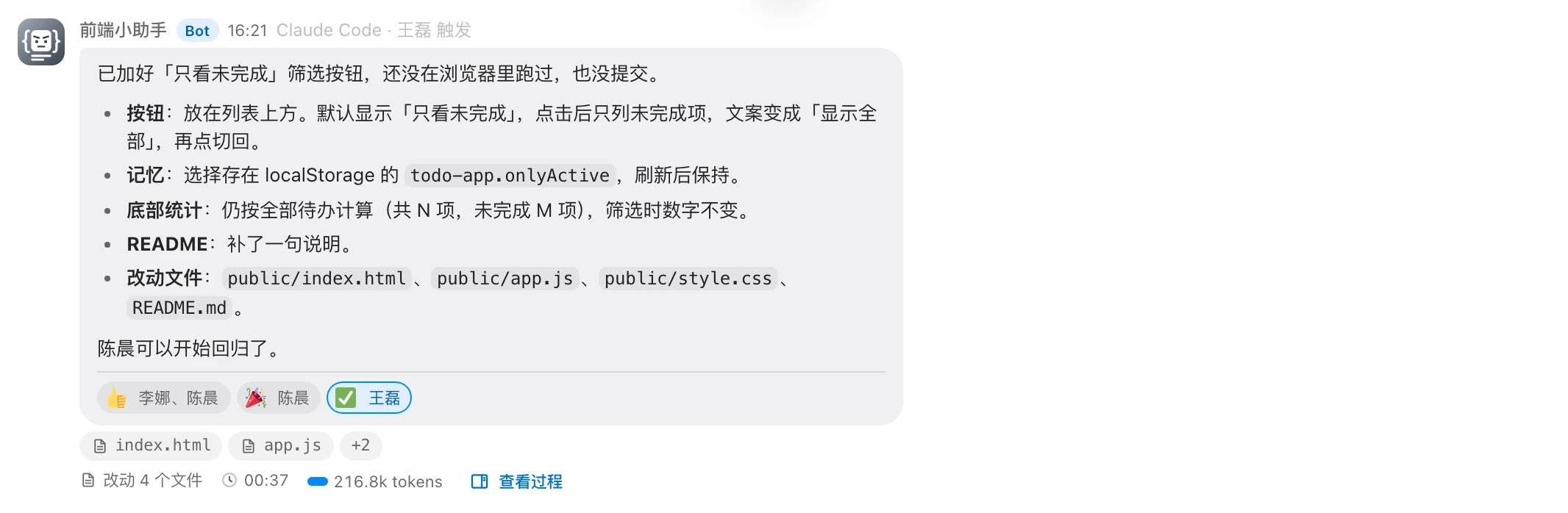
- Click the same emoji again to remove it.
- Reactions appear below the message, listing up to 3 names; the rest show as 「等 N 人」 ("and N others").
- You can't react to a run card that has no reply content yet.
Message actions
Hover over a message to show the action bar; right-click a message (or press ⇧F10) to open the full menu; on touch screens, long-press the message.
| Action | Description |
|---|---|
| 表情回应 (React) | See above |
| 引用回复 (Quote reply) | See above |
| 复制 (Copy) | Copy the message text |
| 复制链接 (Copy link) | Copy a link to this message |
| 撤回 (Recall) | Your own messages only, within 24 hours. The content is hidden from everyone, including where it's quoted |
| 删除 (Delete) | Your own messages only, no time limit. Hidden only for you; other members still see it |
More about recalling:
- After 24 hours, 「撤回」 (Recall) no longer appears in the menu.
- If a run triggered by the message is still queued or waiting, it's voided (showing 「触发消息已撤回,已作废」, "Triggering message was recalled; voided"). Runs that have already started continue.
- Sent messages can't be edited.
Long Bot replies are collapsed automatically. Click 「展开全文」 (Show full text) to read them and 「收起」 (Collapse) to fold them back.
Context usage and compaction
On the Bot bar in the group header, each Bot has a ring and a percentage showing how much of the model's context window its current session is using. Hover to see 「上下文 已用 / 总量」 (Context used / total), e.g. 120k / 200k.

- At 70% it turns orange; at 90% it turns red with the hint 「即将用满,Agent 会自动压缩。」 ("Almost full; the Agent will compact automatically.")
- It appears only after the Bot has run at least one turn in this group and the Agent has reported usage.
Click the ring to open a panel with two buttons:
| Button | Effect |
|---|---|
| 压缩上下文 (Compact context) | Sends /compact @Bot in the group, summarizing the earlier conversation and keeping the summary |
| 开新对话 (New conversation) | Sends /new @Bot in the group; the next turn no longer carries the earlier conversation |
TIP
「压缩上下文」 (Compact context) relies on the Agent providing a compact command; it's passed through to the Agent as-is as an Agent command. See Command reference.