
Groups and direct chats
This page covers creating groups and direct chats, adding people and Bots, changing the group name and announcement, every option in group settings, group admins, and leaving or disbanding a group.
- Group: team members and multiple Bots collaborate together. A group can be bound to a git repository.
- Direct chat: just you and your own Bots. Good for personal use or trying out a Bot.
Create a group
Entry point: the 「新建群」 (New group) button at the top of the left sidebar. On first use, you can also start from 「建群并 @ Bot」 (Create a group and @ a Bot) on the welcome page or under 「开始使用」 (Get started) in the sidebar.
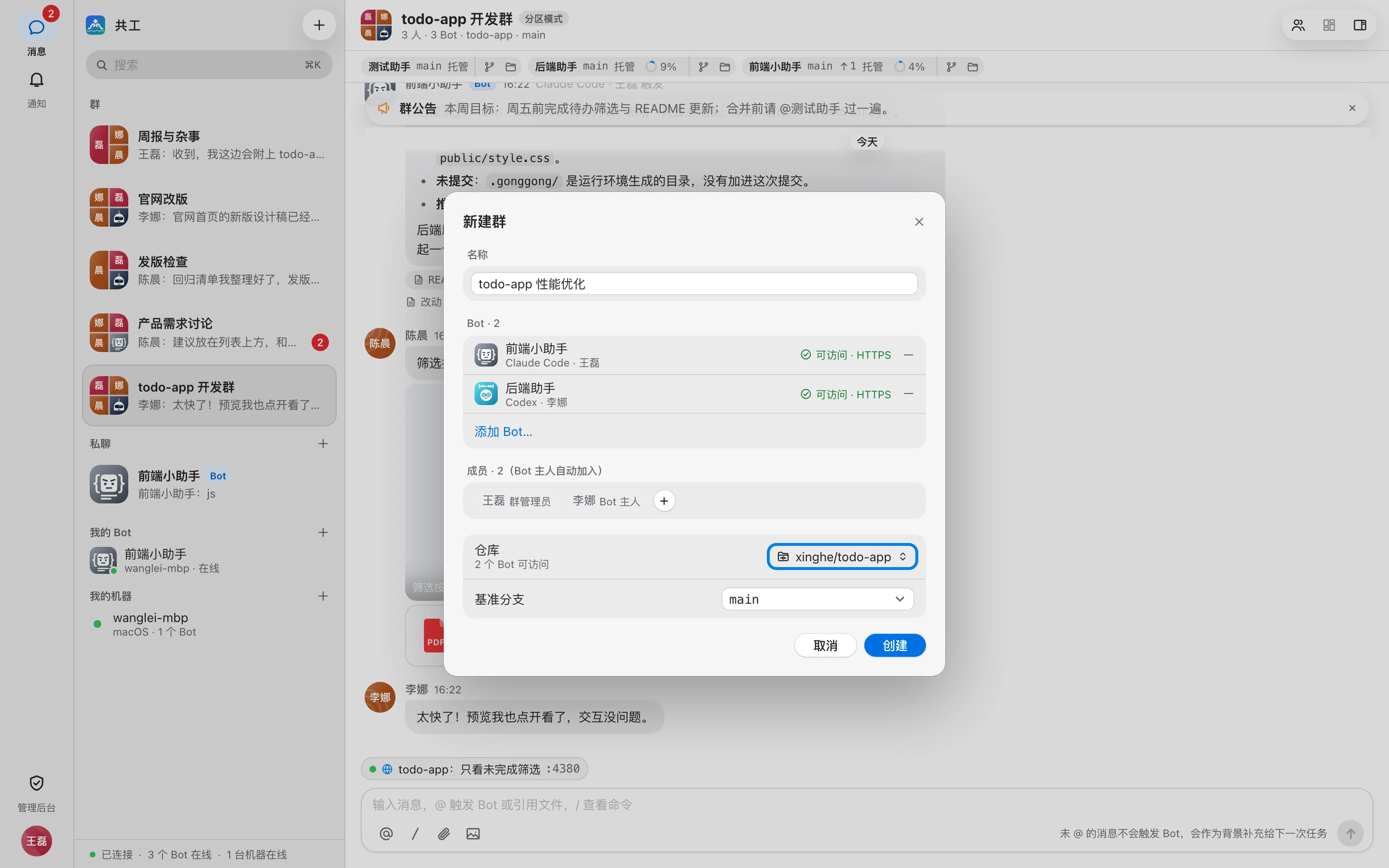
- Click 「新建群」 (New group).
- Enter a group name under 「名称」 (Name), up to 60 characters, e.g. 「todo-app 迭代」 (todo-app iteration).
- If the Bots need to change code, select or paste a git repository URL and confirm the 「基准分支」 (Base branch), which defaults to
main. Once filled in, the dialog automatically checks whether each Bot can access it; see Repositories and workspaces. You can also create the group without binding a repository. - Under 「Bot」, click 「添加 Bot…」 (Add Bot…) to add Bots.
- Under 「成员」 (Members), click 「+」 to search for and add colleagues.
- Click 「创建」 (Create).
- The creator automatically becomes a group admin.
- When you add someone else's Bot, the Bot owner automatically joins the group (labeled 「Bot 主人」 (Bot owner)).
- Bots that are not bound to a machine or are pending confirmation can't be added. You'll see 「待绑定,暂不能拉入」 ("pending binding, can't be added yet") or 「待确认,暂不能拉入」 ("pending confirmation, can't be added yet").
- If you bind a repository but leave the group name empty, the group is named after the repository.
- While the repository is being checked, the 「创建」 (Create) button shows 「检查中…」 (Checking…). If the branch doesn't exist, you can't create the group. Bots that can't access the repository still join the group, but in a paused state; see Repositories and workspaces.
Create a direct chat
- Click 「+」 (New direct chat) next to the 「私聊」 (Direct chats) section in the left sidebar.
- Select one or more of your own Bots.
- Click 「创建」 (Create).
- You can't add other members to a direct chat, and you can't add other people's Bots.
- A direct chat has no name; it shows the Bot's name instead. If the Bot is deleted, it shows 「已删除的 Bot」 (Deleted Bot).
- In a direct chat with only one Bot, you don't need to @ it; any message you send triggers it.
- Direct chats aren't bound to a repository. The Bot works in the default workspace set by its owner; see Repositories and workspaces.
Group settings sidebar
Click the 「群设置」 (Group settings) button on the right side of the group header to open the 「群设置」 sidebar on the right (「私聊设置」 (Direct chat settings) in a direct chat). Clicking the members button in the group header takes you straight to the 「群成员」 (Group members) page.
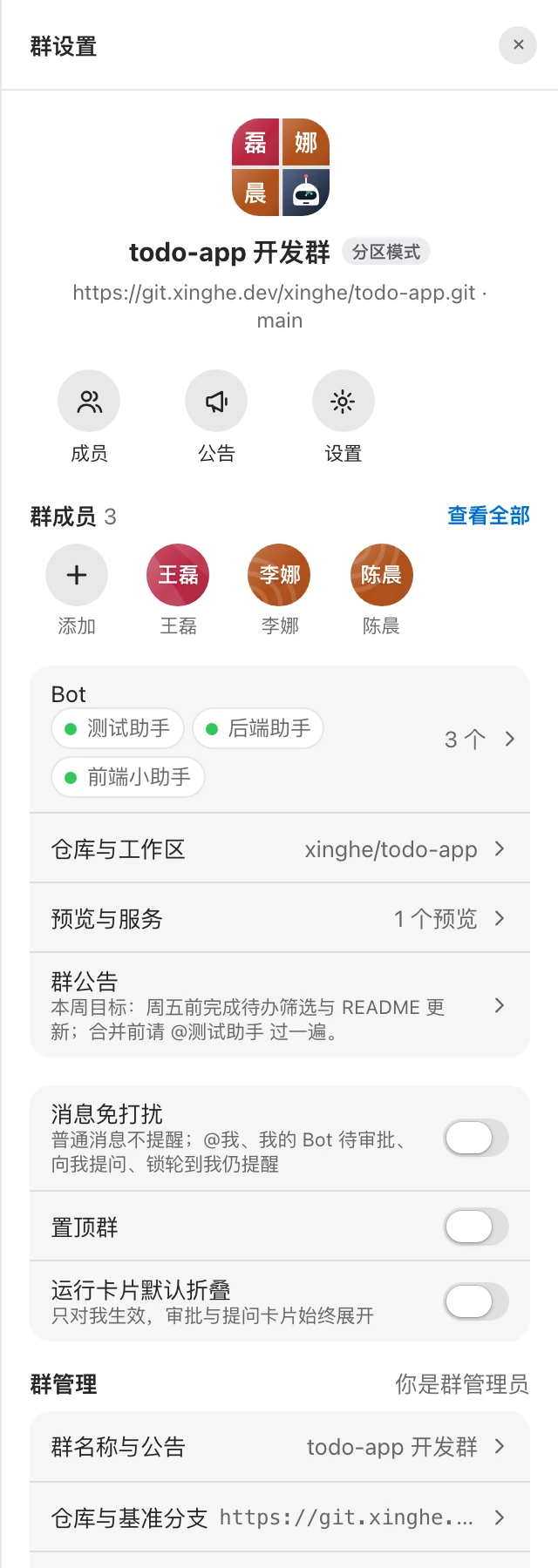
From top to bottom, the sidebar contains:
- Group name and mode: the group name is labeled 「分区模式」 (partition mode), followed by the repository URL and base branch. When no repository is bound, it shows 「未绑定仓库 · 各 Bot 使用本机目录」 ("No repository bound · each Bot uses a local directory").
- Quick buttons: 「成员」 (Members), 「公告」 (Announcement), 「设置」 (Settings). The last two are visible only to group admins.
- Member avatars: group admins can add members here.
- Bot, 仓库与工作区 (Repositories and workspaces), 预览与服务 (Previews and services), 群公告 (Group announcement): click to open the corresponding subpage.
- Personal toggles (affect only you):
| Toggle | Description |
|---|---|
| 消息免打扰 (Mute notifications) | No alerts for ordinary messages. You're still alerted when someone @s you, when your Bot is waiting for approval, when you're asked a question, and when the lock comes to your turn |
| 置顶群 (Pin group) | Pin the group to the top of the left sidebar |
| 运行卡片默认折叠 (Collapse run cards by default) | Affects only you; approval and question cards are always expanded |
- Group management: 「群名称与公告」 (Group name and announcement), 「仓库与基准分支」 (Repository and base branch), 「同步模式」 (Sync mode), 「群级参数」 (Group-level parameters). Only group admins can use these; other members see 「仅群管理员 · 某某」 ("Group admins only · X").
- At the bottom: 「退出群」 (Leave group) and 「解散群」 (Disband group) (「删除私聊」 (Delete direct chat) in a direct chat).
You can't set a group avatar manually: a group's avatar is composed automatically from its members' and Bots' avatars, and a direct chat shows the Bot's avatar.
Members and group admins
A group has only two roles: group admin and member. The creator is the first group admin, and a group can have multiple group admins.
Click 「成员」 (Members) in the sidebar to open the 「群成员」 (Group members) page:
- Each member is shown with whether they're a 「群管理员」 (group admin), and which Bots they brought in (「带入 某某」 ("Brought in X") or 「未带入 Bot」 ("No Bots brought in")).
- Group admins can 「添加成员」 (Add member), and for other members, 「设为管理员」 (Make admin), 「取消管理员」 (Remove admin), or 「移出」 (Remove).
| Action | Who can do it |
|---|---|
| Add or remove members | Group admin |
| Make or remove an admin | Group admin |
| Add or remove Bots | Group admin |
| Rename the group, post or remove the announcement | Group admin |
| Change the repository, edit group-level parameters | Group admin |
| Disband the group | Group admin |
| Set a Bot's permission tier in this group | Bot owner |
Choose a workspace for a Bot, use /cd | Bot owner |
| Leave the group | Any member |
WARNING
- When you remove a member, their Bots are removed from the group as well, and any turns in progress are stopped.
- The only group admin can't be removed or demoted. Make someone else a group admin first.
Bots in a group
Click 「Bot」 in the sidebar to open the Bot page, which shows 「N 个 · 在线 M」 ("N total · M online").
- Group admins click 「拉入 Bot」 (Add Bot) to add one. If a candidate Bot's owner isn't in the group, it's labeled 「主人将一并加入」 ("owner will also join").
- Each Bot shows its permission tier (labeled 「本群」 (This group) when set specifically for this group) and its trigger scope (any group member / 「仅本人」 (Only me) / specified list).
- In 「本群档位」 (Tier in this group), the Bot owner can choose 「只读」 (Read-only), 「工作区写入」 (Workspace write), or 「完全访问」 (Full access) specifically for this group, or 「跟随全局」 (Follow global). Changes take effect immediately on turns in progress. When this group's tier is Full access, only the specified list can trigger the Bot.
- 「全局设置」 (Global settings) jumps to the Bot's own settings; see Bot settings and permissions.
- Group admins can 「移出」 (Remove) a Bot. After removal, its workspace is kept and the owner decides whether to delete it; turns in progress are treated as interrupted.
Group name and announcement
Group admins edit these under 「群管理 → 群名称与公告」 (Group management → Group name and announcement) in the sidebar:
- 「群名称」 (Group name): up to 60 characters. Direct chats can't be renamed.
- 「群公告 · 置顶展示在对话顶部」 (Group announcement · pinned at the top of the conversation): up to 500 characters.
Group announcement
Once posted, the announcement is pinned at the top of the group's messages and visible to all members.
| Action | Who | Effect |
|---|---|---|
| 不再显示 (Don't show again) | Member | Hidden only for you. You can turn 「在对话顶部显示」 (Show at top of conversation) back on in 「群设置 → 群公告」 (Group settings → Group announcement) |
| 移除 (Remove) | Group admin | No member sees it anymore; it can still be viewed in the 「群公告」 history |
| 发布新公告 (Post new announcement) | Group admin | Replaces the old announcement, which stays in the history; members who had hidden it see the new one again |
The 「群公告」 (Group announcement) page in the sidebar shows the announcement history, with the current one labeled 「当前」 (Current).
Group settings dialog
Group admins click 「设置」 (Settings) in the sidebar to open the group settings dialog, with tab navigation on the left.
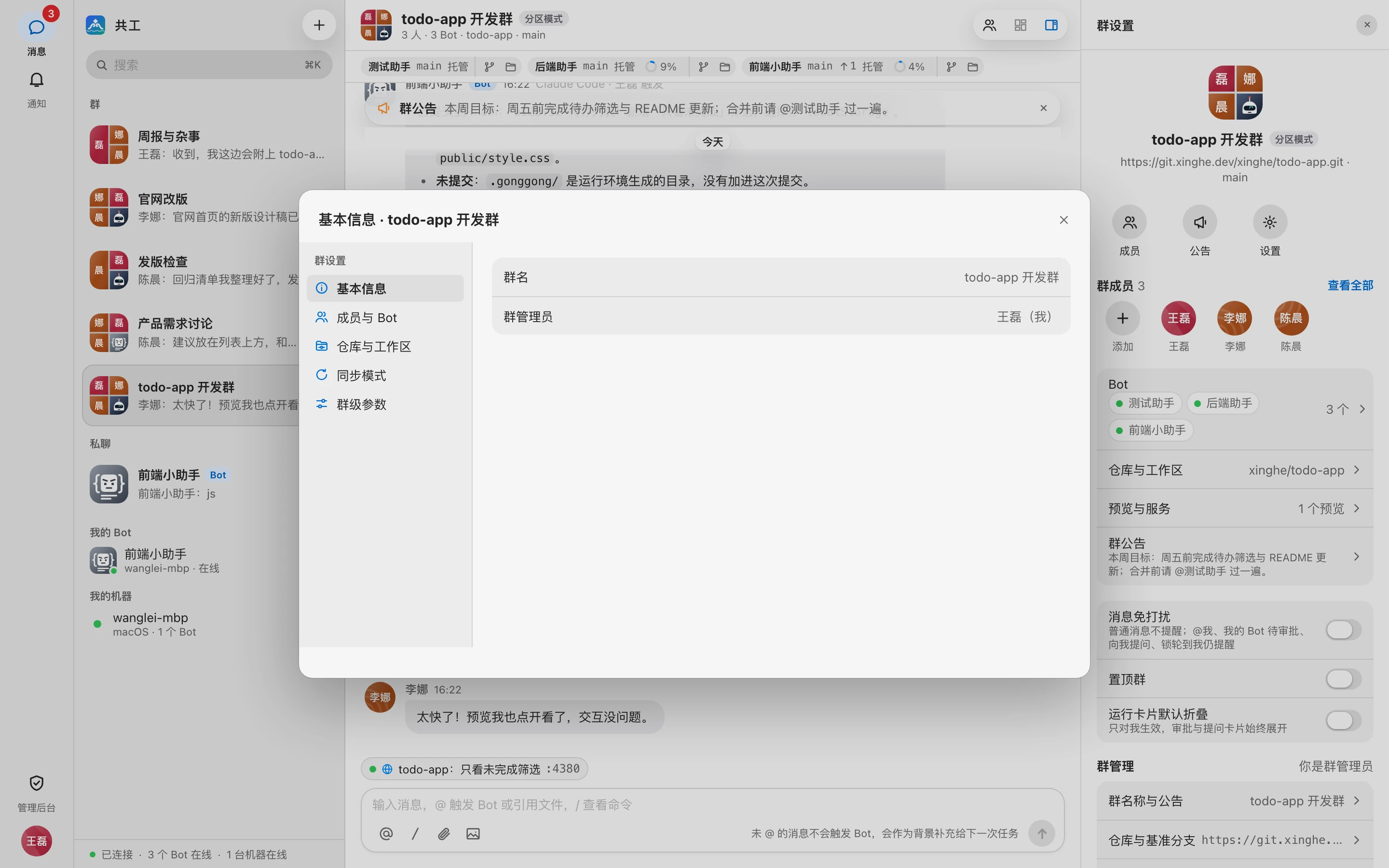
| Tab | Contents |
|---|---|
| 基本信息 (Basic info) | Group name, group admins (read-only) |
| 成员与 Bot (Members and Bots) | Same as the Bot page in the sidebar (「Bot」 in a direct chat) |
| 仓库与工作区 (Repositories and workspaces) | The group repository and each Bot's workspace; see Repositories and workspaces |
| 同步模式 (Sync mode) | Shows the current mode (partition mode) |
| 群级参数 (Group-level parameters) | This group's approval, handoff, and offline-wait parameters (「参数」 (Parameters) in a direct chat) |
Group-level parameters
Group-level parameters override the system defaults set by the admin. Click 「保存」 (Save) after making changes; they apply to new sessions.
| Parameter | Range | Default | Description |
|---|---|---|---|
| 权限审批等待 · 分区(分钟) (Permission approval wait · partition, minutes) | 1–1440 | 30 | If a permission request isn't handled within this time, it's automatically rejected; see Approvals and questions |
| 接力链长上限(跳) (Max handoff chain length, hops) | 1–10 | 3 | The maximum number of hops in a handoff between Bots |
| Bot 离线等待上线(分钟) (Wait for offline Bot, minutes) | 1–1440 | 30 | When a Bot is offline, how long a request waits for it to come online. On timeout, the request is voided and the requester is notified |
Defaults come from system parameters; see System parameters. A Bot's concurrency limit and trigger scope are the Bot's own settings, not set per group.
Leave, disband, and delete
These actions are at the bottom of the sidebar. The first click turns the button into a confirmation state with an explanation; click again to carry it out.
Leave group (any member):
- Click 「退出群」 (Leave group), then 「确认退出」 (Confirm leave).
- Your Bots are removed from the group as well.
- If you're the only group admin, you can't leave directly. Make someone else a group admin in 「群成员」 (Group members) first.
- If you're the last person left in the group, disband it instead.
- You can't leave a direct chat; you can only delete it.
Disband group (group admin):
- Click 「解散群」 (Disband group), then 「确认解散」 (Confirm disband).
- The group is archived and turns in progress are stopped.
- Messages and the audit log are kept.
- Each Bot's managed workspace stays on its machine, and the owner decides whether to delete it; see Workspace cleanup.
Delete direct chat: click 「删除私聊」 (Delete direct chat), then 「确认删除」 (Confirm delete). Messages and the audit log are kept, and the Bot's workspace stays on the local machine.