
Git management
This page covers managing the Git repository in a Bot's workspace directly from the web: committing, pushing and updating, branches, the log, stashes, resolving conflicts, who can do what, and how the base branch is protected.
Every operation is carried out by the daemon on the Bot's machine, inside that Bot's workspace, using the git credentials configured on the machine. Commits are authored under the Bot's identity.
Open the Git panel
Any of the following opens a 「Git · Bot 名」 (Git · Bot name) tab in the workbench on the right:
- Click the branch name on the Git bar in the group header;
- Click the added/removed line counts on the Git bar (e.g.
+12 −3) to go straight to the 「提交」 (Commit) view and review the changes; - 「Git 面板」 (Git panel) in the workspace menu;
- 「Git 面板」 (Git panel) in the workbench's 「新建标签页」 (New tab) menu.
The tab shows 「待审批 N」 (N to review) or 「冲突 N」 (N conflicts) when relevant. If the Bot's workspace isn't a Git repository yet, it shows 「Bot 名 的工作区还没有 Git 仓库」 ("Bot name's workspace has no Git repository yet"). For what each item on the Git bar means, see Diffs and files.
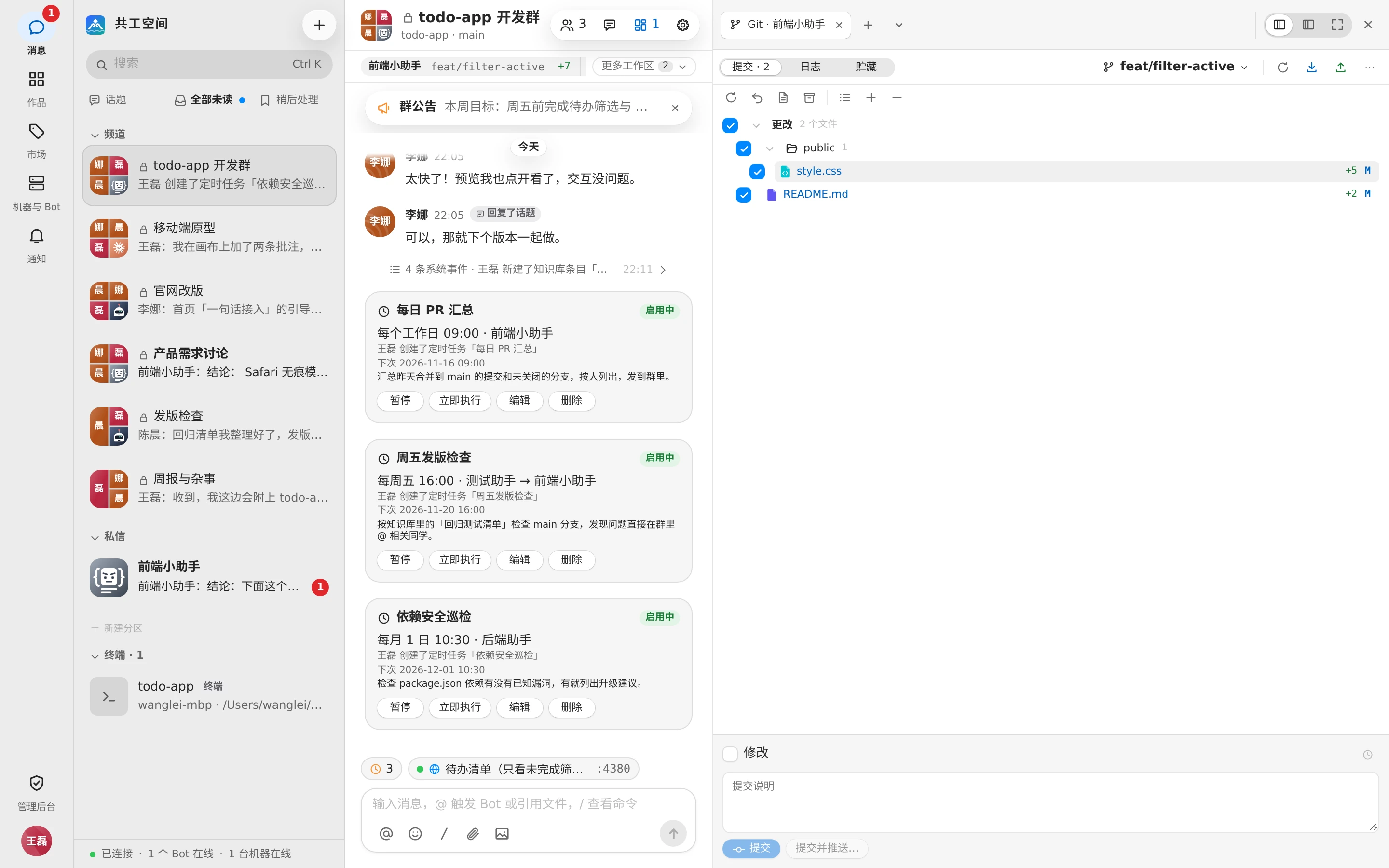
Toolbar
From left to right across the top of the panel:
| Control | What it does |
|---|---|
| 「提交 · N」 (Commit · N), 「日志」 (Log), 「贮藏 · N」 (Stashes · N) | Switch between the three views; N is the number of uncommitted files and the number of stashes |
| Branch button | Shows the current repository and branch; opens the branch popup, see below |
| ↓N / ↑N | Commits behind / ahead of upstream |
| 获取远程更新 (Fetch) | Runs fetch; shows 「获取完成」 ("Fetched successfully") when done |
| 更新… (Update…) | Brings upstream commits into the current branch |
| 推送… (Push…) | Pushes the current branch; shows 「推送…(未发布)」 (Push… (unpublished)) when there's no upstream yet |
| More Git actions | 「新建分支…」 (New branch…), 「检出标签或修订…」 (Checkout tag or revision…), 「拉取…」 (Pull…), 「合并…」 (Merge…), 「变基…」 (Rebase…), 「新建标签…」 (New tag…), 「编辑上一次提交说明…」 (Edit last commit message…), 「撤销上一次提交…」 (Undo last commit…), 「贮藏改动…」 (Stash changes…), 「浏览此版本的文件」 (Browse files at this version) |
Commit
The 「提交」 (Commit) view lists changed files on the left and the diff of the selected file on the right.
- Files are grouped into 「更改」 (Changes) and 「未跟踪的文件」 (Untracked files), plus a 「合并冲突」 (Merge conflicts) group when there are conflicts. Each file is marked M (modified), A (added), D (deleted), R (renamed), U (untracked), or C (conflict).
- You can switch between 「按目录分组」 (Group by directory) and 「平铺显示」 (Flat list).
- Check the files you want to commit to commit only those.
- Right-click a file: 「显示差异」 (Show diff), 「打开文件」 (Open file), 「注解」 (Annotate), 「回滚…」 (Rollback…), 「贮藏所选文件…」 (Stash selected files…), 「复制为补丁」 (Copy as patch), 「显示历史」 (Show history), 「复制路径」 (Copy path); untracked files also have 「删除…」 (Delete…), 「加入版本控制」 (Add to VCS), and 「加入 .gitignore…」 (Add to .gitignore…).
- Each change in the diff on the right can be rolled back on its own. For how to use the diff view, see Diffs and files.
Writing the commit message:
- Type it in 「提交说明」 (Commit message), or click 「最近的提交说明」 (Recent commit messages) to pick one you've used before. You're warned if the first line is longer than 72 characters or there's no blank line between the first line and the body.
- To change the previous commit, check 「修改」 (Amend). If that commit has already been pushed, you're reminded 「该提交已推送,修改后需要强制推送才能更新远程」 ("This commit is pushed; after the change a force push updates the remote").
- Click 「提交」 (Commit), or 「提交并推送…」 (Commit and push…) to open the push dialog right after committing.
After committing you see 「已提交 N 个文件:说明首行」 ("N files committed: first line of the message"); click 「编辑说明」 (Edit message) to change the message you just wrote.
Push and update
Push
「推送…」 (Push…) opens the 「推送提交」 (Push Commits) dialog, which lists the commits to be pushed and their changes:
- The target branch defaults to the upstream branch; click 「编辑目标分支」 (Edit the target branch) to choose another. On the first push, a branch with the same name is created on the remote and set as upstream.
- Under 「更多选项」 (More options) you can check 「推送标签」 (Push tag) or 「强制推送(--force-with-lease)」 (Force push (--force-with-lease)); a force push asks for confirmation once more.
- If the remote has new commits you haven't fetched, the push is rejected; you can merge or rebase first, after which the push is retried automatically.
In the log, right-click a commit and choose 「推送到此处为止…」 (Push all up to here…) to push only up to that commit.
Update and pull
- 「更新…」 (Update…): fetches from upstream and updates the current branch. 「更新方式」 (Update method) can be 「合并」 (Merge; creates a merge commit when the histories have diverged), 「变基」 (Rebase; replays local commits on top of upstream, keeping history linear), or 「仅快进」 (Fast-forward only; refuses when diverged). Local changes are stashed first and restored automatically afterward; if restoring conflicts, it's left for you to resolve.
- When the current branch has no upstream, use 「拉取…」 (Pull…) to choose the remote branch to pull.
- When the local branch has diverged from the remote, use 「处理分叉…」 (Resolve divergence…): 「变基到远程」 (Rebase onto remote), or 「丢弃本地提交」 (Drop local commits; resets the local branch to the remote — dropped commits can only be recovered from the reflog).
Branch popup
Click the branch button on the toolbar to open the branch popup:
- The search box finds branches and tags; you can also enter a commit hash.
- The list is grouped into 「最近」 (Recent), 「本地」 (Local), 「远程」 (Remote), and 「标签」 (Tags). Click the star to favorite a branch; the base branch is a favorite by default.
- Common actions are at the top: 「更新…」 (Update…), 「推送…」 (Push…), 「新建分支…」 (New branch…), 「检出标签或修订…」 (Checkout tag or revision…), 「获取远程更新」 (Fetch).
- Click a branch to expand its actions next to it: 「检出」 (Checkout), 「从 X 新建分支…」 (New branch from X…), 「检出并变基到 当前分支」 (Checkout and rebase onto current branch), 「与 当前分支 比较」 (Compare with current branch), 「显示与工作区的差异」 (Show diff with working tree), 「显示提交历史」 (Show log), 「将 当前分支 变基到 X」 (Rebase current branch onto X), 「将 X 合并到 当前分支」 (Merge X into current branch), 「更新」 (Update), 「推送…」 (Push…), 「重命名…」 (Rename…), 「删除…」 (Delete…), 「复制名称」 (Copy name). Remote branches also have 「使用合并拉取到 当前分支」 (Pull into current branch using merge), 「使用变基拉取到 当前分支」 (Pull into current branch using rebase), and 「在远程删除…」 (Delete on remote…); tags have 「推送到 远程」 (Push to remote) and 「删除标签…」 (Delete tag…).
When you switch branches, uncommitted changes come along to the new branch. If the target branch would overwrite them, 「Git 检出问题」 (Git Checkout Problem) pops up, offering 「智能检出」 (Smart checkout; stash first, restore after switching), 「强制检出」 (Force checkout; discard local changes to those files), or 「不检出」 (Don't checkout). Checking out a tag or a commit puts you in detached HEAD: new commits don't belong to any branch, so create a branch to keep them before switching away.
Multiple repositories
When the group has additional repositories, or the workspace contains sub-repositories or additional directories, the top of the branch popup gains a 「仓库」 (Repository) group listing each repository's current branch, number of changes, and ahead/behind counts. Click a repository to expand its branches and actions; 「切换到此仓库」 (Switch to this repo) switches the whole Git panel to it, and 「查看改动」 (View changes) shows its changes.
Status, commits, pushes, and base-branch protection are tracked separately for each repository.
Log
The 「日志」 (Log) view lists the commit history with a commit graph.
- Filters at the top: text or hash (with 「正则表达式」 (Regex) and 「区分大小写」 (Match case) options), branch, user (you can pick 「我」 (Me)), date (last 24 hours / 7 days / 30 days / a year, or custom), and path (file or folder).
- 「视图选项」 (View options): 「仅第一父提交」 (First parent only), 「不显示合并提交」 (No merge commits), 「按日期排序」 (Sort by date) or 「按拓扑排序」 (Sort topologically), 「显示标签」 (Show tags), 「高亮我的提交」 (Highlight my commits), and which columns to show.
- You can expand the branch pane to filter by branch or act on branches.
- Select a commit to see its details below (hash, parents, author, committer, contained in N branches) and the files it changed; select several consecutive commits to see their combined changes.
- 「转到哈希、分支或标签」 (Go to hash, branch or tag) jumps to a commit quickly.
Right-click a commit:
| Menu item | What it does |
|---|---|
| 复制提交哈希 / 复制提交说明 / 创建补丁 (Copy commit hash / Copy commit message / Create patch) | Copy or download |
| 优选 / 还原提交 (Cherry-pick / Revert commit) | cherry-pick, revert; works on multiple commits |
| 检出此修订 / 显示此修订的仓库 (Checkout revision / Show repository at revision) | Check out, or browse the files at this version read-only |
| 与本地比较 / 比较版本 (Compare with local / Compare versions) | Opens a compare tab (compare versions when two commits are selected) |
| 将当前分支重置到此处… (Reset current branch to here…) | Choose 「软重置(--soft)」 (Soft (--soft)), 「混合(--mixed)」 (Mixed (--mixed)), 「硬重置(--hard)」 (Hard (--hard)), or 「保留(--keep)」 (Keep (--keep)) |
| 从此提交之后交互式变基… (Interactively rebase from here…) | See below |
| 撤销提交… / 编辑提交说明… (Undo commit… / Edit commit message…) | Rewrite your own commits on the current branch |
| 推送到此处为止… (Push all up to here…) | Push only up to this commit |
| 新建分支… / 新建标签… (New branch… / New tag…) | Start from this commit |
| 转到父提交 / 转到子提交 (Go to parent commit / Go to child commit) | Jump through history |
On the files in a commit's details you can also 「优选所选改动」 (Cherry-pick selected changes), 「还原所选改动」 (Revert selected changes), 「从该版本取回文件…」 (Get from this revision…), and 「注解此修订」 (Annotate revision).
The compare tab 「比较 · A ↔ B」 (Compare · A ↔ B) can 「交换两侧」 (Swap sides) and switch between 「提交」 (Commits) and 「文件」 (Files), listing commits 「仅在 A 中」 (Only in A) and 「仅在 B 中」 (Only in B).
Interactive rebase
「从此提交之后交互式变基…」 (Interactively rebase from here…) lists the commits after this one, in execution order:
- Each commit can be set to Pick, Reword, Squash, Fixup, or Drop; Reword and Squash need a message.
- Reorder with move up / move down (Alt+↑ / Alt+↓).
- The first kept commit can't be Squash or Fixup; if the range contains merge commits, it can't be reordered here.
- If the commits have already been pushed, you must check 「我确认改写已推送的历史」 (I confirm rewriting published history), and you'll need to force push afterward.
Stashes
The 「贮藏」 (Stash) view lists all stashes, showing which branch each was made on and the files it contains.
- 「贮藏改动…」 (Stash changes…) puts away all uncommitted changes (optionally with 「包含未跟踪的文件」 (Include untracked files)); in the commit view you can also stash only the selected files.
- Each stash can be 「恢复…」 (Unstash…; optionally as a new branch, dropping the stash after restoring, and reinstating the index too), 「应用」 (Apply), 「弹出」 (Pop), 「删除…」 (Delete…), or 「复制哈希」 (Copy hash).
- 「清空」 (Clear) deletes all stashes; this can't be undone.
Resolve conflicts
When a merge, rebase, cherry-pick, revert, or unstash runs into conflicts, the Git bar and the panel show 「N 个冲突」 (N conflicts), and the commit view gets a 「合并冲突」 (Merge conflicts) group and a 「解决冲突」 (Resolve conflicts) button.
Click 「解决冲突」 (Resolve conflicts), or 「合并…」 (Merge…) on a conflicted file, to open the three-pane merge tool:
- The left and right panes are the two sides' versions, e.g. 「你的 · 当前分支」 (Yours · current branch) and 「他们的 · 合并进来的分支」 (Theirs · incoming branch); the middle is the merge result. You can 「显示基准」 (Show base).
- For each conflict you can accept yours, accept theirs, or ignore one side, or edit the result in the middle directly.
- 「应用所有非冲突改动」 (Apply all non-conflicting changes) and 「解决简单冲突」 (Resolve simple conflicts) handle everything that needs no judgment in one go; 「全部接受你的」 (Accept all yours) and 「全部接受他们的」 (Accept all theirs) take one side for the whole file.
- Move between conflicts with 「上一处冲突」 (Previous conflict), 「下一处冲突」 (Next conflict), and 「第 i / n 个文件」 (File i of n).
- Binary files, or files deleted on one side and modified on the other, can't be merged hunk by hunk; choose 「保留你的版本」 (Keep yours) or 「保留他们的版本」 (Keep theirs).
- When done, click 「应用」 (Apply); if conflicts remain unhandled you're asked to confirm once more.
Once all files are resolved, click 「提交合并」 (Commit merge) or 「继续合并 / 继续变基…」 (Continue merge / Continue rebase…) in the commit view to finish; to give up, click 「中止」 (Abort) to return to the state before the operation.
Who can do what
| Role | What they can do |
|---|---|
| Bot owner | Run any Git operation directly |
| Other group members | Can view; write operations become requests (buttons read 「提交申请」 (Send request), 「申请拉取」 (Request pull), 「申请推送…」 (Request push…), etc.) that run only after the Bot owner approves |
- After a member sends a request, they see 「已提交申请,等待 Bot 主人 某某 审批」 ("Request sent; waiting for the Bot's owner X to approve"). The request appears in this Bot's Git panel (the Git bar shows 「待审批 N」 (N to review)), and the Bot owner is also notified; requests not handled within 30 minutes expire.
- The requester is notified of the outcome, and branch switches, commits, pushes, and so on also leave a record in the group.
- While the Bot is running, write operations are refused with 「Bot 正在运行,等运行结束后再操作」 ("The Bot is running; try again after the run ends").
- When the Bot's machine is offline, Git information can't be read; if the client is too old, you're prompted to upgrade.
- Groups with force sync turned on don't offer Git operations.
Base branch protection
After 「禁止直推基准分支」 (No direct pushes to the base branch) is turned on under 「仓库与同步」 (Repos & sync) in group settings, each repository's default branch is protected:
- Pushing to the base branch requires checking 「我确认推送到基准分支」 (I confirm pushing to the base branch) in the push dialog; when the Bot owner approves such a request from a member, the approval counts as the confirmation.
- The base branch can't be force-pushed, deleted on the remote, or have its history rewritten by an interactive rebase.
- When a Bot needs to push to the base branch during a run, an approval card is also sent to the Bot owner; see Approvals and questions.
Force pushes to non-base branches are only allowed with --force-with-lease. Dangerous operations such as deleting, resetting, and discarding changes all ask for confirmation before running.