
Repositories and workspaces
This page covers how a group binds a git repository, which directory each Bot works in, how to read the Git bar, using /cd to have a Bot work in a local directory, and how to clean up workspaces.
First, two terms:
- Repository: the git repository URL and base branch bound to the group. The whole group shares one.
- Workspace: the directory where a Bot actually works on its machine. Each Bot in a group has its own workspace, so they don't interfere with each other.
Group mode
Groups currently have only partition mode: each Bot works independently on its own machine, in its own workspace. Changes stay in each Bot's workspace and aren't synced to other Bots automatically. When you need to merge, have the Bots commit a branch, push, or open a PR following your team's git workflow.
Bind a repository
Fill it in the dialog when creating a group, or have a group admin click 「绑定仓库…」 (Bind repository…) later under 「群设置 → 仓库与工作区」 (Group settings → Repositories and workspaces).
Choose a repository
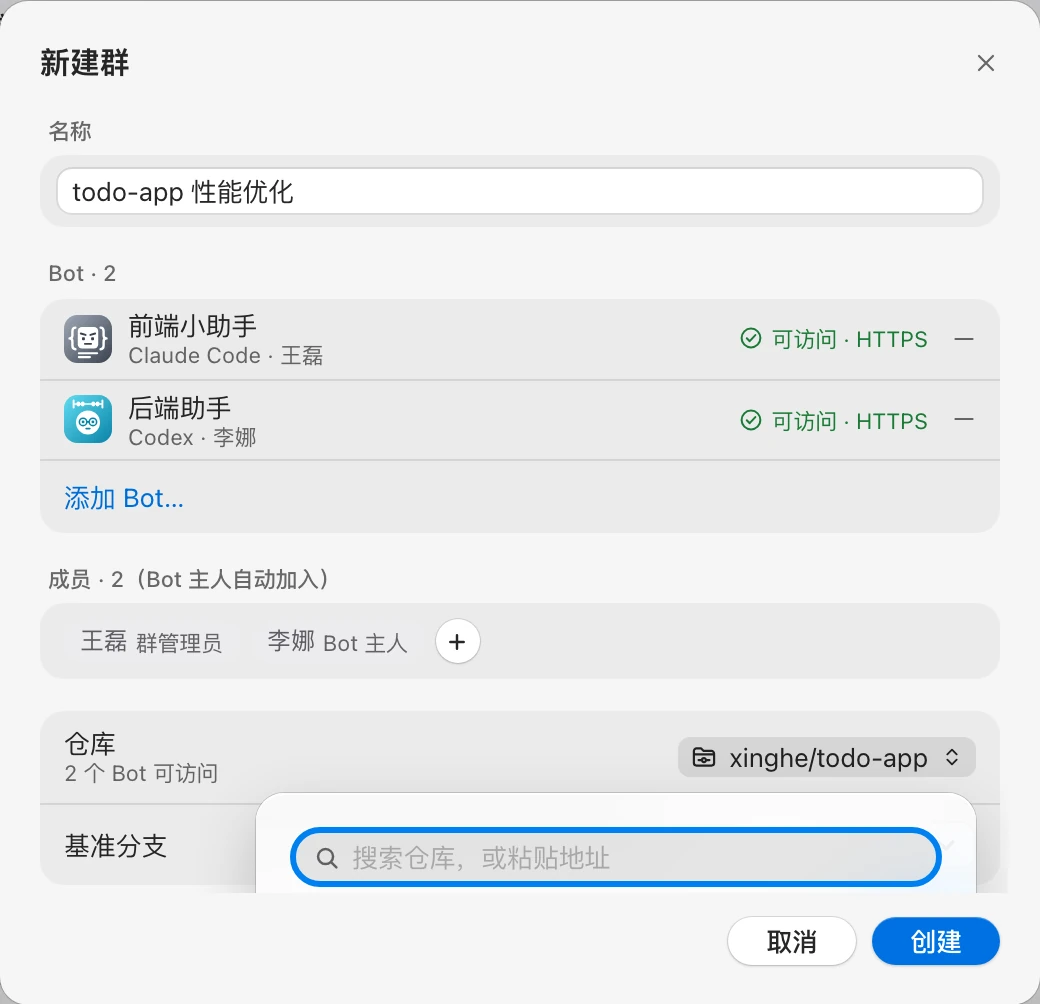
- Click the 「仓库」 (Repository) row to open the repository picker.
- Choose from 「最近」 (Recent) or a connected GitHub / GitLab account, or paste a URL directly into 「搜索仓库,或粘贴地址」 (Search repositories, or paste a URL) and click 「使用地址 …」 (Use URL …).
- Confirm the branch under 「基准分支」 (Base branch), which defaults to
main.
Supported URL formats:
| Format | Example |
|---|---|
| SSH | git@github.com:xinghe/todo-app.git |
| HTTPS / HTTP | https://github.com/xinghe/todo-app.git |
| ssh:// | ssh://git@git.example.com:2222/xinghe/todo-app.git |
If the URL format is wrong, you'll see 「地址格式不正确,支持 git@ / https:// / http:// / ssh://」 ("Invalid URL format; git@ / https:// / http:// / ssh:// are supported").
Access check
After you enter the URL, every Bot in the group checks whether it can access the repository on its own machine, using the git credentials already on that machine:
| Result | Meaning |
|---|---|
| 可访问 · HTTPS / 可访问 · SSH (Accessible · HTTPS / SSH) | Can clone |
| 无权限 · 进群后暂停 (No permission · paused after joining) | This machine has no access, or the repository doesn't exist |
| 网络或证书 · 进群后暂停 (Network or certificate · paused after joining) | Network unreachable or a certificate problem |
| 超时 · 进群后暂停 (Timeout · paused after joining) | Connection timed out |
| 离线 · 上线后验证 (Offline · verified when online) | The machine is offline; it will check once it's back online |
| 分支不存在 (Branch doesn't exist) | The base branch doesn't exist; binding is blocked |
- Only "branch doesn't exist" blocks binding. Bots with other failures still join the group, but start out paused; see Bot paused below.
- If you didn't change the branch and
maindoesn't exist, it's automatically switched to the repository's default branch. - If the group has no Bots yet, you'll see 「没有可检查的 Bot · 进群后由各 Bot 的机器验证」 ("No Bots to check · each Bot's machine verifies after joining").
Credentials and protocol
- Cloning uses the git credentials on each Bot's machine (SSH keys or a credential manager). The server doesn't store clone credentials. Bot owners should first confirm they can
git clonethe repository on their own machine. - Under avatar menu → 「设置…」 (Settings…) → 「Git 与仓库」 (Git and repositories) → 「协议偏好」 (Protocol preference), you can choose 「按仓库地址」 (Follow repository URL), 「优先 SSH」 (Prefer SSH), or 「优先 HTTPS」 (Prefer HTTPS). This decides which protocol your Bots try first when cloning or checking; on failure they automatically retry with the other one.
- Under 「已连接的账号」 (Connected accounts), 「添加账号…」 (Add account…) lets you connect a GitHub / GitLab token. The token is used only to list repositories and branches in the picker. It's stored encrypted on the server and isn't used for cloning.
Change the repository
A group admin clicks 「更换…」 (Change…) under 「群设置 → 仓库与工作区」 (Group settings → Repositories and workspaces).
WARNING
After the repository is changed, each Bot's managed workspace is rebuilt, and /cd bindings and sessions are cleared. Once a repository is bound, it can be changed but not unbound.
Each Bot's workspace
「各 Bot 的工作区」 (Each Bot's workspace) under 「群设置 → 仓库与工作区」 lists each Bot's status:
| Status | Meaning |
|---|---|
| 托管克隆 · 就绪 (Managed clone · ready) | Cloned and ready to work |
| 克隆中… (Cloning…) | Clone in progress |
| 等待上线 (Waiting to come online) | The machine is offline; it will clone once it's online |
| 已暂停 · 无权限 / 网络或证书 / 超时 (Paused · no permission / network or certificate / timeout) | The machine can't access the repository |
| 未选择工作区 (No workspace selected) | The owner hasn't chosen a workspace for it yet |
| A local directory path | A local directory was chosen with /cd or manually |
The Bot owner can click 「更改…」 (Change…) to choose a different workspace (unavailable while the machine is offline).
Managed workspace
In a group with a bound repository, a Bot uses a managed workspace by default after joining: its machine automatically clones the repository into a dedicated directory, with a path like:
~/.gonggong/workspaces/<群 ID>/<Bot ID>/<仓库 ID>/(<群 ID> is the group ID and <仓库 ID> is the repository ID.)
- One directory per group per Bot, isolated from each other.
- The group shows 「某某 加入 · 使用托管工作区,等待本机克隆…」 ("X joined · using managed workspace, waiting for local clone…") followed by 「某某 · daemon 已 clone 到托管工作区」 ("X · daemon has cloned into the managed workspace").
- Until the workspace is ready, @-mentioning the Bot won't run anything.
Choose another directory
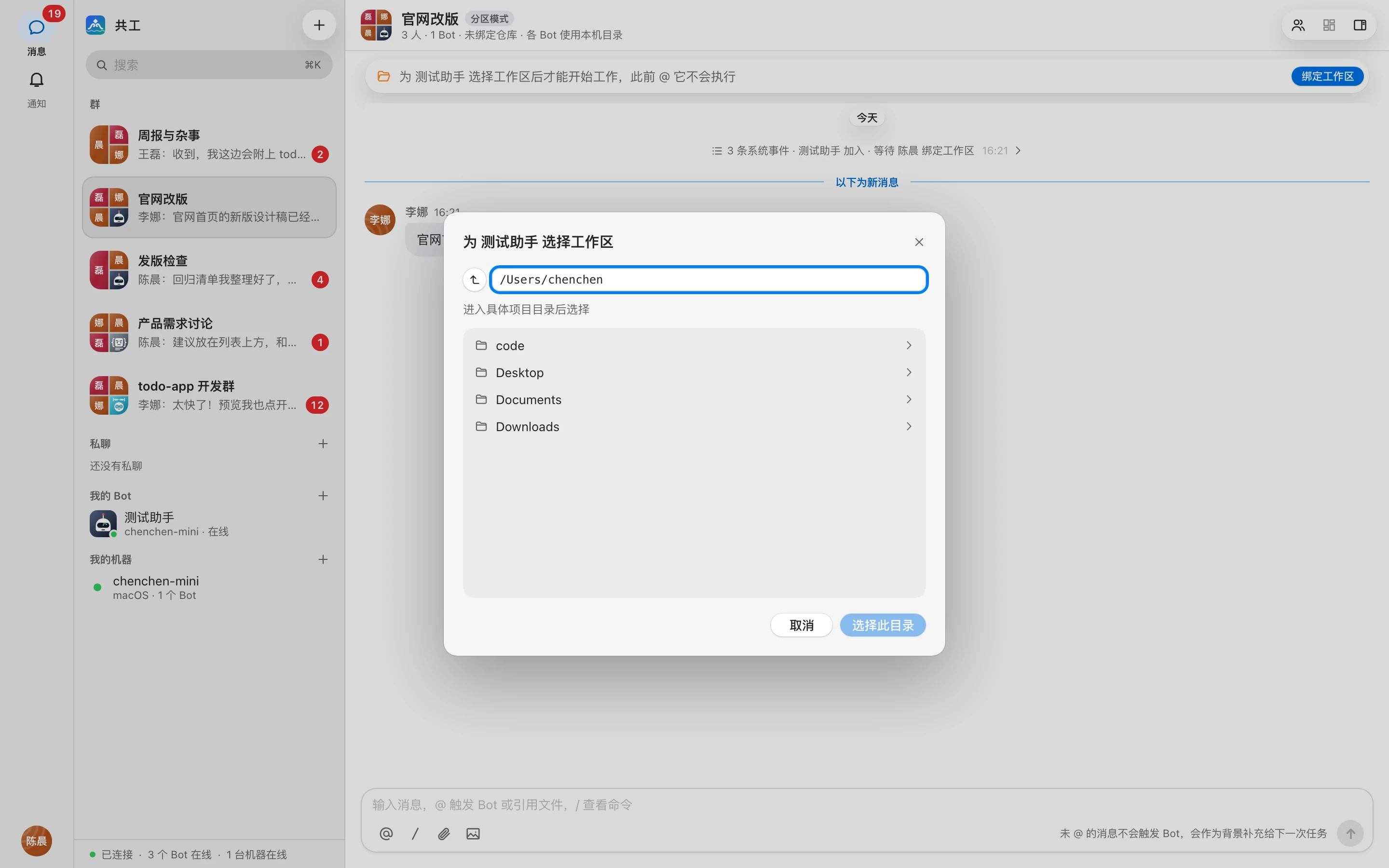
The Bot owner clicks 「更改…」 (Change…), or 「绑定工作区」 (Bind workspace) on the notice bar, to open 「为 某某 选择工作区」 (Choose a workspace for X):
- 「托管克隆群仓库」 (Managed clone of the group repository, recommended): automatically clones into a dedicated directory on the machine, so Bots don't interfere with each other.
- 「使用本机已有的仓库目录」 (Use an existing repository directory on this machine): use a clone that's already on the machine, no cloning needed.
- 「使用默认工作区」 (Use default workspace): the default directory set in the Bot's settings.
- Or browse the machine's directories, go into a specific project, and click 「选择此目录」 (Select this directory).
If the chosen directory isn't the group repository, you'll see 「该目录不是群仓库」 ("This directory isn't the group repository"). After you confirm 「仍然使用」 (Use anyway), this Bot no longer uses the group repository and base branch. This affects only that Bot.
These directories can't be used: directories that don't exist, the root or home directory (「目录范围过大,请选择具体的项目目录」, "Directory scope too broad; choose a specific project directory"), and system directories (「不能使用系统目录」, "System directories can't be used").
Two Bots in the same directory
When two Bots point to the same real directory, a question card appears in the group asking you to choose 「并行开始」 (Start in parallel) or 「排队等待」 (Queue). Running in parallel is fine when their changes don't overlap; if they edit the same file, they'll overwrite each other.
Bot paused
When a machine can't access the repository, a notice bar appears in the group, such as 「某某 已暂停:所在机器无法访问仓库(无权限或仓库不存在)」 ("X is paused: its machine can't access the repository (no permission, or the repository doesn't exist)").
- The Bot owner sets up git credentials on that machine.
- The Bot owner or a group admin clicks 「重新检查」 (Check again) on the notice bar, and the machine clones again.
Groups without a bound repository
In groups without a bound repository and in direct chats, a Bot uses the 「默认工作区」 (Default workspace) its owner set in the Bot's settings. If none is set, the group shows 「等待 某某 绑定工作区」 ("Waiting for X to bind a workspace"), and the Bot owner chooses a directory for it. The directory doesn't have to be a git repository.
In these groups, the Git bar doesn't show branch or other git information.
Git bar
In a group with a bound repository, a Git bar sits below the group header, with one segment per Bot:

| Shows | Meaning |
|---|---|
| Branch name | The workspace's current branch |
| ↓N | N commits behind the remote |
| ↑N | N commits ahead of the remote |
| 未提交 (Uncommitted) | The workspace has uncommitted changes |
| 托管 / 本机目录 (Managed / Local directory) | Workspace type |
| 待绑定 / 待创建 / clone 中… / 工作区创建失败 (Pending binding / Pending creation / Cloning… / Workspace creation failed) | The workspace isn't ready yet |
- 「改动」 (Changes): opens this Bot's changes. If there are uncommitted changes, it shows those; otherwise it compares against the base branch.
- 「文件」 (Files): browse the files in this Bot's workspace.
- Status refreshes after each run ends. The Git bar is view-only; it has no commit or push buttons.
For how to view changes and files, see Diffs and files. The Git bar also shows each Bot's context usage; see Context usage and compaction.
Work in a local directory with /cd
A Bot owner can use /cd to have a Bot work directly in a directory on its machine, such as a project you're developing locally:
/cd @后端助手 /Users/wanglei/code/todo-appTo go back to the managed workspace:
/cd @后端助手 --reset- Only the Bot owner can use it. The path must be an absolute path on the Bot's machine, and the Bot must be online.
- Directory validation is the same as in "Choose another directory" above. If validation fails, the original workspace is kept.
- The group shows 「已请求 某某 绑定到 …,等待本机校验…」 ("Requested X to bind to …, waiting for local validation…") followed by 「✓ 某某 已绑定到 …(本机目录)」 ("✓ X is bound to … (local directory)").
- If the directory is deleted later, runs fail with 「/cd 目录不存在」 ("/cd directory doesn't exist").
Three ways to go back to the managed workspace: send /cd @Bot --reset in the group; run gg workspaces --reset-cd <群/Bot> on the machine; or click 「改回托管」 (Switch back to managed) on the 「工作区」 (Workspaces) page of the Gonggong Space desktop app.
For the full syntax, see Command reference.
Workspace cleanup
When a Bot is removed from a group, a group is disbanded, or a Bot is deleted, its workspace is not deleted automatically. The Bot owner decides.
To view workspaces on the Bot's machine:
gg workspacesEach row shows 「群 × Bot」 (group × Bot), the type (托管 / 托管 · 无仓库 / 本机目录: managed / managed · no repository / local directory), the path, and the status:
| Status | Meaning |
|---|---|
| 运行中 (Running) | In use right now |
| 空闲 (Idle) | In use, but nothing is running |
| 已移出 · 大小 (Removed · size) | The Bot was removed or deleted, or the group was disbanded |
| 未使用 · 大小 (Unused · size) | The group and Bot still exist, but the Bot has switched to another directory (/cd or a repository change) |
To delete a managed workspace you no longer need:
gg workspaces --delete <群>/<Bot><群> (group) and <Bot> can be IDs or names.
- Only managed workspaces marked "removed" or "unused" can be deleted.
- Local directories bound with
/cdare never deleted. - You can also click 「删除…」 (Delete…) on the 「工作区」 (Workspaces) page of the Gonggong Space desktop app; see Desktop app pages.
TIP
When a machine's binding is revoked, the daemon cleans up all managed workspaces on that machine; /cd directories and backups are kept.
For the command's full options, see CLI reference.