
My machines and Bots
「机器与 Bot」 (Machines & Bots) is where you manage the machines you've bound and the Bots running on them. This page covers the machine list, the tabs of the machine details page (Workspaces, Git access, Diagnostics, Plugin permissions), daemon upgrades, terminal sessions, and renaming and revoking machines. Agent tools and providers are covered separately in Agent tools and providers.
Open Machines & Bots
Click 「机器与 Bot」 (Machines & Bots) in the left navigation bar. The conversation list is replaced by a tree:
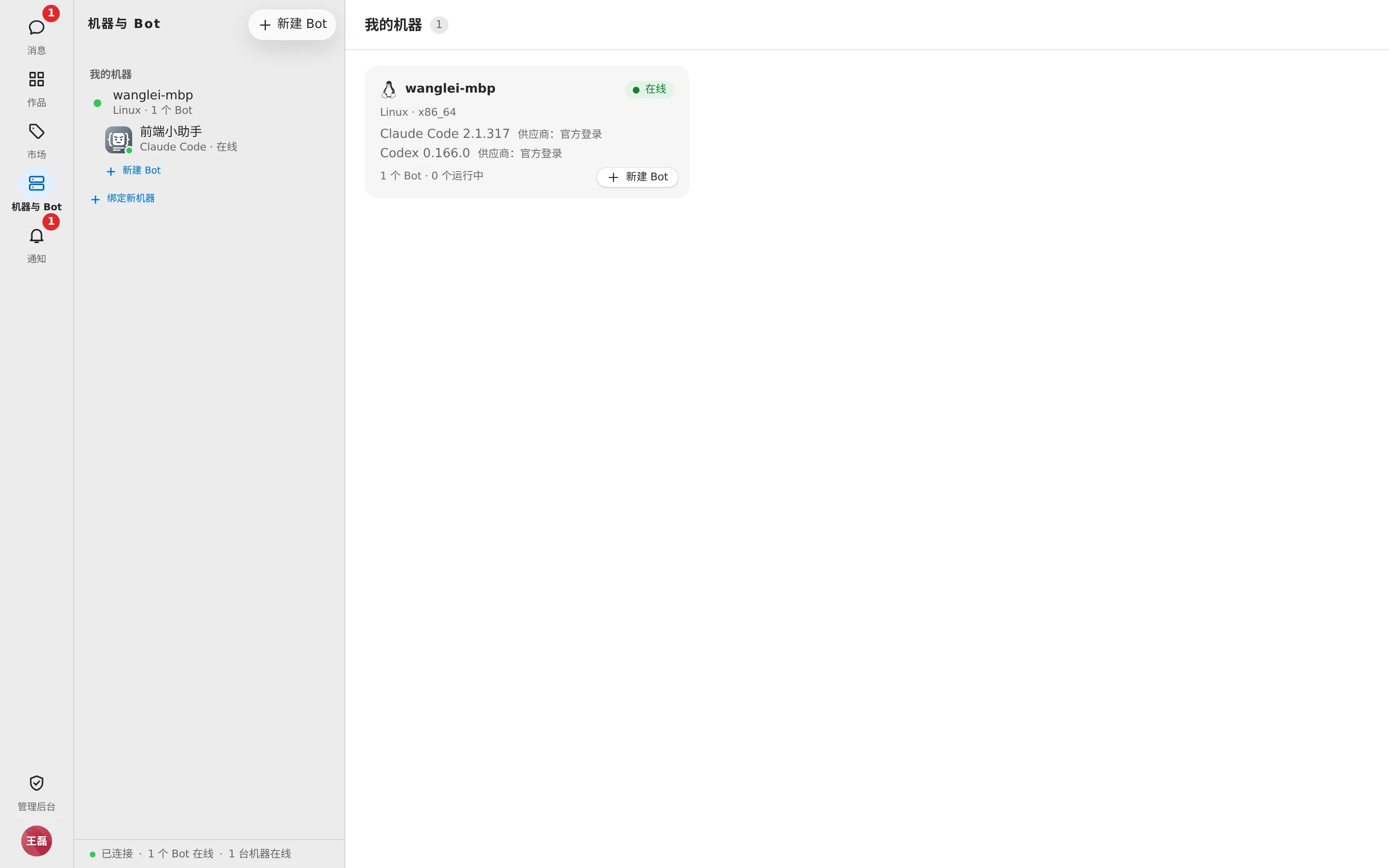
- 「我的机器」 (My machines): one row per machine, with a green dot for online and a gray dot for offline, plus the OS and Bot count underneath. Indented under each machine are the Bots running on it (with their Agent and status) and a 「新建 Bot」 (New Bot) row. The list ends with 「绑定新机器」 (Bind new machine).
- 「未绑定机器的 Bot」 (Bots without a machine): Bots that haven't landed on one of your machines yet, such as those 「待绑定」 (Pending binding) or 「待确认」 (Pending confirmation).
- 「共享给我」 (Shared with me): Bots other people have shared with you, marked "shared by …".
- 「新建 Bot」 (New Bot) at the top appears once you have a machine.
TIP
Members who only @ Bots in groups and don't run Bots of their own don't see 「机器与 Bot」 (Machines & Bots) in the navigation bar by default. It appears after you click 「接入我的电脑」 (Connect my computer) in the avatar menu or 「接入我的电脑,搭自己的 Bot」 (Connect my computer and build my own Bot) on the welcome page.
When no machine is selected, the main area shows the 「我的机器」 (My machines) overview: one card per machine with online status, OS, each Agent's version and current provider, and the number of Bots and how many are running. You can click 「新建 Bot」 (New Bot) directly in the bottom-right corner of a card. If you have no machines yet, it shows 「还没有绑定机器」 (No machines bound yet) and a 「绑定新机器」 (Bind new machine) button — see Bind a machine.
Click a Bot in the tree to open its Bot overview page — see Create a Bot.
Machine details
Click a machine in the tree to open the machine page. The title is the machine name; the subtitle shows online status, OS, and architecture. The top-right corner has 「终端」 (Terminal, opens a new terminal) and 「吊销」 (Revoke).
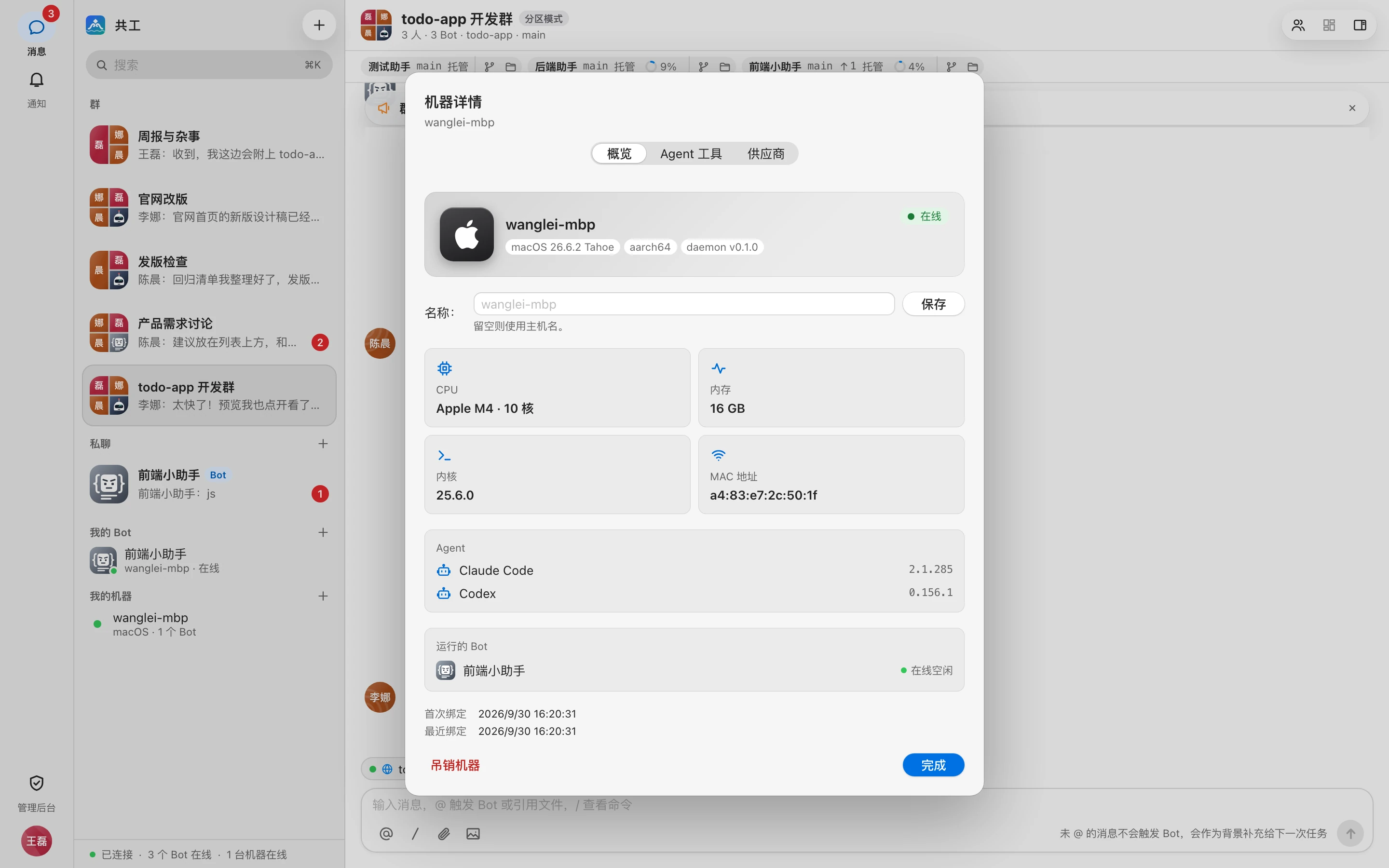
The machine owner sees these tabs:
| Tab | Contents |
|---|---|
| 概览 (Overview) | Hostname, OS, architecture, daemon version, CPU, memory, kernel, MAC address, detected Agents, Bots running here, first and last bind time |
| Agent 与供应商 (Agents & providers) | Installing and upgrading Node.js and each Agent, providers, Agent settings — see Agent tools and providers |
| 工作区 (Workspaces) | Disk usage, deletion, and slimming of every workspace on this machine |
| Git 访问 (Git access) | SSH keys and HTTPS tokens Bots use to pull and push code on this machine |
| 诊断 (Diagnostics) | Daemon version and upgrade, self-check, mirror, daemon logs |
| 插件授权 (Plugin permissions) | Allow or deny requests from plugins that run code on this machine (only when the plugin feature is enabled) |
The machine must be online
Except for 「概览」 (Overview) and 「插件授权」 (Plugin permissions), the data for every tab lives only on the machine. When the machine is offline, the tab shows 「机器离线」 (Machine offline), the last-seen time, and how to bring it online: open the Gonggong Space client on that machine, or run gg run in a terminal. If the daemon is too old, the corresponding tab is unavailable and shows 「请先升级该机器的 daemon」 (Upgrade this machine's daemon first).
When a sysadmin opens someone else's machine from 「管理后台 → 机器」 (Admin console → Machines), they only see 「概览」 (Overview) and can rename or revoke it — see Admin console · Machines.
Rename
Click the pencil icon next to the machine name in the title, type a new name (up to 64 characters), and press Enter to save or Esc to cancel. Leave it empty to use the hostname.
Workspaces
The 「工作区」 (Workspaces) tab lists every workspace on this machine, grouped by group: Bot name, path, type, status, uncommitted / unpushed changes, size, and last used time.
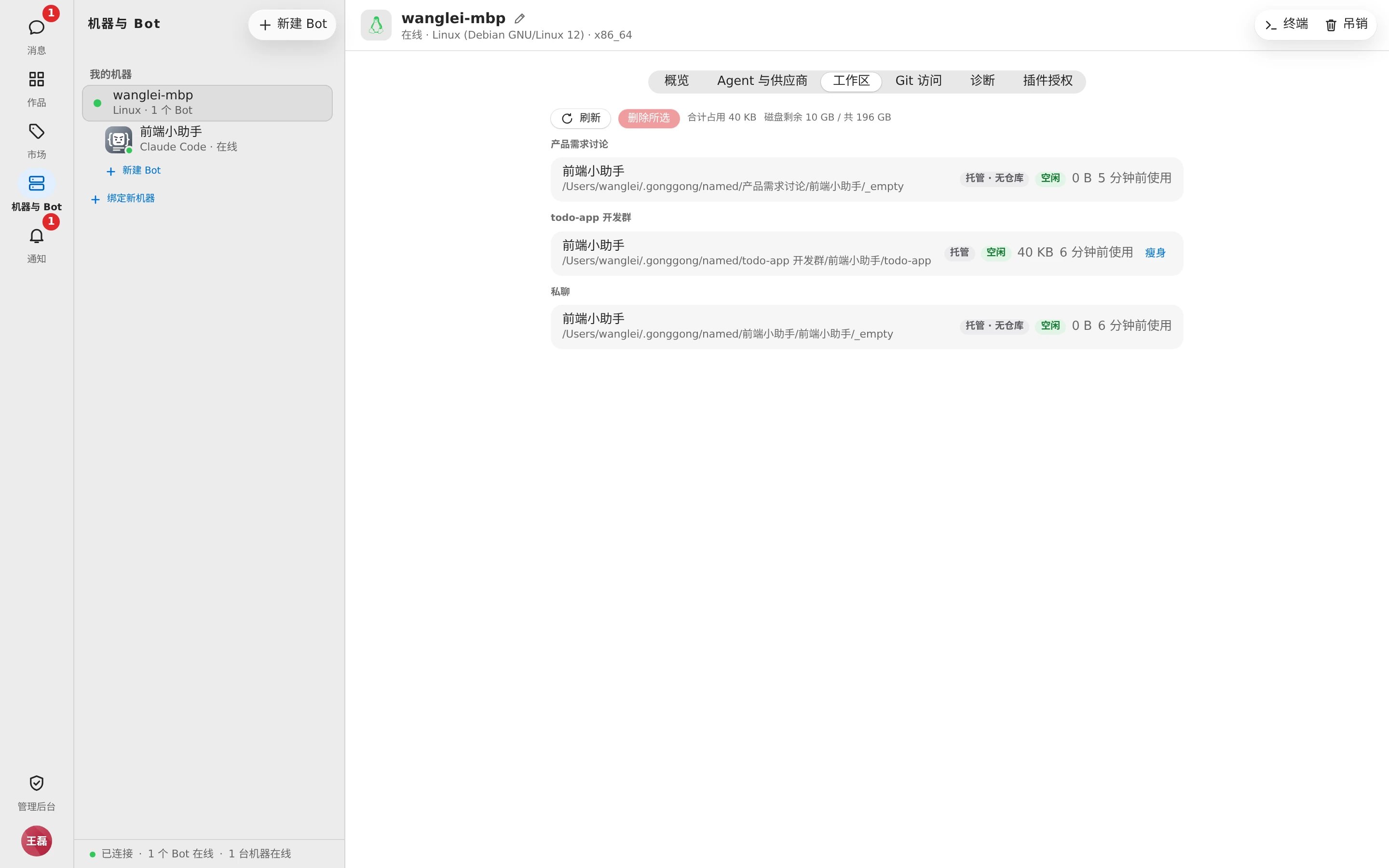
The top shows total usage (「{size} in use」), free disk space (「{free} free of {total}」), and how much 「可释放」 (can be freed): deletable workspaces plus managed workspaces unused for 30 days.
| Type | Meaning |
|---|---|
| 托管 (Managed) | A repository cloned by Gonggong Space, at ~/gonggong/workspaces/<group name>/<Bot name>/<repo name> |
| 托管 · 无仓库 (Managed · no repo) | A directory Gonggong Space prepared for the Bot when no repository is bound |
| 本机目录 (Local folder) | An existing directory on the machine that you specified (e.g. one switched to with /cd); never deleted here |
Statuses are 「运行中」 (Running), 「空闲」 (Idle), 「已移出」 (Removed — the Bot has left that group), and 「未使用」 (Unused).
- Delete: managed workspaces that are 「已移出」 (Removed) or 「未使用」 (Unused) have a checkbox; select them and click 「删除所选」 (Delete selected). The confirmation dialog lists the paths; if some still have unpushed changes, it warns separately: 「这些工作区还有没推送的改动,删除后会丢失」 ("These workspaces have work not pushed yet; deleting loses it"). Deletion can't be undone.
- Slim down: managed workspaces that aren't running have a 「瘦身」 (Slim down) button, which runs Git cleanup on the repository and then tells you how much space was freed.
TIP
Local folders (directories set with /cd) are never deleted from here. For how workspaces relate to repositories, see Repositories and workspaces.
Git access
When a Bot pulls or pushes code on the machine, no username/password prompt pops up, so private repositories need credentials configured here first.
- Test access: enter a repository URL and click 「测试」 (Test). If it's reachable, you'll see 「可以访问 …」 ("Can access …"); if not, the reason is shown (「无权限或仓库不存在」 "no permission or the repo does not exist", 「分支不存在」 "branch does not exist", 「网络或证书问题」 "network or certificate problem", 「连接超时」 "connection timed out") along with a suggested next step.
- SSH key: for URLs starting with
git@. Click 「生成密钥」 (Generate key), then 「复制公钥」 (Copy public key), and add it to GitHub (Settings → SSH and GPG keys) or GitLab (Preferences → SSH Keys). If it's for a single repository only, add it as that repository's Deploy Key. The first time you connect to a new host, the test result shows its host key fingerprint; check that it matches the one published by the hosting platform, then click 「信任 …」 (Trust …). - HTTPS token: for URLs starting with
https://andhttp://, applied per host. Fill in 「主机」 (Host), 「用户名」 (Username), and 「令牌」 (Token), then click 「保存令牌」 (Save token). For GitHub, use a Personal access token; for GitLab, a Personal or Project access token withread_repositoryandwrite_repositoryscopes.
Private keys and tokens are stored only on this machine. If the machine already has a git credential helper, git tries the account saved there first, then the token from here.
TIP
The tokens here are for Bots to clone and push. Accounts connected under 「设置 → Git 与仓库」 (Settings → Git & repos) are only used to list repositories and branches when creating a group. The two are different — see Login and account.
Diagnostics
Upgrade the daemon
When a new version is available, both 「概览」 (Overview) and 「诊断」 (Diagnostics) show 「可升级到 x.y.z」 ("Update to x.y.z available"). How to upgrade depends on the machine:
| Machine | How to upgrade |
|---|---|
| Linux command-line daemon, Docker container | Click 「立即升级」 (Upgrade now). After downloading and verifying the new version, it restarts automatically to finish the upgrade once no tasks are running on the machine, without interrupting running tasks |
| Desktop app | Open the Gonggong Space client on that machine and click 「检查更新」 (Check for updates) |
| Other command-line daemons | While online, the daemon downloads new versions automatically and restarts to finish the upgrade when no tasks are running; if it never upgrades, restart gg run |
TIP
Older Linux daemons need one manual upgrade before 「立即升级」 (Upgrade now) works from the web. Docker containers built from an old image need to be rebuilt once following Docker deployment; after that, upgrades persist across container rebuilds.
Self-check
「自检」 (Self-check) checks on the machine: server connection, Agents, git credentials, disk, and line endings (on macOS also Screen Recording and Accessibility permissions; items that don't apply aren't shown). Each item is marked 「正常」 (Active), 「注意」 (Warning), or 「异常」 (Problem). If git credentials have a problem, the 「去配置」 (Set up) button next to it jumps straight to 「Git 访问」 (Git access). Click 「重新检查」 (Recheck) to run it again. The command-line equivalent is gg doctor.
Mirror and logs
- Mirror: where Node.js and Agent tools are downloaded from when installing or upgrading — see Agent tools and providers.
- Logs: the daemon's latest 300 log lines, filterable by 「级别」 (Level): 错误 (Errors) / 警告及以上 (Warnings and up) / 信息及以上 (Info and up) / 全部(含调试) (All (with debug)). Click 「刷新」 (Refresh) to reload. Secrets and tokens are masked on the machine before the logs are sent.
Plugin permissions
With the plugin feature enabled, a plugin that runs code needs your confirmation the first time it's used on this machine. This tab lists each request: plugin name and version, permissions, the MCP servers it wants to start, and a status of 「待授权」 (Awaiting permission), 「已允许」 (Allowed), or 「已拒绝」 (Rejected).
- Click 「允许」 (Allow) or 「拒绝」 (Deny);
- A new plugin version needs to be confirmed again;
- After you click 「撤销」 (Revoke), you'll be asked again the next time it's needed.
For plugins themselves, see Skill market and plugins.
Terminal sessions
Machine owners can open a standalone terminal on their own macOS / Linux machines, not attached to any Bot.
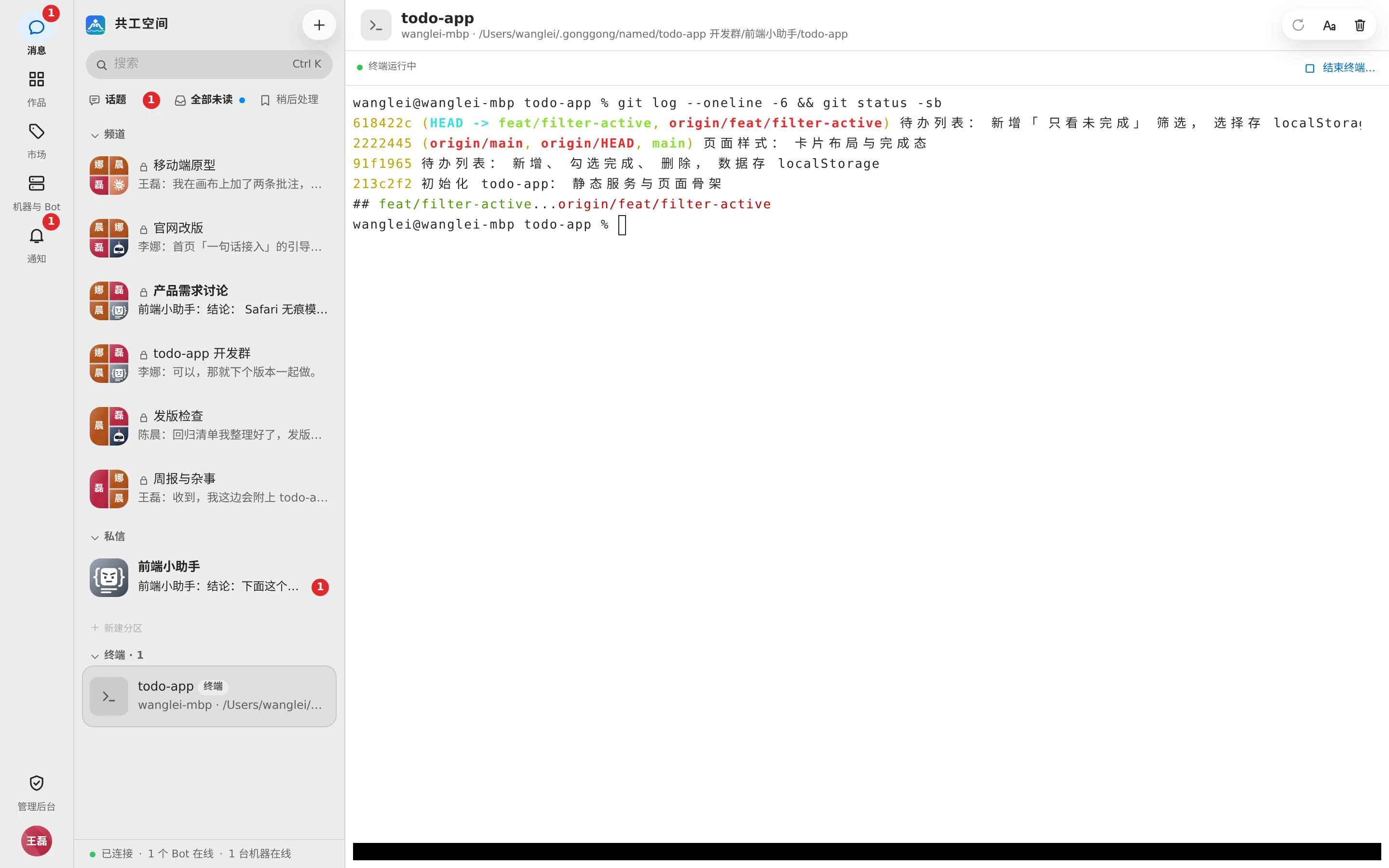
- Click 「终端」 (Terminal) in the top-right corner of the machine page, or choose 「新建终端」 (New terminal) from the 「+」 menu at the top of the conversation list.
- Pick the 「机器」 (Machine), click 「浏览…」 (Browse…) to choose an existing 「目录」 (directory), optionally give it a 「名称」 (Name), and click 「创建」 (Create).
- The terminal appears in the 「终端」 (Terminal) section of the conversation list; like groups and direct chats, you can open and reconnect to it anytime.
The top-right corner of the terminal page has 「新开 Shell」 (New shell), 「重命名」 (Rename), and 「删除终端」 (Delete terminal). Deleting ends its shells and any running processes; the directory on the machine is untouched. Terminals idle for a long time end automatically. Only the machine owner can use terminals.
In a group, the machine owner can also pick one of their own Bots under 「新建终端」 (New terminal) in the workbench tab bar's 「+」 (New tab) menu to open a terminal in that Bot's workspace.
Revoke a machine
When you no longer use a machine, click 「吊销」 (Revoke) in the top-right corner of the machine page. After you confirm:
- The machine's daemon disconnects immediately;
- The daemon cleans up the managed workspaces on that machine;
/cddirectories and backups are kept; - To use the machine again later, you need to bind it again.
WARNING
You can't revoke a machine that still has Bots on it; you'll see 「还有 N 个 Bot 绑定在这台机器上,请先删除」 ("N Bots are still bound to this machine, delete them first"). Delete those Bots first in Bot settings.
If you just want the machine offline temporarily, stop gg run or quit the desktop app — no need to revoke.