
Create a Bot
A Bot is an AI member you can @ in a group. It's tied to a specific machine and works using Claude Code or Codex. This page covers the fields of the 「新建 Bot」 (New Bot) dialog, where to find your Bot after creating it, and how to chat with it directly.
Before you start
- Ideally, bind a machine first and make sure Claude Code or Codex has been detected on it.
- You can create a Bot without a bound machine; it stays in 「待绑定」 (Pending binding) status and becomes available automatically once a machine is bound and reports the matching Agent.
Open 「新建 Bot」 (New Bot)
Use any of these entry points:
- 「+」 (新建 Bot… / New Bot…) next to 「我的 Bot」 (My Bots) in the sidebar;
- 「新建 Bot」 (New Bot) on the welcome page or in the sidebar's 「开始使用」 (Get started) card;
- Sysadmins can also click 「新建 Bot…」 (New Bot…) in 「管理后台 → Bot」 (admin console → Bot) — see Bots and groups.
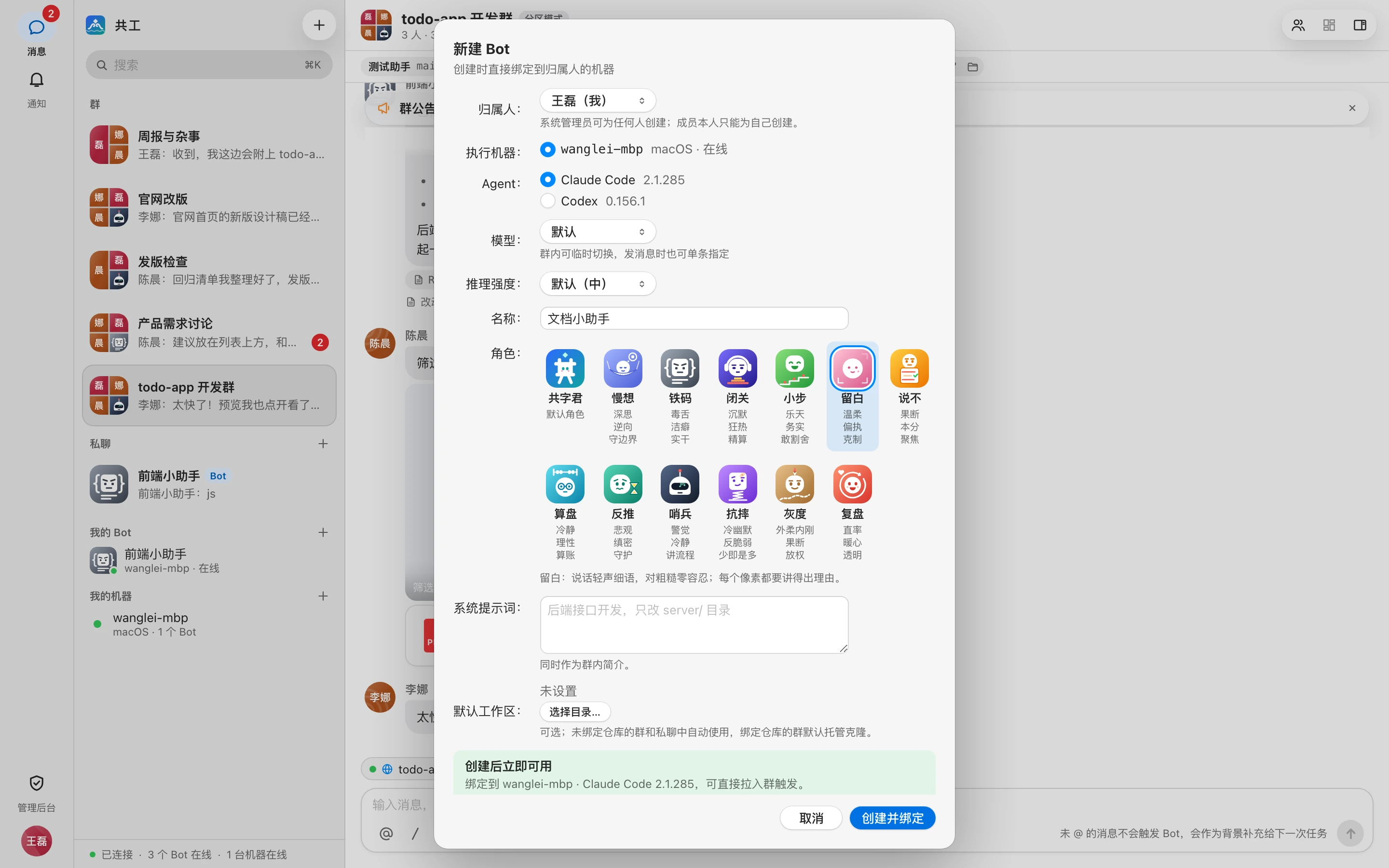
Fields
| Field | Description |
|---|---|
| 归属人 (Owner) | Who the Bot belongs to and whose machine it runs on. Members can only create Bots for themselves; sysadmins can create them for anyone |
| 执行机器 (Machine) | Machines owned by the owner, with OS and online status. If the owner has no machine yet, the Bot is created as 「待绑定」 (Pending binding) |
| Agent | Claude Code or Codex, with the version detected on the machine next to it; ones not on the machine show 「未安装」 (Not installed) and can't be selected |
| 模型 / 推理强度 (Model / Reasoning effort) | Optional; follows the Agent's own defaults — see Bot settings and permissions |
| 名称 (Name) | Defaults to "owner's Agent", e.g. 「王磊的 Claude Code」 (王磊's Claude Code); you can change it. Up to 40 characters, must be unique site-wide |
| 角色 (Role) | The Bot's avatar character — see below |
| 系统提示词 (System prompt) | Optional. Tells the Bot what it's responsible for and doubles as its in-group bio, e.g. 「后端接口开发,只改 server/ 目录」 ("backend API development, only edit the server/ directory"). Up to 4000 characters |
| 默认工作区 (Default workspace) | Optional; shown only when creating for yourself and the machine is online. Click 「选择目录…」 (Choose directory…) to pick a directory on the machine |
Default workspace
In groups without a bound repository and in direct chats, the Bot automatically works in the default workspace; groups with a bound repository use a managed clone by default. See Repositories and workspaces.
Role
Every Bot has a character: the default is the brand mascot Gong (共字君), or you can pick one of 12 personality roles, such as 「慢想」 (deliberate × contrarian × keeps boundaries), 「铁码」 (sharp-tongued × neat freak × doer), or 「小步」 (optimistic × pragmatic × willing to cut scope). Hovering over a card animates it, and a one-line intro of the role appears below.
The role determines the Bot's avatar and the intro on its Bot overview page; it doesn't change how the Bot behaves. To constrain how the Bot works, write it in the 「系统提示词」 (System prompt).
Create
The bottom of the dialog previews the status after creation, and the button label changes accordingly:
| Situation | Preview | Button |
|---|---|---|
| Creating for yourself; the machine has reported the selected Agent | Available immediately after creation | 「创建并绑定」 (Create and bind) |
| The machine doesn't have the selected Agent | Unavailable after binding for now; becomes available automatically once installed on that machine and re-detected | 「创建并绑定」 (Create and bind) |
| The owner has no machine yet | Pending binding | 「创建」 (Create) |
| An admin creating for someone else | Waiting for the owner to confirm | 「创建并发送确认」 (Create and send confirmation) |
After clicking, the result is shown, e.g. 「已就绪,可以在群里 @ 它了」 ("ready — you can @ it in a group now"). If the machine is offline, you're prompted to open the Gonggong Space client on that machine. If the Bot is pending binding and it's yours, the result page gives you a connect link right away so you can bind a machine immediately.
Bots an admin creates for you
The machine owner is responsible for what runs on the machine. A Bot an admin created for you and assigned to your machine must be confirmed by you before it can be triggered: you'll get a 「待确认 Bot」 (Bot pending confirmation) notification, and the Bot also has a 「确认」 (Confirm) button under 「我的 Bot」 (My Bots) in the sidebar.
Where to find it
After creation, the Bot appears under 「我的 Bot」 (My Bots) in the sidebar, with its machine and status below (online / running / offline / agent missing; when not bound it shows 「待绑定」 (Pending binding) or 「待确认」 (Pending confirmation)).
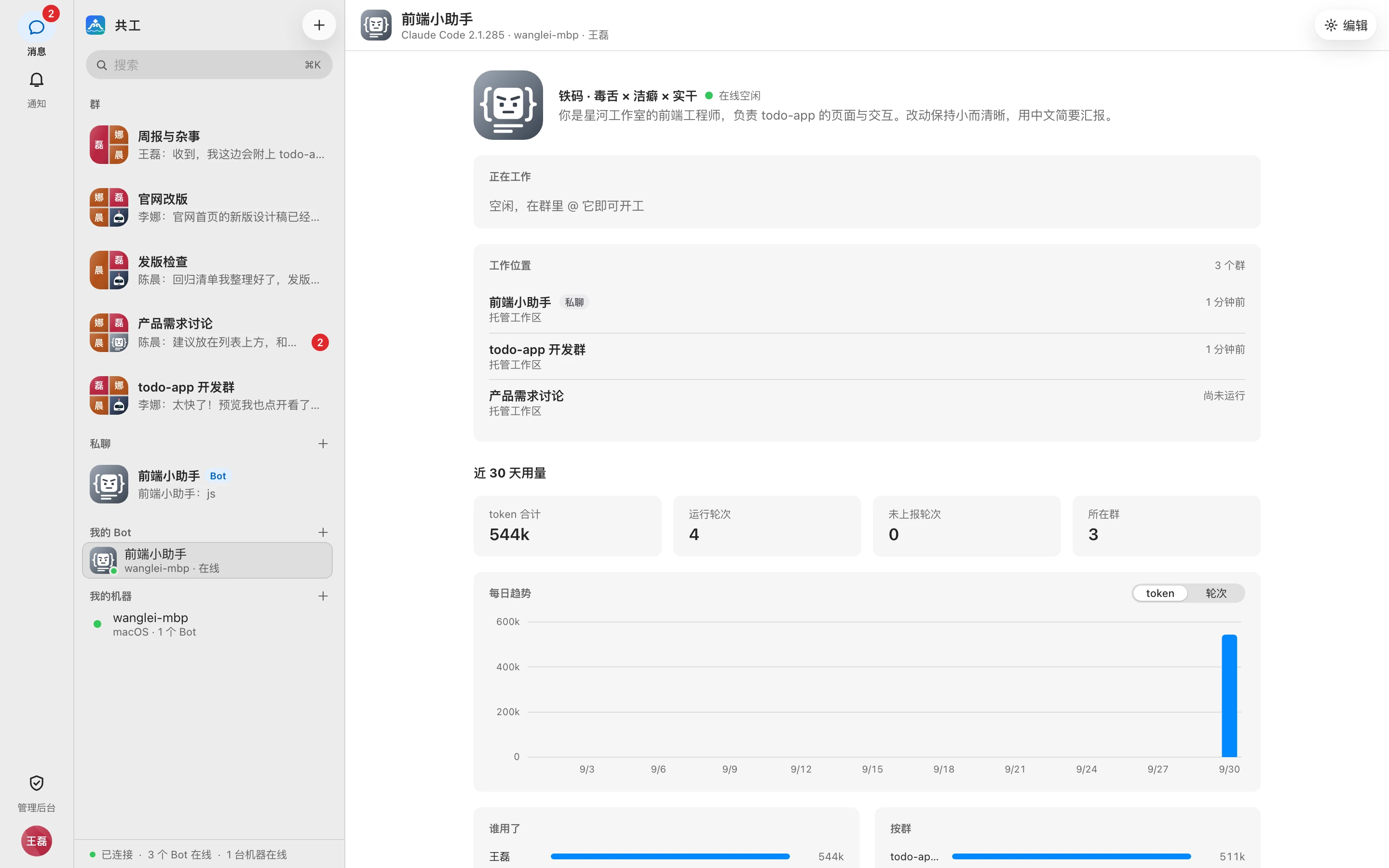
Click it to open the Bot overview page:
- Avatar, role, status, and system prompt (the role intro if none is set);
- 「正在工作」 (Working on): runs currently in progress;
- 「工作位置」 (Where it works): the groups and direct chats it's in, and each one's workspace;
- Usage over recent days: total tokens, run turns, who used it, and a per-group breakdown;
- 「配置」 (Configuration): permission tier, trigger scope, model, concurrency limit, command approval, default workspace.
「编辑」 (Edit) in the top-right opens Bot details to change settings — see Bot settings and permissions.
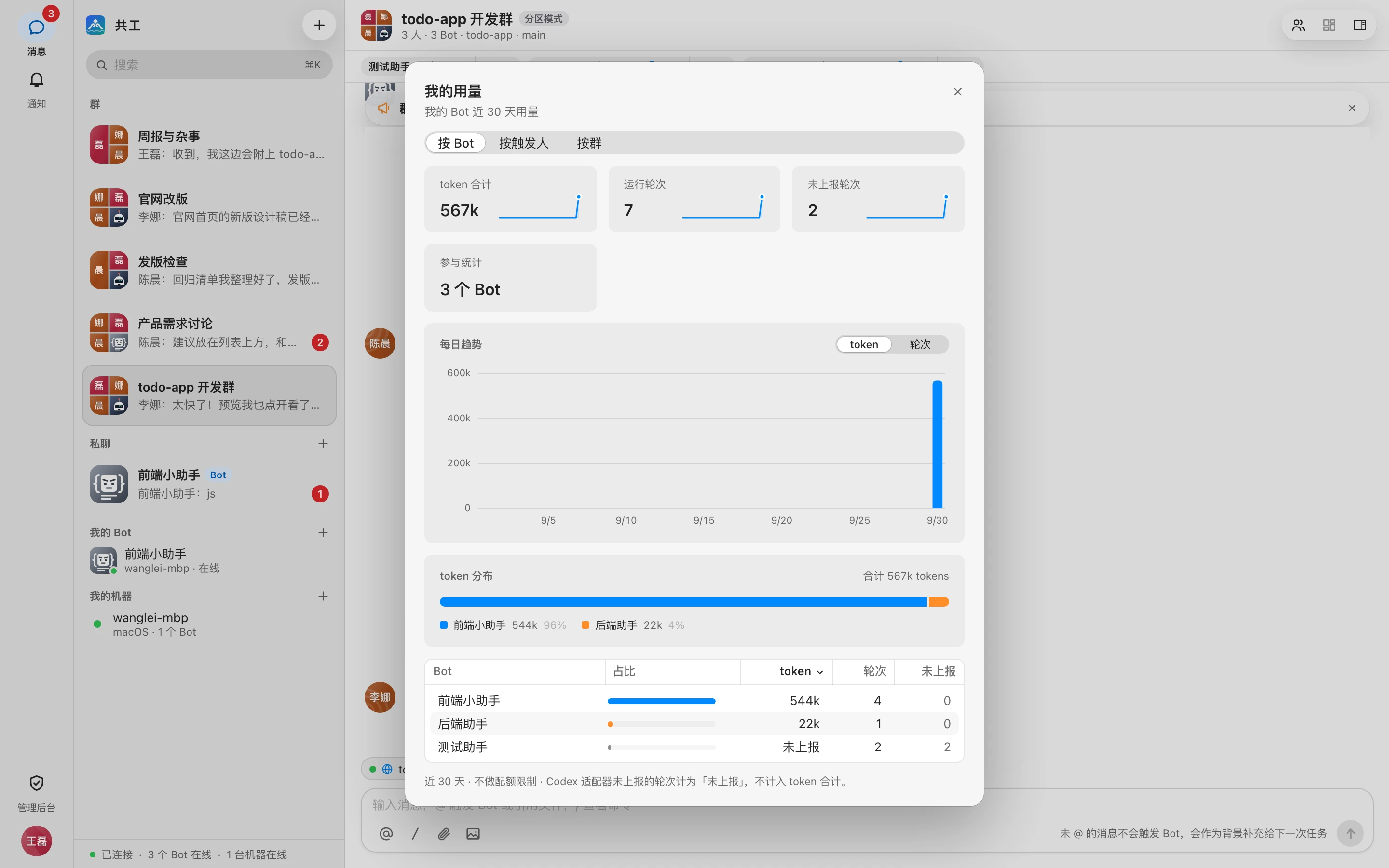
A usage summary for all your Bots is under 「我的用量」 (My usage) in the avatar menu.
Put the Bot to work
A Bot has to be in a group to be @-mentioned:
- Add it to a group: Check it in the Bot list when creating a group, or add it to an existing group — see Groups and direct chats.
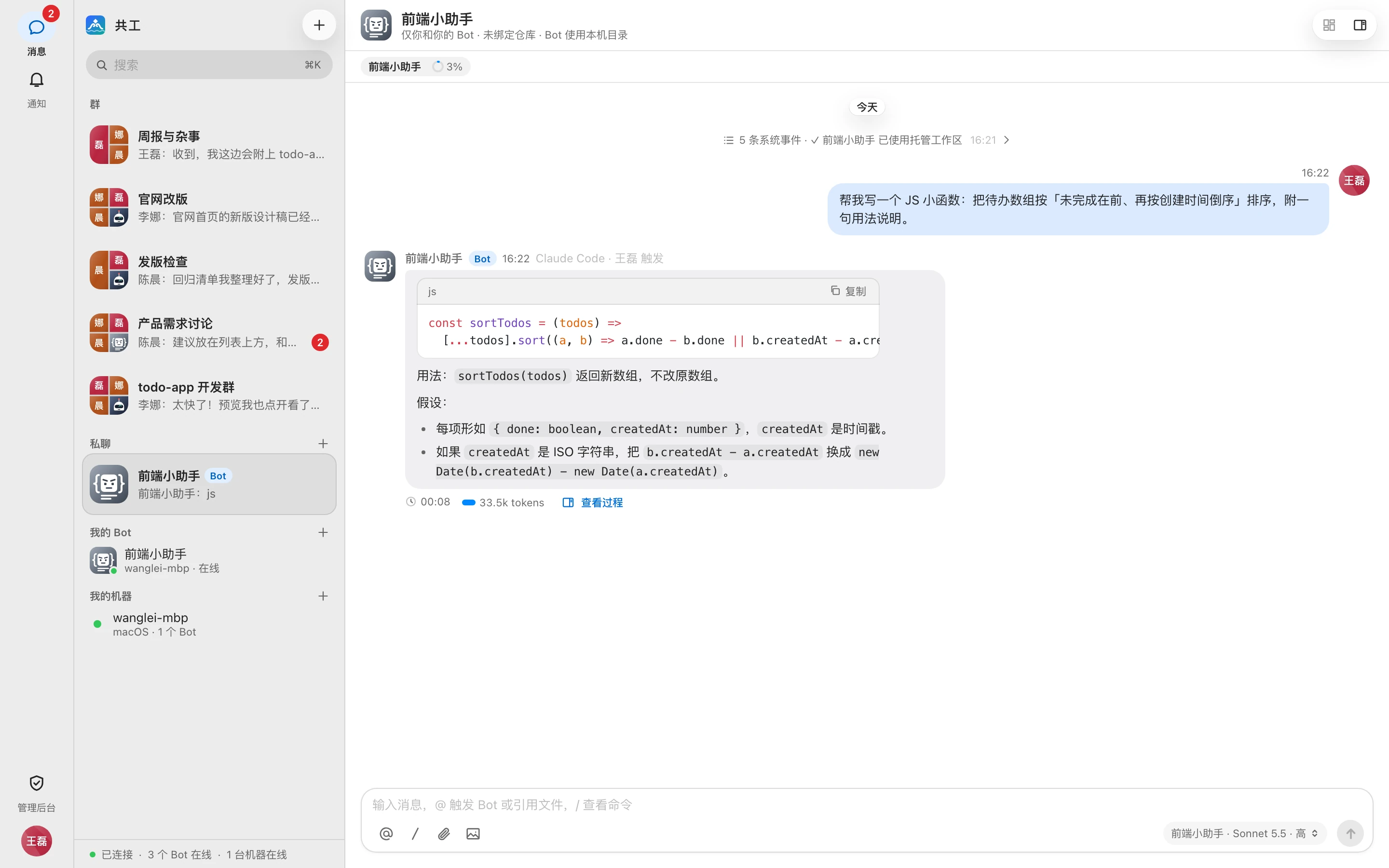
- Direct chat: Click 「+」 next to 「私聊」 (Direct chats) in the sidebar and choose one of your own Bots to create a conversation with just you and it. In a direct chat with a single Bot, no @ is needed — just state what you need.
For how to assign work to a Bot, see Directing Bots in a group.