
Diffs and files
This page covers how to see what code a Bot changed (the diff panel), the Git bar, and browsing workspace files and message attachments in the file viewer.
All of these open as tabs in the workbench on the right. For the workbench layout and shortcuts, see Previews.
Diff panel
How to open it
- 「改动 N 个文件」 ("N files changed") on a run card, or the file chips or 「+N」 below a reply: opens this turn's changes.
- Clicking a file-edit step in the process panel: goes straight to that file's changes.
- 「改动」 (Changes) on the Git bar in the group header: opens the tab 「改动 · Bot 名」 ("Changes · Bot name").
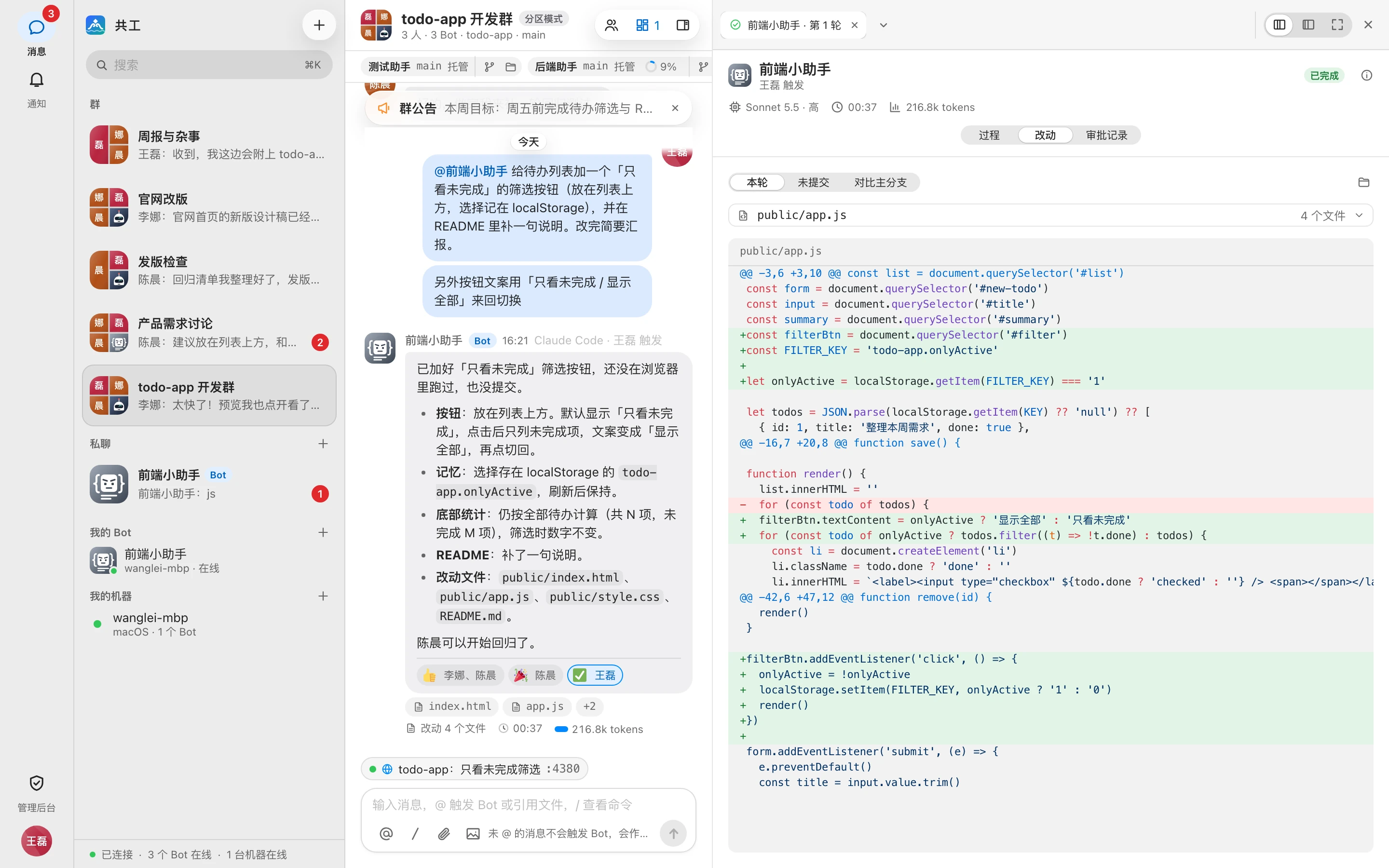
Change scope
Switch with 「改动范围」 (Change scope) at the top of the panel:
| Scope | Contents |
|---|---|
| 本轮 (This turn) | Files changed by this run (only when opened from a run) |
| 未提交 (Uncommitted) | All uncommitted changes in the workspace |
| 对比主分支 (Compare with main branch) | All changes on the current branch relative to the base branch |
When opened from the Git bar, it defaults to 「未提交」 (Uncommitted) if the workspace has uncommitted changes, and 「对比主分支」 (Compare with main branch) otherwise. While a run is in progress, the diff refreshes automatically.
File list and diff
- The file list on the left shows each file's name, directory, lines added and deleted, and a bar showing the add/delete ratio (hover to see 「新增 N 行,删除 M 行」, "N lines added, M lines deleted").
- The button above the list switches between 「以列表显示」 (Show as list) and 「以目录树显示」 (Show as tree); your choice is remembered.
- 「在文件浏览器中定位」 (Locate in file browser) next to each file jumps to a file tab showing the whole file.
- On the right is a unified (top-and-bottom) diff with syntax highlighting.
- When the panel is narrow, the file list collapses into a 「N 个文件」 ("N files") dropdown.
With no changes, it shows 「本轮没有文件改动」 ("No files changed this turn"), 「没有未提交的改动」 ("No uncommitted changes"), or 「当前就在主分支,没有可对比的改动」 ("Currently on the main branch; nothing to compare").
Git bar
In a group with a bound repository, the area below the group header shows each Bot workspace's branch, commits ahead/behind, whether there are uncommitted changes, and the workspace type, plus two entry points: 「改动」 (Changes) and 「文件」 (Files).

For what each field means, see Repositories and workspaces.
File viewer
Click 「文件」 (Files) on the Git bar to open the tab 「文件 · Bot 名」 ("Files · Bot name") and browse the files in this Bot's workspace, read-only.
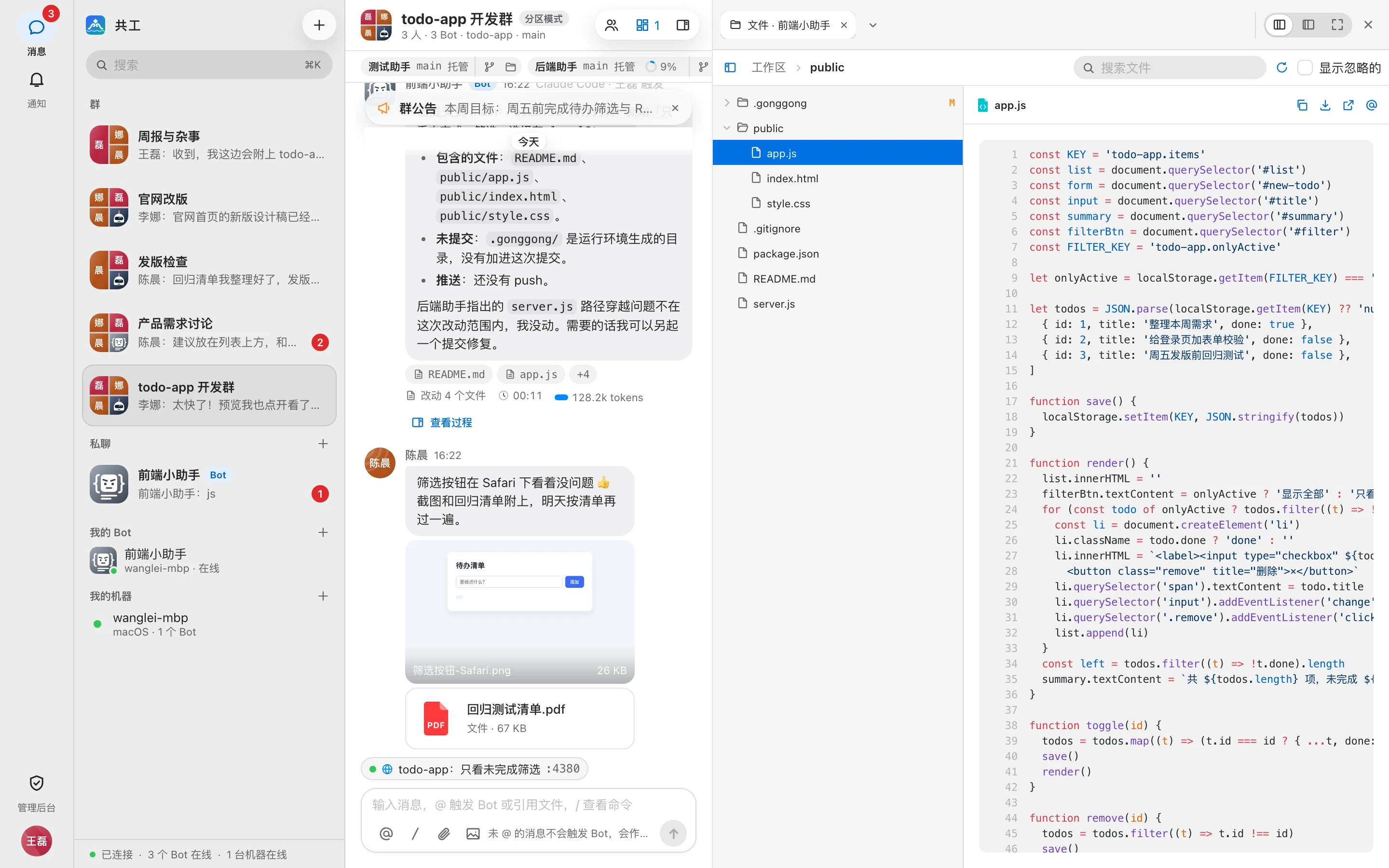
File tree
- Directories come first, then files; contents load when you expand a directory.
- Files with uncommitted changes are marked 「M」.
- Check 「显示忽略的」 (Show ignored) to show files ignored by git.
- 「搜索文件」 (Search files) finds files by name; 「刷新」 (Refresh) re-reads the tree.
- The breadcrumb at the top starts at 「工作区」 (Workspace); click it to jump back up quickly.
- If a directory has more than 1,000 entries, only the first 1,000 are shown.
- The selected file is highlighted and scrolled into view automatically.
On wide screens, click 「收起目录」 (Collapse tree) in the toolbar to hide the file tree and see the file content in full; click 「展开目录」 (Expand tree) to bring it back. On narrow screens, the open file tree covers the file content.
Viewing files
| File type | How it's shown |
|---|---|
| Code and text | Line numbers + syntax highlighting; in logs such as .log and .txt, lines containing ERROR / FAIL / WARN are colored |
| Markdown | Switch between 「预览」 (Preview) and 「源码」 (Source) |
| Images | Switch between 「适应」 (Fit) and 「1:1」, with dimensions shown |
| Video, audio, PDF | Played or displayed directly |
| Binary or unsupported types | A prompt to download it |
The toolbar also has:
- 「复制路径」 (Copy path): copies the file's path within the workspace.
- 「下载」 (Download).
- 「在新标签页打开」 (Open in new tab).
- 「在聊天中引用」 (Reference in chat): fills
@file pathinto the input box, so you can have a Bot work on this file.
Size limits
Files larger than 2 MB aren't previewed and can only be downloaded; text files show at most the first 5,000 lines.
Attachment viewer
Click an attachment in a message (or 「在工作台查看」, View in workbench) to open a tab named after the file in the workbench. It works the same way as the file viewer, and additionally shows:
| Item | Description |
|---|---|
| 来源 (Source) | Who sent it, and in which message |
| 大小 (Size) | File size |
| 位置 (Location) | The path in the Bot's workspace (.gonggong/attachments/…) |
| 发送给 Bot (Sent to Bot) | Images: sent directly if the Agent supports images, and also saved to disk to be read by path. Videos: not sent directly; the Agent reads them by path |
| 工作树 (Working tree) | Added to .git/info/exclude, so it doesn't go into git |
For uploading attachments and their limits, see Directing Bots in a group.