
Scheduled tasks and threads
This page covers two things: scheduled tasks, which have a Bot do work automatically at set times, and threads, which split one topic off for a separate discussion.
Scheduled tasks
A scheduled task has a Bot run a set of instructions automatically when it's due, e.g. "every weekday at 9:00, summarize yesterday's PRs".
Where to find them
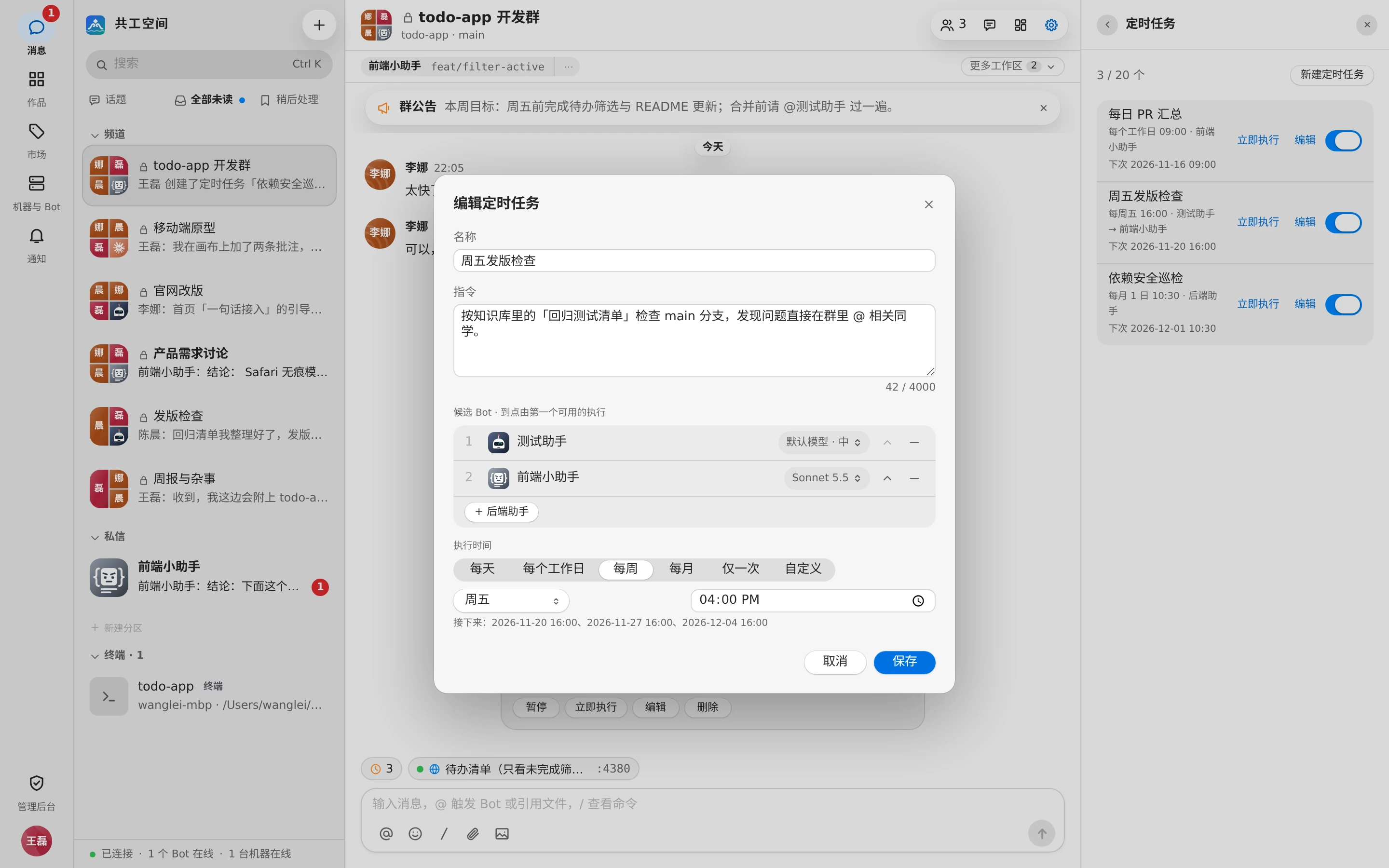
- Group settings sidebar → 「定时任务」 (Scheduled tasks): lists all scheduled tasks in the group, with a count like 「N / 20 个」 (N / 20). Direct chats have the same section under 「私聊设置」 (Chat settings).
- The clock button above the composer: appears when there are active tasks and shows 「定时任务:N 个」 (N scheduled tasks). Open it to see each task's next run time and latest result; 「管理」 (Manage) jumps to the list.
- Task cards in the group: when a task is created, the group gets a card saying 「某某 创建了定时任务「…」」 ("someone created the scheduled task "…""). You can 「暂停」 (Pause), 「恢复」 (Resume), 「立即执行」 (Run now), 「编辑」 (Edit), or 「删除」 (Delete) right from the card.
Each row in the list shows the name, timing, candidate Bots, and status: 「下次 …」 (Next …) or 「已停用:原因」 (Off: reason); tasks that have run also show 「最近 … · Bot 结果」 (Last … · Bot result). The result can be 「完成」 (Done), 「中断」 (Interrupted), 「无权触发」 (Not allowed), 「离线作废」 (Expired offline), 「跳过」 (skipped), and so on. Tasks created by a Bot are marked 「Bot 创建」 (By Bot).
Create a scheduled task
- Click 「新建定时任务」 (New scheduled task) in the list.
- Fill in 「名称」 (Name), up to 60 characters, e.g. "Daily PR summary".
- Fill in 「指令」 (Instructions), up to 4000 characters: the complete instructions sent to the Bot when the task is due. Spell out what to do, the scope, and the expected output.
- Under 「候选 Bot · 到点由第一个可用的执行」 (Candidate Bots · the first available one runs it), click 「+ Bot name」 to add Bots. You can add several and reorder them (up to 10). Each candidate Bot can have its own model and reasoning effort.
- Under 「执行时间」 (Timing), pick a frequency and fill in the time. 「接下来:…」 (Next: …) below shows the upcoming run times live.
- Click 「创建」 (Create).
| Frequency | What to fill in |
|---|---|
| 每天 (Daily) | Time |
| 每个工作日 (Weekdays; default, 09:00) | Time |
| 每周 (Weekly) | Weekday and time |
| 每月 (Monthly) | Date (day of the month) and time |
| 仅一次 (Once) | Time to run |
| 自定义 (Custom) | A cron expression in the form "minute hour day month weekday" (0 = Sunday), e.g. */30 9-18 * * 1-5 |
- The time zone is your browser's time zone.
- Runs must be at least 5 minutes apart; otherwise you'll see 「执行间隔不能小于 5 分钟」 ("Runs must be at least 5 min apart").
- Each group can have up to 20 scheduled tasks.
What happens when a task is due
- When it's due, a message
@Bot instructionsis posted in the group as the task owner (the person who created it), labeled 「定时任务」 (Scheduled tasks). From there it works exactly as if the owner had @-mentioned the Bot: trigger permission is checked against the owner, and approvals go to the Bot owner. - The first candidate Bot that is online and idle runs it; if all are busy, the first online one is used and the task queues.
- Every run happens in a separate, fresh session and doesn't continue the group conversation; the run card notes 「定时任务在独立的新会话中运行」 ("Scheduled tasks run in a fresh session of their own").
- If the previous run hasn't finished, this run is skipped and the group shows 「定时任务「…」上次尚未结束,本次跳过」 ("Scheduled task "…": the last run is still going, skipped this time"). It's also skipped when none of the candidate Bots is available.
- Recurring tasks missed while the server was down run once after it comes back, then continue on schedule; a 「仅一次」 (Once) task that was missed by more than 24 hours no longer runs.
Manage and turn off
| Action | Description |
|---|---|
| Enable toggle / pause, resume | When turned off, the task no longer runs on schedule; turning it back on resets the failure count |
| 立即执行 (Run now) | Runs it once right away, regardless of whether it's on or off and of the timing, and without changing the next run time. Shows 「已触发「…」,结果见群聊」 (""…" started. See the chat for the result") |
| 编辑 (Edit) | Change the name, instructions, candidate Bots, and timing |
| 删除 (Delete) | Click 「删除」 (Delete) on the task card in the group, then 「确认删除」 (Confirm delete) |
- Any member can view and create tasks; only the task owner and group admins can edit, turn on/off, run now, and delete. Others see 「仅任务主人或群管理员可操作」 ("Only the task owner or a group admin can do this").
- Only the Bot owner or a group admin can change a candidate Bot's model and reasoning effort.
A task is turned off automatically in the following cases. The group shows 「定时任务「…」已停用:原因」 ("Scheduled task "…" was turned off: reason"), and the task owner gets a 「定时任务已停用」 (Scheduled task turned off) notification:
- It failed 3 times in a row
- The owner is no longer in the group
- None of the candidate Bots is in the group any more
- It was a one-off task and has run
- It missed its run time by more than 24 hours
Have a Bot create one for you
Just say it in the group, e.g. "@Backend Helper every weekday at 9:00, summarize yesterday's merged PRs and post them to the group". The Bot creates the task with a built-in tool, a task card appears in the group, and the list marks it 「Bot 创建」 (By Bot).
- A task created by a Bot belongs to the person who started that turn. By default its only candidate is that Bot, and the time zone is Beijing time (Asia/Shanghai).
- A Bot can only edit or delete tasks it created itself, or tasks that list it as a candidate.
- When the task runs, the Bot knows which scheduled task triggered it, and can delete the task itself when it's no longer needed.
Threads
A thread keeps the discussion under one message in its own strand, without flooding the main chat. When a Bot is @-mentioned in a thread, it works in a separate session that doesn't affect the group's main session.
Start a thread
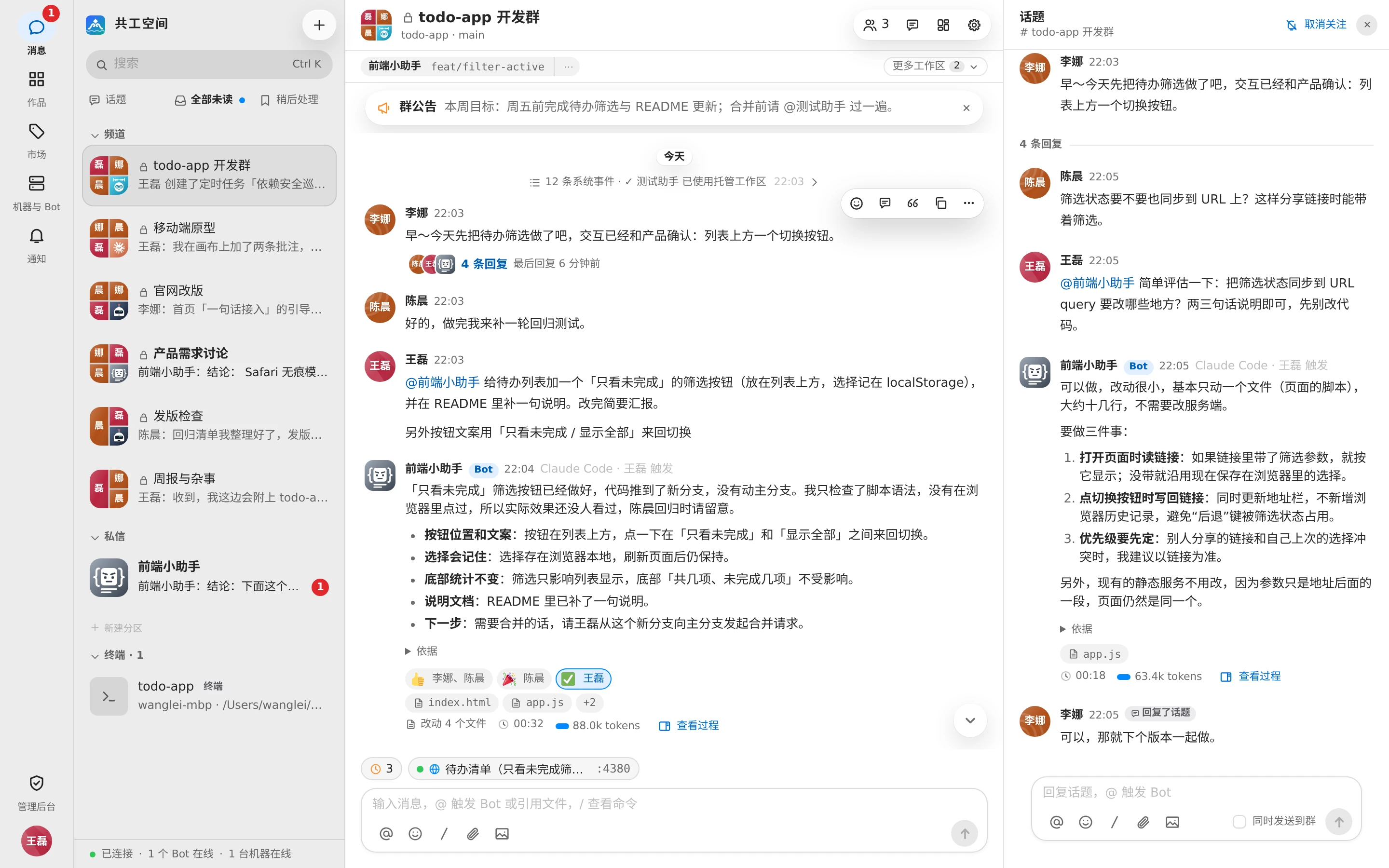
- Hover over a message and click 「回复话题」 (Reply in thread), or choose it from the right-click menu. Any regular message from a member or a Bot can start a thread.
- The thread panel opens on the right: the original message at the top, followed by 「N 条回复」 (N replies) and the replies. Run cards in replies show as usual.
- Send messages in the thread composer (placeholder 「回复话题,@ 触发 Bot」, "Reply in thread, @ to run a Bot"); @-mention a Bot to start a run in the thread.
- Check 「同时发送到群」 (Also send to group) and the reply also appears in the main chat, labeled 「回复了话题」 (Replied in thread); click it to go back to the thread.
A message with a thread shows a reply bar underneath: participant avatars, 「N 条回复」 (N replies) (with new replies, 「N 条新回复」 (N new replies) and 「@我」 (@me)), and 「最后回复 …」 (Last reply …). While a Bot is working in the thread, it shows 「Bot 回复中」 (Bot replying).
Bots in threads
- Each Bot has its own session in each thread, and reads the whole thread (including the original message) on its first run.
- Thread replies that weren't also sent to the group aren't passed as background context to Bots in the main chat.
- In the task bar above the composer, runs in a thread are labeled 「话题」 (Thread); click to go back to the thread.
- Sending
/new @Botin a thread resets only that Bot's session in that thread.
Bot replies in threads: once a group admin turns this on in 「群设置 → 基本信息」 (Group settings → General), a Bot @-mentioned in the group automatically puts its reply in that message's thread, keeping the group tidy. Direct chats don't have this switch.
Bots opening threads: while working, a Bot can open a thread and assign a Bot (possibly itself) to take over there. This suits splitting a task off for separate discussion and progress. Works in both groups and direct chats.
- The thread title is posted immediately in the Bot's name; after the current turn ends, the assigned Bot is @-mentioned in the thread and starts working.
- The person who started the turn automatically follows the thread.
- At most 3 threads per turn. These count toward the relay chain and are limited by the group parameter 「接力链长上限」 (Max relay length; default 3 hops).
Following and alerts
These people follow a thread automatically: the author of the original message, anyone who has replied in the thread, and anyone @-mentioned in it.
- The top of the thread panel has 「关注」 (Follow) / 「取消关注」 (Unfollow).
- Someone else replying in a thread you follow counts as a new reply; a Bot replying in a thread to a task you started counts as an @-mention of you, and you get a 「Bot 回复了我」 (Bot replied to me) notification.
- When the group's notification level is 「全部」 (All), thread replies only alert followers.
Where to find threads
| Entry | Contents |
|---|---|
| 「话题」 (Thread) button in the group header | All threads in the group: those with a Bot currently replying come first, the rest sorted by latest reply; ones that @-mention you are marked 「[有人@我]」 ([Mentioned]) |
| 「话题」 (Threads) at the top of the conversation list | All threads you follow, sorted by latest reply. The count only includes threads where someone @-mentioned you; threads that only have new replies are just shown in bold |
In the 「话题」 (Threads) inbox, each card shows its group and the latest few replies. You can 「回复」 (Reply) directly, or 「标为已读」 (Mark as read) / 「取消关注」 (Unfollow); 「全部标为已读」 (Mark all as read) is at the top.