
Notifications
This page covers which notifications appear in the notification center, how to handle them, and how to turn on browser push.
Notification center
Click 「通知」 (Notifications) in the left navigation bar (on narrow screens, in the bottom tab bar) to open the notification panel. The badge is the number of unread notifications.
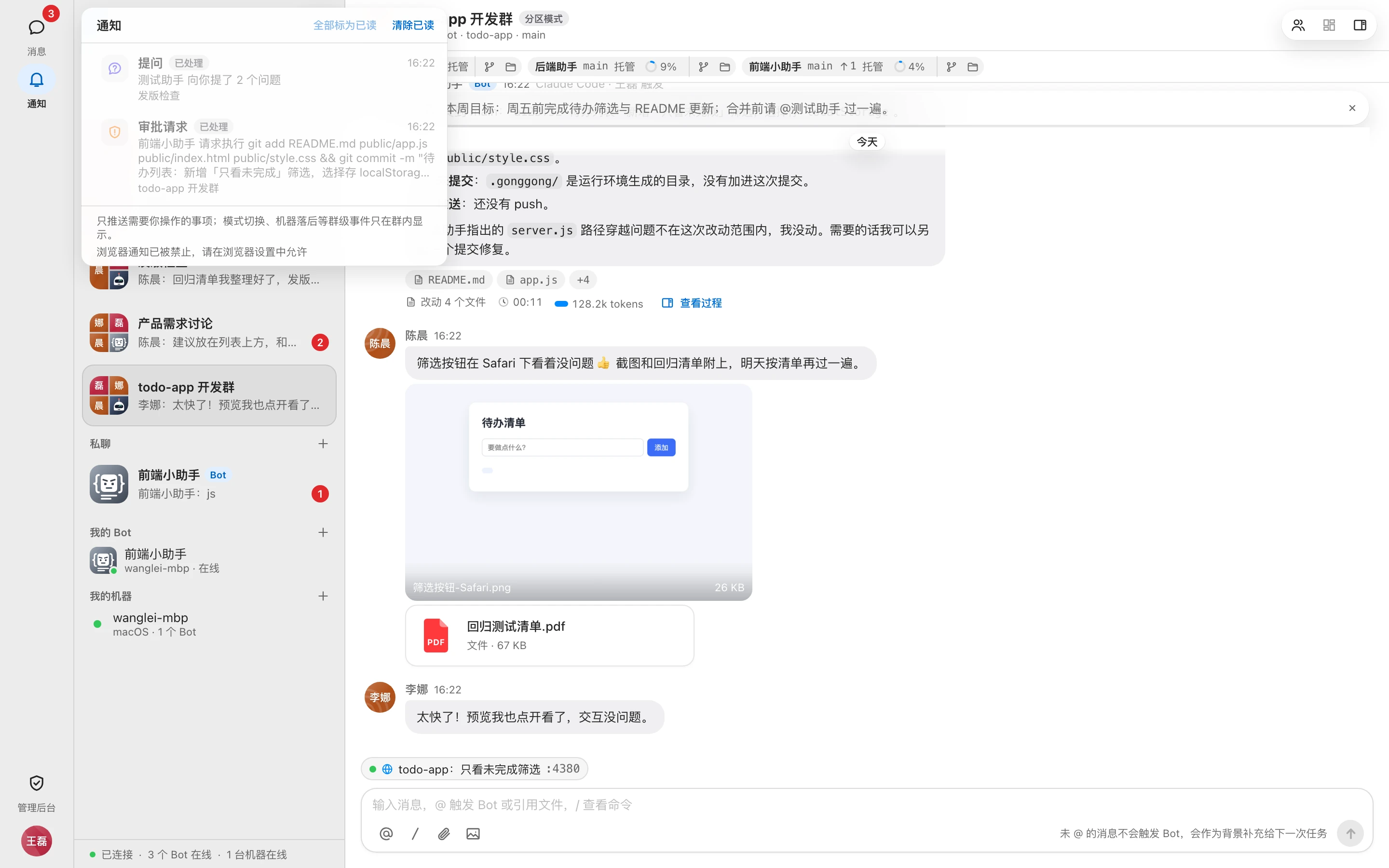
The notification center only delivers items that need your action; group-level events such as mode switches or a machine falling behind are shown only inside the group.
| Notification | When you get it | Clicking it |
|---|---|---|
| 待审批 (Pending approval) | Your Bot requests an action that needs approval | Opens the group and run — see Approvals and questions |
| 待回答 (Pending answer) | A Bot asked you a question | Opens the group and run |
| Bot 离线作废 (Bot offline, request dropped) | The machine of a Bot you @-mentioned never came online, and the request was dropped after timing out | Opens the group |
| 接力链结束 (Relay chain ended) | A Bot relay you started has ended (completed or interrupted with /stop) | Opens the first run of the relay |
| Bot 无法访问仓库 (Bot can't access repository) | Your Bot's machine can't access the repository bound to the group | Opens the group; after configuring credentials, click 「重新检查」 (Recheck) in the group |
| 待确认 Bot (Bot pending confirmation) | An admin created a Bot for you that needs you to confirm the binding | Opens the Bot management page to confirm |
Each notification shows its type, content, group, and time. Approvals or questions already handled elsewhere are marked 「已处理」 (Handled).
Actions at the top of the panel and on each row:
- Click a notification: marks it read and jumps to the relevant place.
- 「全部标为已读」 (Mark all as read): clears the unread count.
- 「清除已读」 (Clear read): deletes all read notifications.
- 「×」 at the right of a row: deletes that notification.
Browser push
Once enabled, new notifications pop up as system notifications even when the Gonggong Space web page isn't in the foreground; clicking one opens the relevant page directly.
- Open the notification panel.
- Click 「开启浏览器通知」 (Enable browser notifications) at the bottom.
- Choose 「允许」 (Allow) in the browser's permission prompt.
Once enabled, the bottom shows 「浏览器通知已开启」 ("browser notifications enabled"). Push content matches the notification center. You need to enable it separately on each device and in each browser.
HTTPS required
Browser push relies on a Service Worker and only works in a secure context: the URL must be https://, or localhost / 127.0.0.1 on your own machine. When you access the app over http:// with a LAN IP, the browser doesn't offer push, and the 「开启浏览器通知」 (Enable browser notifications) button doesn't appear. If you need push, ask your admin to set up HTTPS — see HTTPS and certificates.
「浏览器通知已被禁止」 ("browser notifications blocked") is shown
You previously denied notification permission in the browser. In the browser's site settings, change 「通知」 (Notifications) for this site to Allow, then refresh the page.
- After you sign in, if this browser was authorized before, it automatically resubscribes for the current account.
- Signing out unsubscribes this browser, so it no longer receives push notifications for the previous account.