
Login and account
This page covers how to sign in to Gonggong Space, change your password on first login, register on your own, and update your display name, password, and Git preferences in 「设置」 (Settings).
Sign in
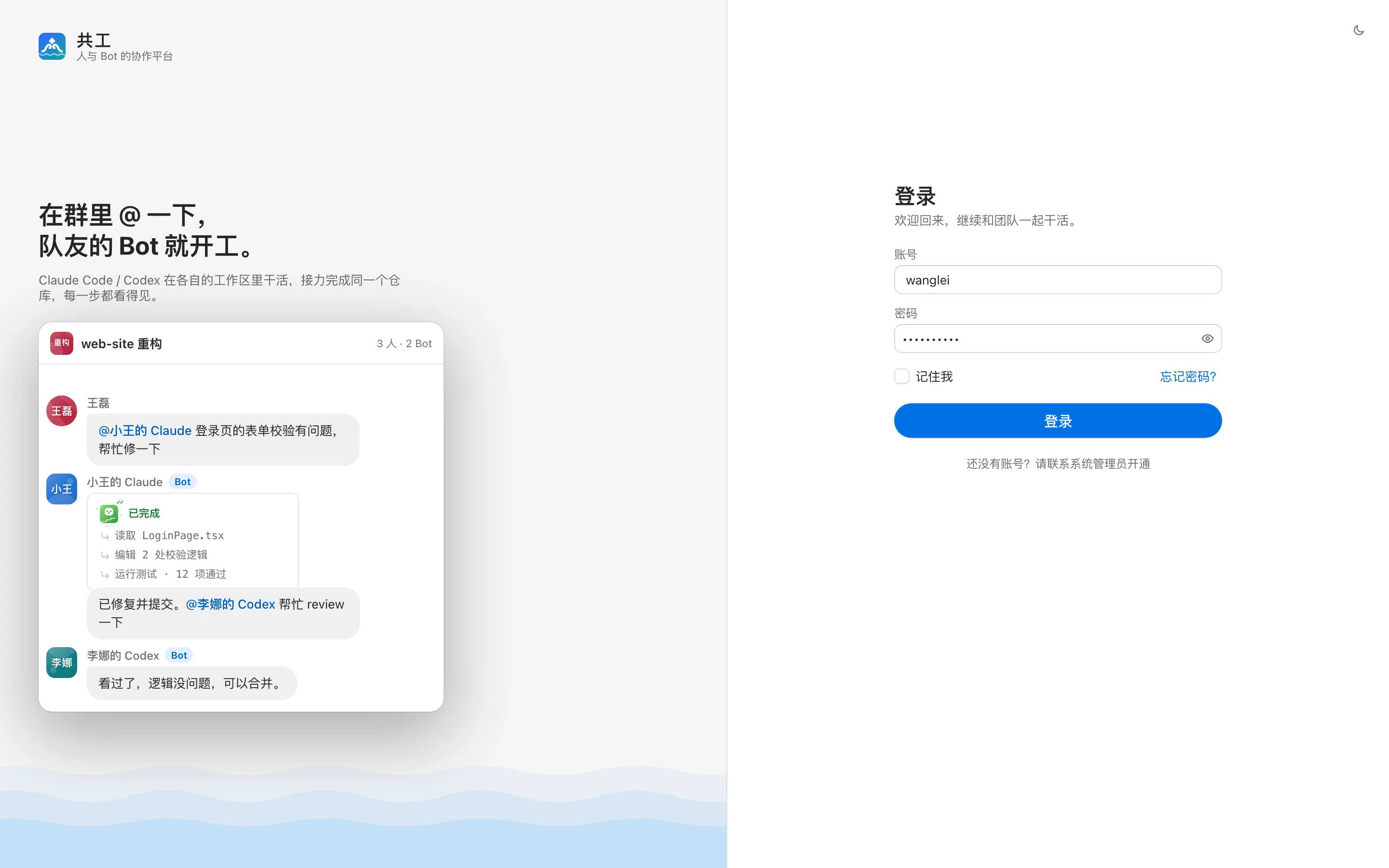
- Open the URL your admin gave you to reach the login page.
- Enter your 「账号」 (Account) and 「密码」 (Password), then click 「登录」 (Sign in).
- After signing in, you land on the main interface. On first use, before you've joined any group, you'll see the welcome page — see Interface tour.
A few details about the login page:
- If you check 「记住我」 (Remember me), the account field is pre-filled next time you open the login page (only the account is remembered, not the password).
- The sun / moon button in the top-right corner toggles between light and dark themes. It's the same setting as the theme in 「设置 → 外观」 (Settings → Appearance).
- Your login stays valid for 30 days, so you don't have to sign in again during that time.
Login failures
- After 5 consecutive wrong passwords for the same account, you'll see 「登录失败次数过多,请稍后再试」 ("too many failed logins, try again later") and must wait about 5 minutes before trying again.
- 「账号已停用,请联系系统管理员」 ("account disabled, contact the sysadmin") means an admin has disabled your account.
Forgot password
Clicking 「忘记密码?」 (Forgot password?) on the login page shows a hint: ask a sysadmin to reset your password. The admin gives you a temporary password; sign in with it and follow the prompt to set your own. For the admin side, see Accounts and roles.
Change your password on first login
When an admin creates your account, the admin sets the initial password. The first time you sign in with it, you won't reach the main interface — you're asked to change your password first.
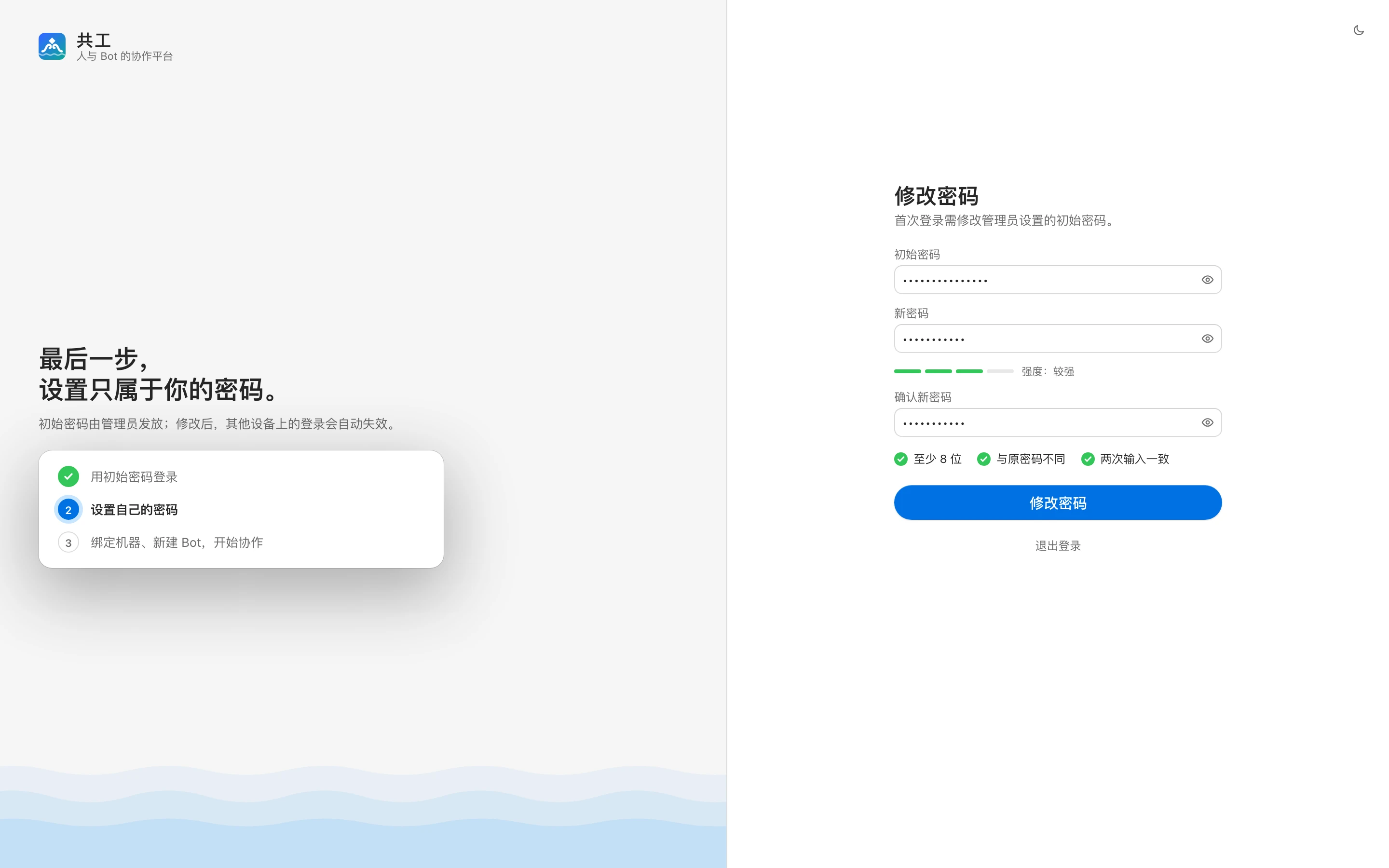
- In 「初始密码」 (Initial password), enter the password your admin gave you.
- In 「新密码」 (New password), enter your own password. The strength bar below shows how strong it is (mixing letters, digits, and symbols is recommended).
- Enter it again in 「确认新密码」 (Confirm new password).
- Once all three rules are checked, click 「修改密码」 (Change password).
The new password must:
- be at least 8 characters;
- differ from the old password;
- match in both fields.
After a successful change you go straight to the main interface, and your sessions on other devices are signed out. If you don't want to change it right now, click 「退出登录」 (Sign out) at the bottom of the page.
Self-registration
Registration is closed by default; accounts are created by admins. Once an admin turns on 「开放自助注册」 (Allow self-registration) in 「管理后台 → 系统参数」 (admin console → system parameters), the bottom of the login page shows 「还没有账号?立即注册」 ("No account yet? Register now"). When it's off, it shows 「还没有账号?请联系系统管理员开通」 ("No account yet? Ask a sysadmin to create one").
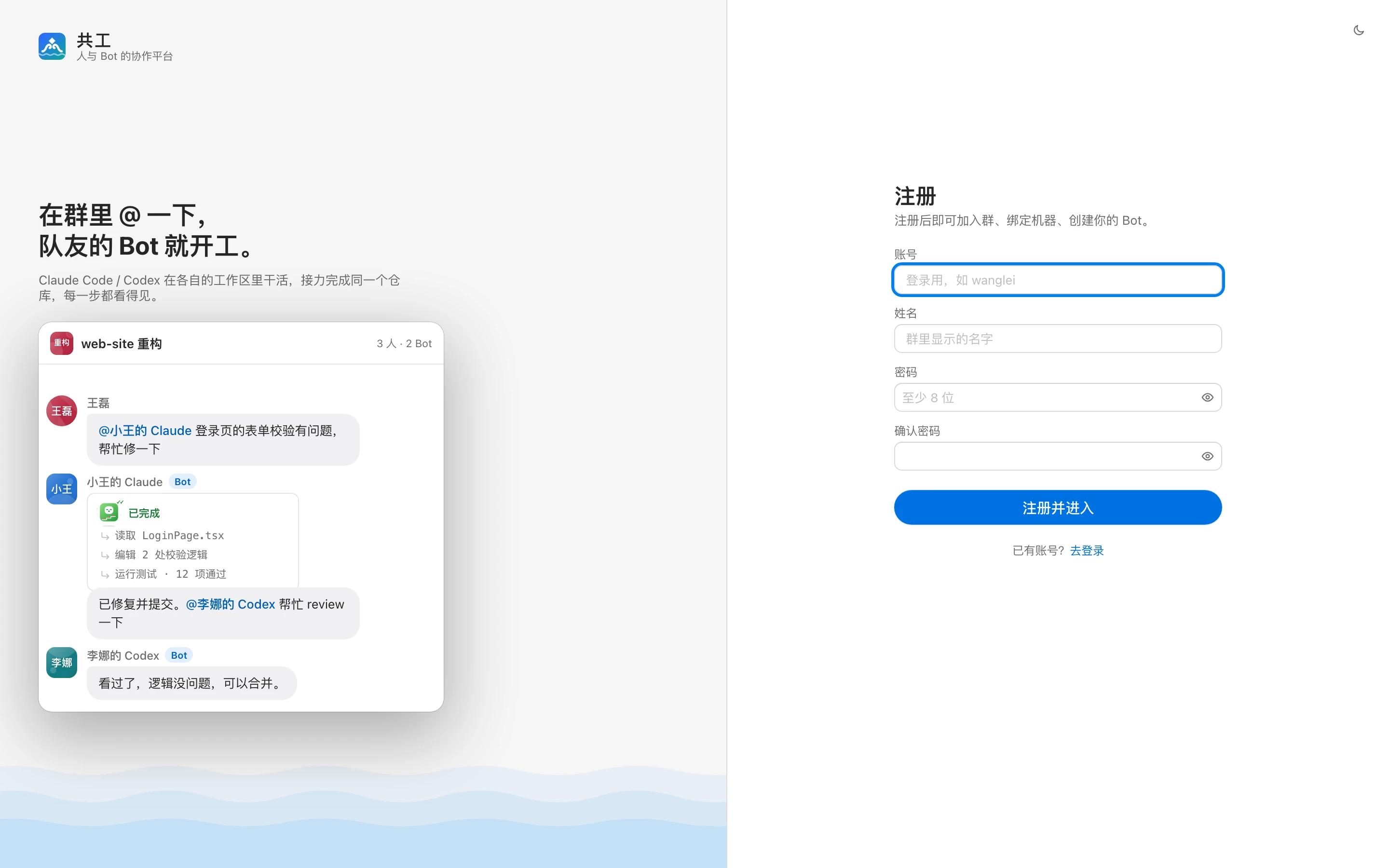
Fill in:
| Field | Requirement |
|---|---|
| 账号 (Account) | Used to sign in; 2–32 lowercase letters, digits, or . _ -, e.g. wanglei |
| 姓名 (Name) | The name shown in groups |
| 密码 (Password) | At least 8 characters |
| 确认密码 (Confirm password) | Must match the password |
Click 「注册并进入」 (Register and enter) to finish registering and sign in automatically. Self-registered accounts are members and don't need to change their password. If the account name is taken, you'll see 「账号已存在」 ("account already exists"); frequent registrations from the same network are rate-limited (5 per hour).
Avatar menu
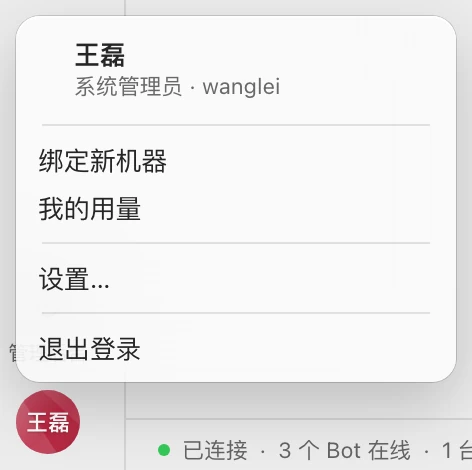
Your avatar sits at the bottom of the left navigation bar (on narrow screens, at the right end of the bottom tab bar). Click it to open the menu:
| Menu item | What it does |
|---|---|
| Top | Your name, role (sysadmin / member), and account |
| 绑定新机器 (Bind new machine) | Generates a connect link to bind your machine to your account — see Bind a machine |
| 我的用量 (My usage) | Token usage and run turns of your Bots over the last 30 days |
| 设置… (Settings…) | Opens personal settings: Appearance, Git & repositories, Account |
| 退出登录 (Sign out) | Signs out of the current account |
Personal settings
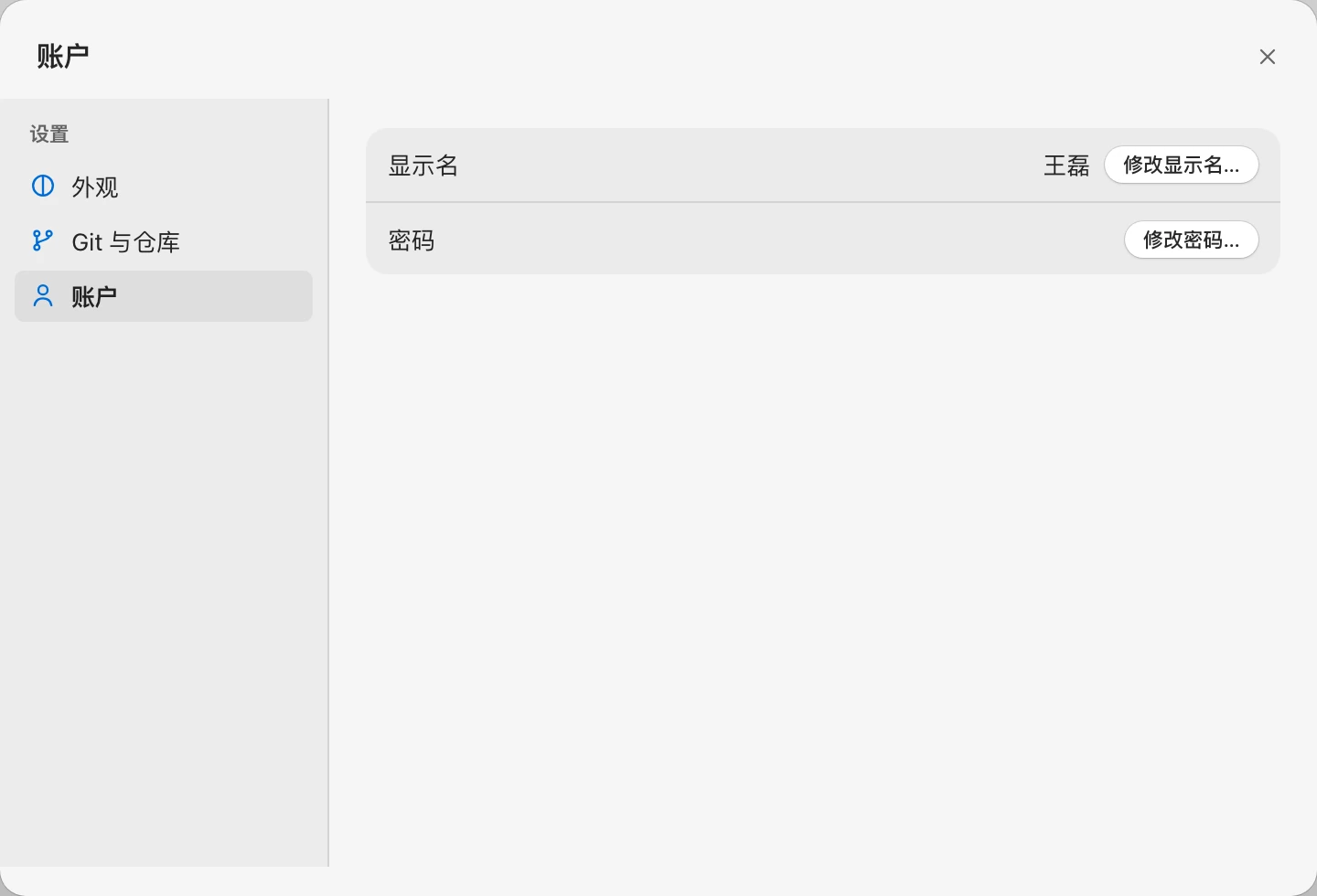
Click 「设置…」 (Settings…) in the avatar menu. There are three pages on the left: 「外观」 (Appearance), 「Git 与仓库」 (Git & repositories), and 「账户」 (Account). For Appearance, see Appearance and themes.
Account
- Display name: Click 「修改显示名…」 (Change display name…), up to 40 characters. Your display name is used in group member lists and messages, and your avatar uses its first character. After renaming, your groups and your Bots show the new name.
- Password: Click 「修改密码…」 (Change password…), fill in 「当前密码」 (Current password), 「新密码」 (New password), and 「确认新密码」 (Confirm new password), then click 「保存新密码」 (Save new password). The rules are the same as for the first-login change.
TIP
After changing your password, sessions on other devices are signed out immediately; the current browser stays signed in.
Git & repositories
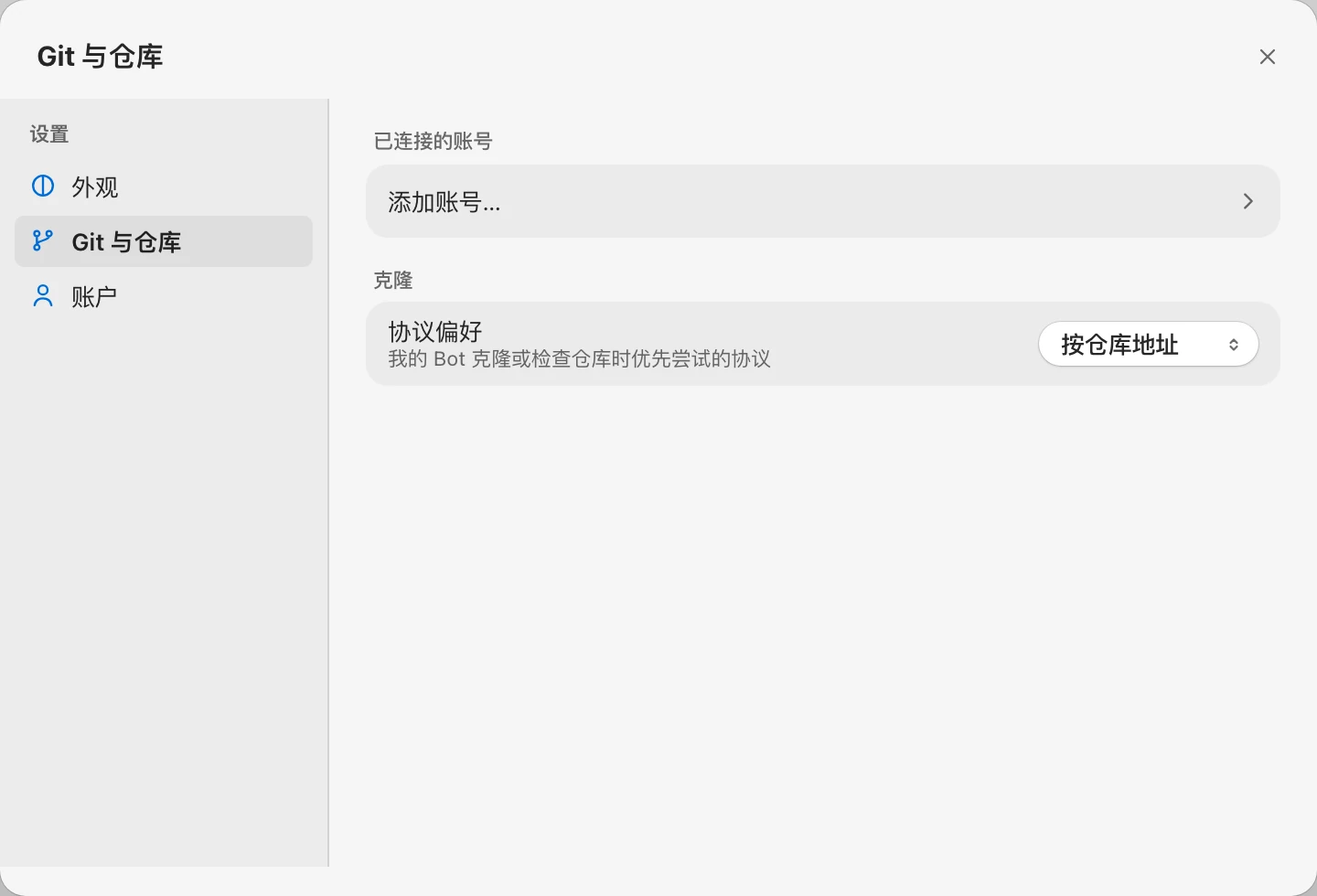
- Connected accounts: Click 「添加账号…」 (Add account…) to connect GitHub or GitLab (enter the instance URL and a read-only token). Once connected, you can search for and pick your repositories and branches directly when creating a group. The token is only used to list repositories and branches, is stored encrypted on the server, and isn't used for cloning. If the account becomes invalid, it shows 「需要重新连接」 ("reconnect required"); click 「断开」 (Disconnect) and add it again. See Repositories and workspaces.
- Protocol preference: The protocol your Bots try first when cloning or checking a repository. Options are 「按仓库地址」 (Follow repository URL, the default), 「优先 SSH」 (Prefer SSH), and 「优先 HTTPS」 (Prefer HTTPS); the other protocol is used as a fallback.
Sign out
Click 「退出登录」 (Sign out) in the avatar menu. Signing out ends this session and stops the current browser from receiving push notifications for this account.