
Accounts and roles
This page explains how sysadmins create accounts, assign roles, and reset passwords on the 「账号与角色」 (Accounts & roles) page, and what deactivating an account does.
Roles
Gonggong Space has only two account roles:
| Role | What it can do |
|---|---|
| Member (「普通成员」) | Sign in to the web app, bind their own machines, create Bots for themselves, create groups and direct chats, and direct Bots in groups; can see and modify only their own Bots and machines |
| Sysadmin (「系统管理员」) | Everything a member can do, plus access to the admin console: manage accounts, create or modify Bots for any member, view all groups and machines, revoke machines, and use the configuration center, system parameters, client releases, global usage, public links, and audit log |
What even sysadmins can't change
A Bot's 「命令审批」 (command approval) setting (「每次询问」 (Ask every time) / 「白名单自动」 (Auto for allowlist) / 「全部自动」 (Auto for all)) and its allowlist can be changed only by the Bot owner, not by sysadmins. Bots created for someone else always start at 「每次询问」 (Ask every time). This prevents admins from remotely unlocking command execution on someone else's machine.
A group admin (「群管理员」) is not an account role but a role within a group, assigned in group settings; see Groups and direct chats.
Account list
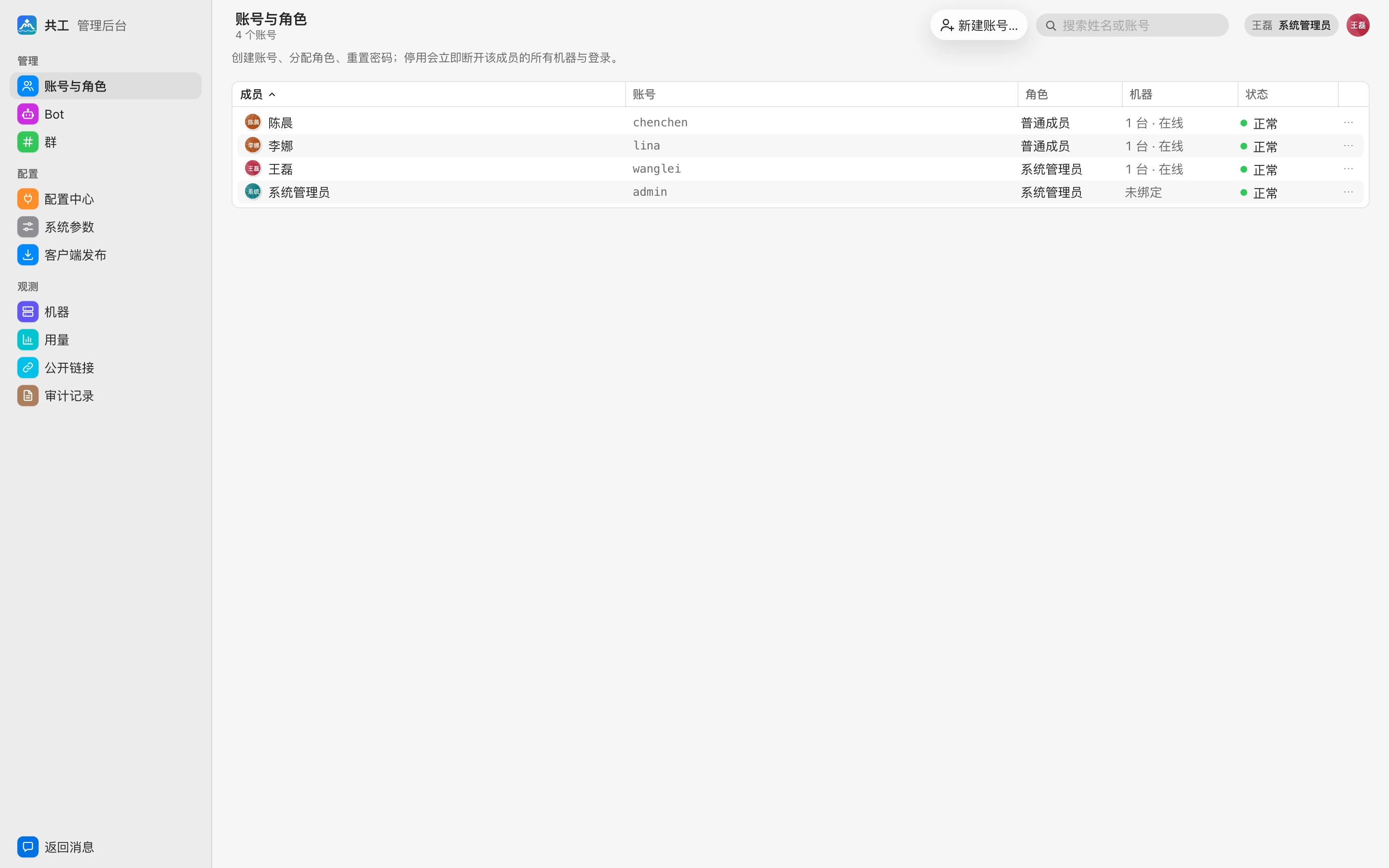
The table lists every account:
| Column | Description |
|---|---|
| 成员 (Member) | Avatar and display name |
| 账号 (Account) | The account name used to sign in |
| 角色 (Role) | 系统管理员 (Sysadmin) / 普通成员 (Member) |
| 机器 (Machines) | Number of bound machines and their online status, such as 「2 台 · 在线」 (2 · online); shows 「未绑定」 (Not bound) if none are bound |
| 状态 (Status) | 「正常」 (Active), 「待修改密码」 (Password change pending — hasn't yet signed in with the initial password and changed it), or 「已停用」 (Deactivated) |
Use the search box in the top right to filter by name or account. Double-click a row to edit it. The action menu on the right of each row has 「编辑…」 (Edit…), 「重置密码…」 (Reset password…), and 「停用…」 (Deactivate…) (deactivated accounts show 「启用」 (Reactivate) instead). You can't reset your own password or deactivate yourself.
Create an account
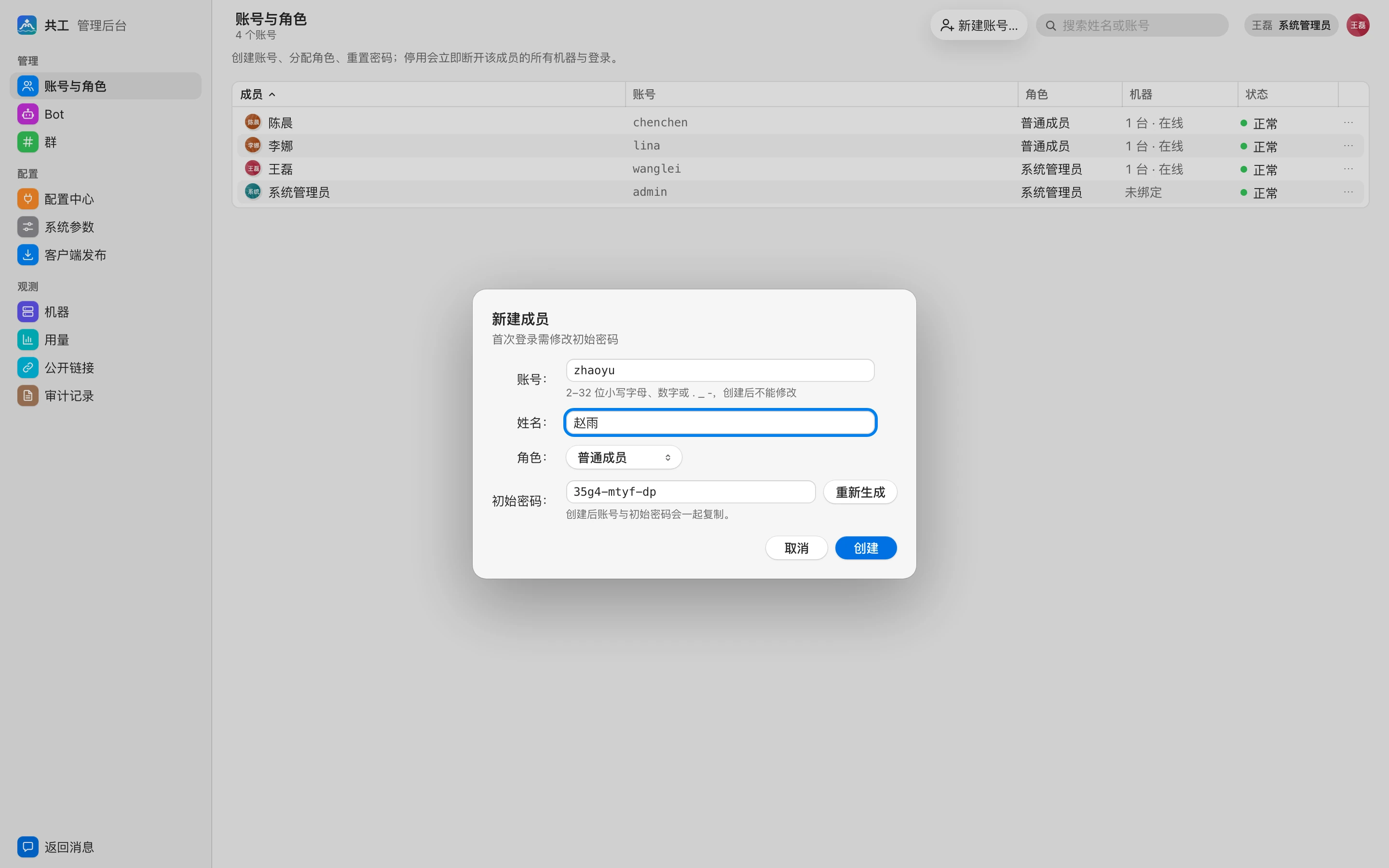
- Click 「新建账号…」 (New account…) in the toolbar.
- Fill in:
- 账号 (Account): 2–32 lowercase letters, digits, or
._-, such aswanglei. It can't be changed after creation. - 姓名 (Name): The name shown in the interface, such as 「王磊」.
- 角色 (Role): Member or sysadmin.
- 初始密码 (Initial password): An easy-to-read temporary password (like
k7qm-4x2p-9d) is generated for you. Click 「重新生成」 (Regenerate) or type your own; it must be at least 8 characters.
- 账号 (Account): 2–32 lowercase letters, digits, or
- Click 「创建」 (Create). The account name and initial password are copied to the clipboard together; send them to the person privately.
On first sign-in, the person must change the initial password before they can enter the system. See Sign-in and accounts.
Self-registration
If you'd rather not create accounts one by one, turn on 「开放自助注册」 (Open self-registration) in System parameters. A registration entry then appears on the sign-in page, and all self-registered accounts are members.
Edit an account
In the 「编辑成员」 (Edit member) dialog you can change the name and role. The account name can't be changed, and you can't change your own role (so the only sysadmin can't demote themselves).
Reset a password
When a member forgets their password:
- Choose 「重置密码…」 (Reset password…) from the row's menu.
- A temporary password is already generated in the dialog; regenerate it or type your own (at least 8 characters).
- Click 「重置并复制」 (Reset and copy). The temporary password is copied to the clipboard; send it to the person privately.
After the reset:
- All of the person's web sessions end immediately. They must sign in with the temporary password and change it right away.
- Their bound machines and Bots are not affected; the daemon stays online.
Deactivate and reactivate
Choose 「停用…」 (Deactivate…) from the row's menu. After you confirm, it takes effect immediately:
- All of the member's daemon tokens and web sessions are revoked immediately. The sign-in page shows 「账号已停用,请联系系统管理员」 ("Account deactivated, please contact a sysadmin").
- After its next failed connection, the daemon clears the managed workspaces on that machine (best effort, not guaranteed).
- The member's Bots are removed from all groups; runs in progress are treated as non-voluntary interruptions.
- Group messages and audit log entries are kept.
You can click 「启用」 (Reactivate) at any time to restore sign-in, but previously revoked machines and removed Bots don't come back automatically: the member needs to bind their machines again and add their Bots back to groups.
DANGER
You can't deactivate your own account. Before deactivating a member, make sure they have no running tasks that need to be kept.
Audit
Creating an account, changing a name or role, resetting a password, deactivating, reactivating, and self-registration are all written to the audit log (type 「管理」 (Admin)).