
Configuration center
This page explains how the configuration center layers configuration, and what you can currently configure here.
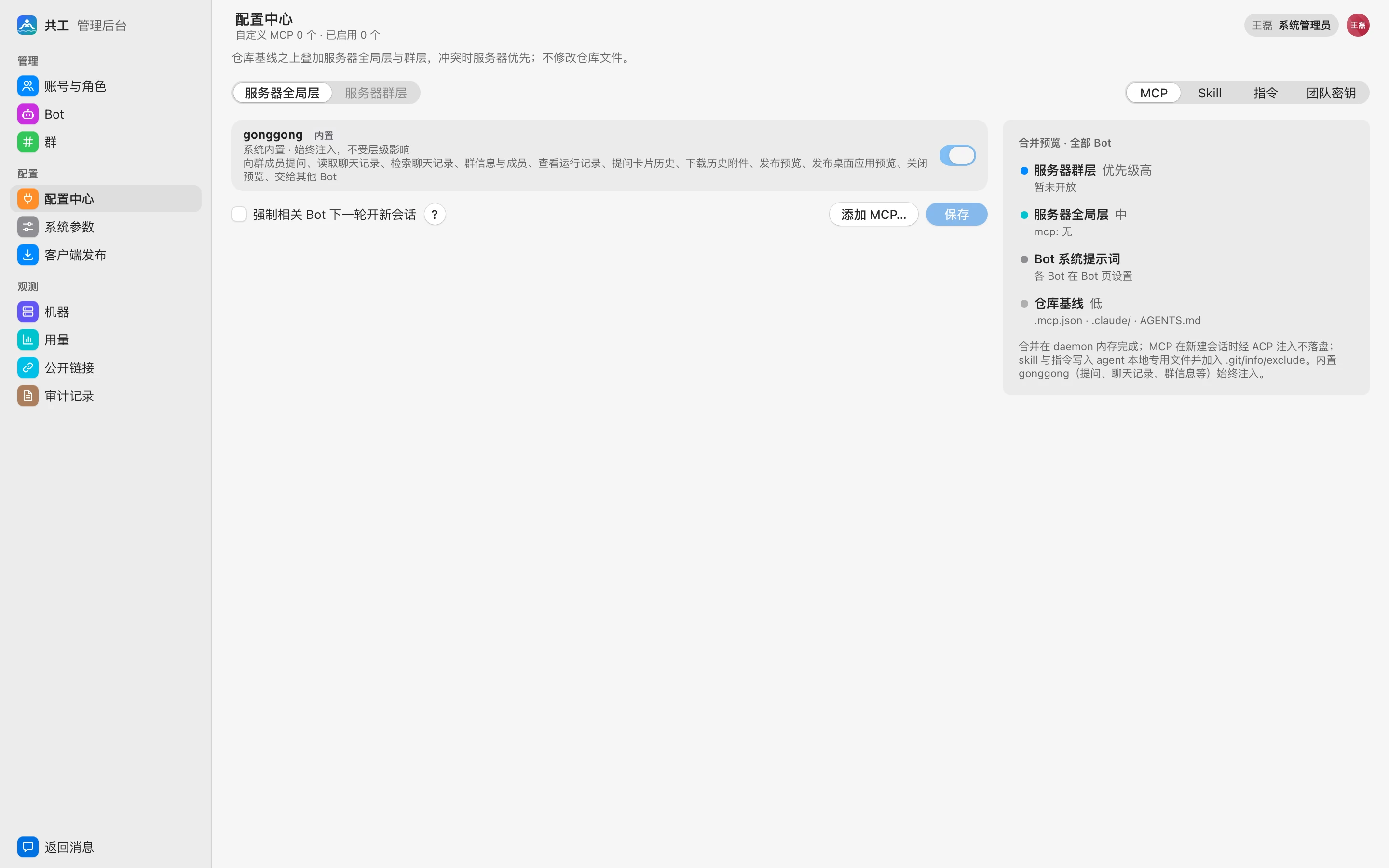
Layering
When a Bot works in a group, the configuration the Agent actually uses is built from several layers, from lowest to highest:
| Layer | Source | Priority | Status |
|---|---|---|---|
| Repository baseline | .mcp.json, .claude/, AGENTS.md, etc. in the group's bound repository | Low | Determined by the repository itself |
| Bot system prompt | Set per Bot in Bot settings | — | See Bot settings and permissions |
| Server-global layer | Configured in the configuration center; applies to all Bots | Medium | Available |
On conflict, the server layer wins. The configuration center does not modify repository files:
- Merging happens in the daemon's memory.
- MCP servers are injected into the Agent via ACP when a new session starts, never written to disk.
The 「合并预览 · 全部 Bot」 (Merge preview · all Bots) panel on the right lists what is currently in effect, layer by layer.
What you can configure
In the layer switcher on the top left, only 「服务器全局层」 (Server-global layer) is selectable. The type switcher on the right has four options — 「MCP」, 「Skill」, 「指令」 (Instructions), and 「团队密钥」 (Team secrets) — but only MCP can be configured for now; the other types show 「暂不支持」 (Not supported yet).
Built-in gonggong
The last item in the list is the built-in gonggong MCP, labeled 「内置」 (Built-in). It is always injected, isn't affected by layers, and can't be turned off. It gives the Agent tools to ask group members questions, read and search chat history, get group info and members, view run records, view question card history, and more; see System architecture.
Add an MCP server
- Click 「添加 MCP…」 (Add MCP…).
- Choose the 传输方式 (Transport):
- Stdio: Fill in 「命令」 (Command), such as
npx, and 「参数」 (Arguments), one per line. - HTTP: Fill in 「URL」, which must start with
http://orhttps://.
- Stdio: Fill in 「命令」 (Command), such as
- Enter a 名称 (Name), such as
wiki-search. It can't duplicate an existing MCP name. - Optional: expand 「环境变量」 (Environment variables; Stdio, one
KEY=VALUEper line) or 「请求头」 (Request headers; HTTP, oneKey: Valueper line). - Click 「添加」 (Add). The new entry is marked 「未保存」 (Unsaved).
- When everything looks right, click 「保存」 (Save) at the bottom of the page.
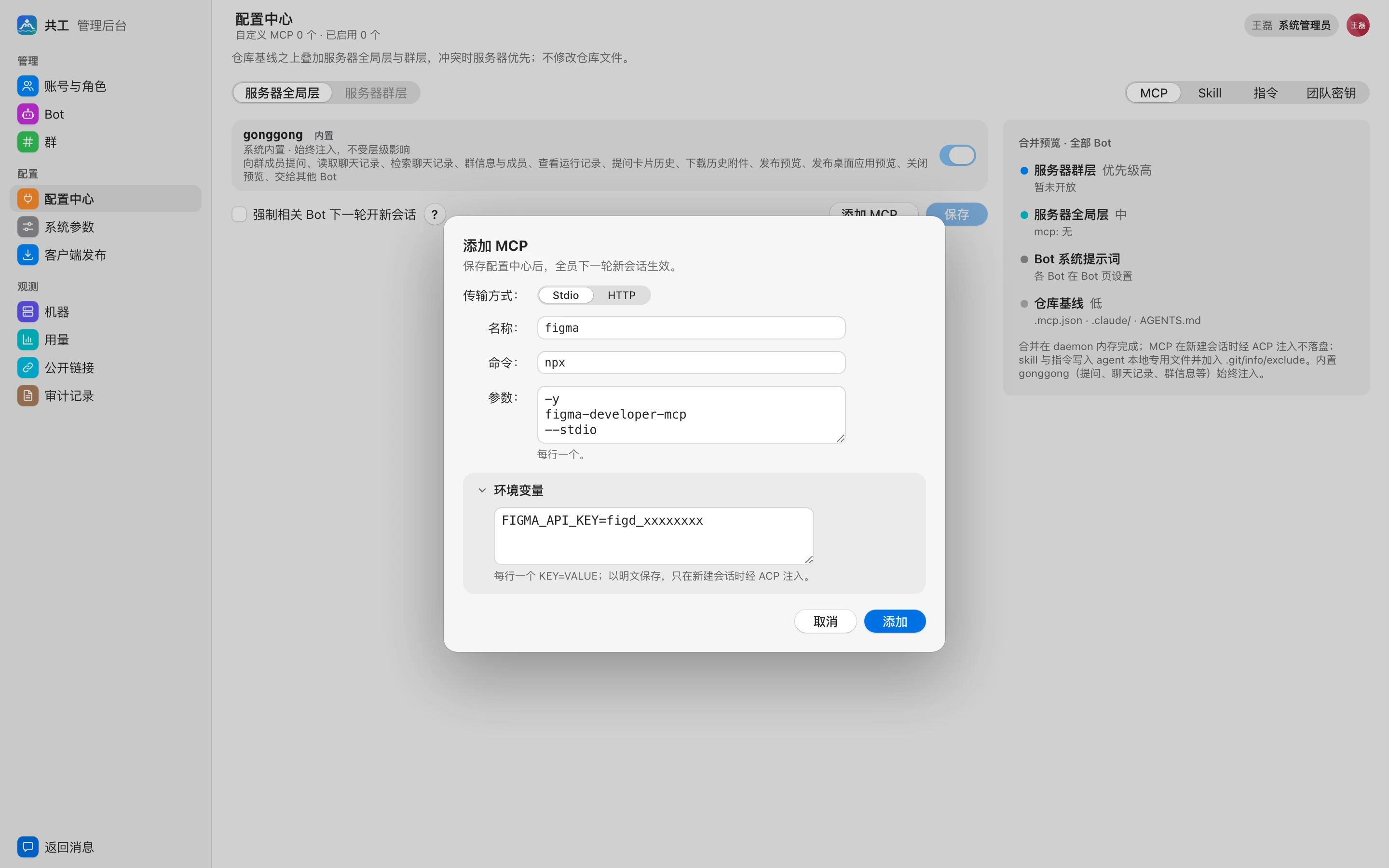
Each MCP entry has a toggle (enable / disable) and a delete button on the right. These changes also take effect only after you click 「保存」 (Save).
Stored in plain text
MCP environment variables and request headers are stored in plain text in the server configuration and injected via ACP only when a new session starts. Don't put high-privilege personal secrets here.
When changes take effect
After saving, you'll see 「已保存,全员下一轮新会话生效」 ("Saved; takes effect for everyone in the next new session"):
- By default, runs in progress aren't affected, and existing sessions keep using the old configuration. Bots pick up the new configuration the next time they start a new session.
- If you check 「强制相关 Bot 下一轮开新会话」 (Force affected Bots to start a new session next turn) before saving, affected Bots abandon their existing session on the next turn and restart with the new configuration; the run card shows the reason. The trade-off is that the Bot loses the context from its previous session.
Adding, modifying, and deleting server-global MCP entries are all written to the audit log.