
Feishu
Once Feishu is connected, members can sign in with Feishu in one click, and use Bots by @-mentioning them in Feishu group chats or messaging a Bot's app directly in Feishu. This page explains what sysadmins configure on the 「飞书」 (Feishu) page, plus a configuration checklist for the Feishu developer console.
Which apps you need
| App | How many | Where it's connected | Purpose |
|---|---|---|---|
| Main app (「主应用」) | 1 for the whole system | Admin console · Feishu | Feishu sign-in; syncing messages members send to Bots in Gonggong over to Feishu; listing linkable Feishu chats and syncing chat members |
| Bot app (「Bot 应用」) | 1 per Bot | The 「飞书」 (Feishu) tab in Bot settings (Bot owner or sysadmin), or the Bot table on this page | Receives messages that @-mention it in Feishu chats and direct messages in Feishu; replies, run cards, and question/approval cards are sent under its own identity |
All of them must be custom apps (企业自建应用) of your organization, and each app can be connected either as the main app or to one Bot. Without a main app, the Feishu integration is unavailable as a whole: the login page shows no Feishu button, and Feishu chats can't be linked in group settings.
In Feishu the main app shows up as a bot, which members see called 「共工机器人」 (the Gonggong bot), or 「「display name」机器人」 when it has a display name. "Main app" and "Bot app" appear only in the admin console and these docs.
Three words
- A Feishu app and Gonggong: connect / remove (「接入 / 移除」);
- A Gonggong group and a Feishu chat: link / unlink (「关联 / 取消关联」);
- A Gonggong account and a Feishu account: link / unlink (「绑定 / 解绑」).
What's on the page
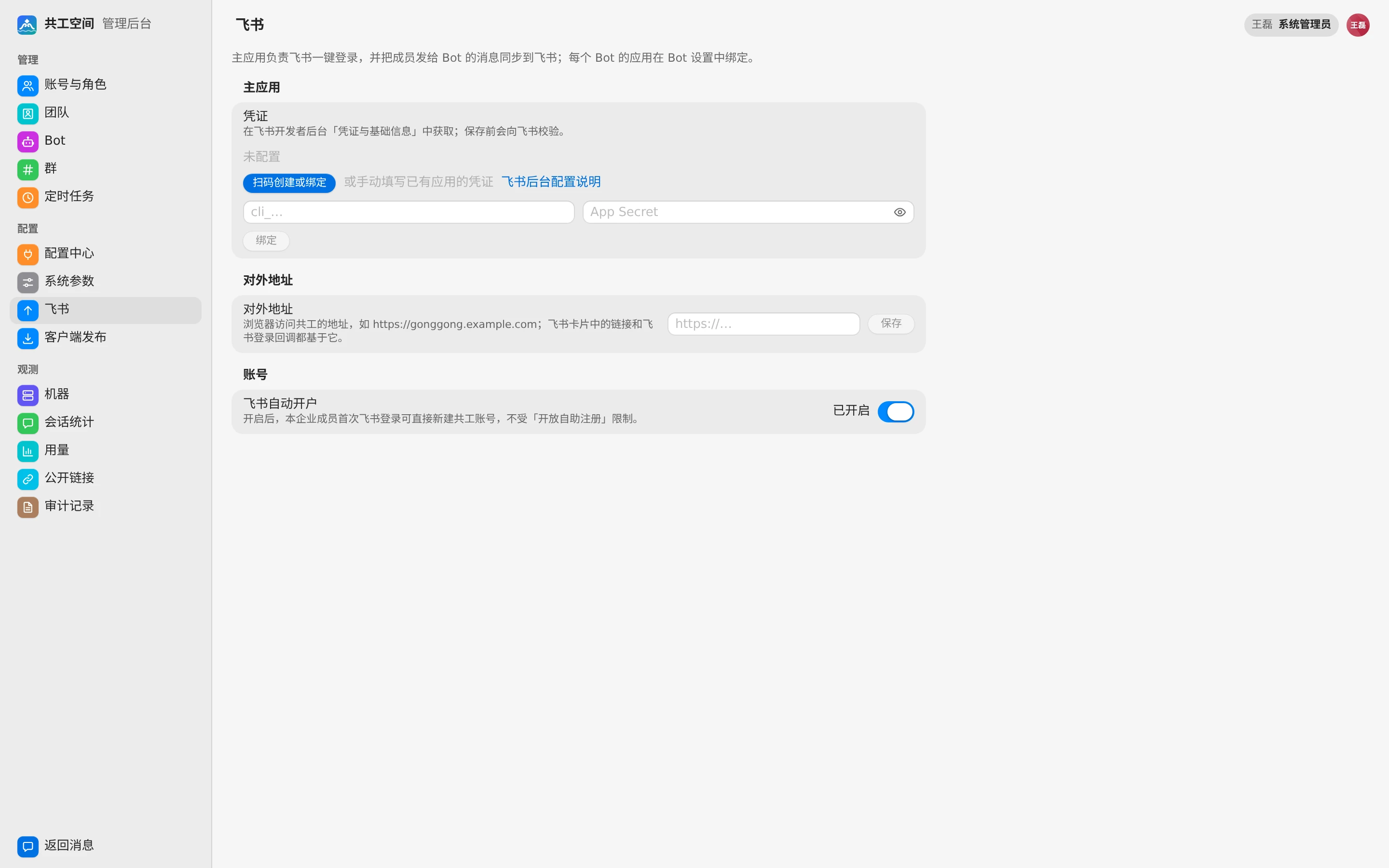
The 「飞书」 page, from top to bottom:
- 「接入进度」 (Setup progress): four steps — public URL → connect the main app → approved → members can use it, each the same check as the forms below. Once all four are done it folds into one line, 「飞书已接通 · N 人已绑定飞书账号」 (Feishu is connected · N people linked Feishu).
- 对外地址 (Public URL): the address browsers use to reach Gonggong, e.g.
https://gonggong.example.com; click 「保存」 (Save) to apply. When empty it is prefilled with the current address, with the note 「尚未保存,预填的是当前网址」 (Not saved yet; prefilled with this page's address) and 「保存」 as the primary button. Links in Feishu cards, the Feishu sign-in callback and the chat invite card are based on it, so 「扫码创建或接入」 (Create or connect by scanning) stays disabled until the public URL is saved. Once saved, the 「重定向 URL」 (Redirect URL) to add in the Feishu console is shown below. - 主应用 · 凭证 (Main app · Credentials): before connecting, scanning and the manual fields are shown; once connected it folds into one status line (未接入 / 连接中 / 等待审核 / 待确认 (Pending confirmation) / 连接失败 / 已接通) with the App ID, the setup checklist below (see next section), and only 「更新权限」 (Update permissions), 「更换应用…」 (Replace app…) and 「移除主应用」 (Remove main app). Scanning again replaces the current app, so scanning and the manual fields open only after 「更换应用…」.
- Bot: each Bot's Feishu status (未接入 (Not connected) / 连接中 (Connecting) / 等待审核 (Awaiting approval) / 连接失败 (Connection failed) / 已接通 (Connected and approved)) and the reason; the 「操作」 (Actions) menu at the end of a row connects, updates permissions or retries right there. Only connected Bots are listed by default; click 「显示全部」 (Show all) for every Bot.
- 飞书群 (Feishu chats): Gonggong groups linked to a Feishu chat, their team, the Feishu chat name, when it was linked, Bots in the chat and the latest failure; 「打开群」 (Open group) when you are in the group. Bots in the chat would need a live call to Feishu, so this page shows 「—」 — see group settings · Feishu for the live value. Failures cover only what was recorded since the server started.
- 账号 · 飞书自动开户 (Account · Feishu auto sign-up): see Accounts below.
Connect an app
The main app is connected on this page and Bot apps on the 「飞书」 (Feishu) tab of Bot settings; the steps are the same. You can connect either a new app or an app that already exists in the Feishu developer console.
Option 1: create or connect by scanning (recommended)
- Click 「扫码创建或接入」 (Create or connect by scanning; with an app already connected, click 「更换应用…」 first) and scan with Feishu (or click 「在飞书中打开」 (Open in Feishu)). The QR code has a countdown (e.g. 「9:58 后过期」, expires in 9:58); when it expires, click 「重新生成」 (Regenerate).
- On the Feishu confirmation page, choose create a new app or select an existing app, and confirm the permissions, events, and callbacks that Gonggong prefilled.
- After you confirm, Gonggong saves the credentials, establishes a long connection, and tries to complete the developer configuration automatically: it sets events and callbacks to long-connection mode and adds the redirect URL to the main app.
After a successful scan the window stays open and shows what's left:
| Item | Meaning |
|---|---|
| 「已保存并连上飞书」 (Saved and connected to Feishu) | The long connection is up |
| 「飞书管理员已审核通过」 (Approved by the Feishu admin) | A new app's first version must be approved by your organization's Feishu admin. Until then automatic configuration always fails, which is how Gonggong tells; it shows 「等待企业飞书管理员审核,通过后自动完成,无需回来操作」 ("waiting for approval; finishes by itself, no need to come back"), and you can click 「重试」 (Retry). For apps not created in the Feishu developer console Gonggong can't tell, and asks you to check there that it is published |
| 「成员可以使用」 (Members can use it) | Feishu doesn't tell Gonggong an app's availability range, so this is always a reminder: a new app is available only to its creator; widen its availability to the members who need it in the Feishu admin console |
The same checklist stays in the app settings and folds into one line, 「已接通」 (Connected and approved), once connected and approved.
If a connected app lacks permissions (for example, a Gonggong upgrade needs new ones), click 「更新权限」 (Update permissions) and scan again to fill them in.
Option 2: enter credentials manually
- Open the app in the Feishu developer console and copy the App ID and App Secret from 「凭证与基础信息」 (Credentials & Basic Info).
- Enter them under 「或手动填写已有应用的凭证」 (or enter an existing app's credentials) and click 「接入」 (Connect). Gonggong first verifies the credentials with Feishu, then establishes a long connection, then tries to complete the developer configuration automatically. To replace the credentials, click 「更换应用…」, enter the new App ID and App Secret, then click 「更换」 (Replace).
- If automatic configuration fails, it's usually because the app doesn't have the
application:application:patchpermission yet, or new permissions haven't been approved. Click 「更新权限」 (Update permissions) and scan to add everything at once (recommended), or configure them manually in the Feishu developer console using the checklist below, then click 「重试」 (Retry) in the checklist.
When automatic configuration fails, Gonggong retries once a minute, so it completes on its own once a Feishu admin approves.
「移除」 (Remove) only disconnects Gonggong's long connection to that app; the app itself in the Feishu developer console is unaffected.
Why not read the approval status and availability range directly
Feishu has APIs for an app's versions and availability range, but reading versions needs application:application:self_manage, which likewise only takes effect after the first version is approved — so before approval it tells nothing more than whether automatic configuration succeeds. Reading the availability range needs admin:app.info:readonly, an advanced permission that needs an enterprise admin's approval. So Gonggong judges approval by whether automatic configuration succeeds, and "members can use it" by whether anyone besides the person who connected it has linked a Feishu account.
Feishu developer console checklist
Scanning fills in all of these automatically. When configuring manually or troubleshooting, check each item.
App capabilities
Both the main app and Bot apps must enable Bot (机器人) under 「添加应用能力」 (Add app capabilities).
Permissions
Enable these under 「权限管理」 (Permissions & Scopes):
| App | Identity | Permissions |
|---|---|---|
| Main app | App identity | im:message:send_as_bot, im:chat:readonly, im:chat.members:write_only, im:chat:create, im:resource, im:message.reactions:write_only, cardkit:card:write, application:application:patch |
| Main app | User identity | offline_access, contact:user.email:readonly, contact:user.employee_id:readonly, im:message, im:message.send_as_user, im:message.group_msg:get_as_user |
| Bot app | App identity | im:message.group_at_msg:readonly, im:message.p2p_msg:readonly, im:message:send_as_bot, im:message:readonly, im:chat:readonly, im:resource, im:message.reactions:write_only, cardkit:card:write, application:application:patch |
Events and callbacks
Connect the app in Gonggong first and make sure its status is 「已连接」 (Connected) before configuring these. Feishu requires the app to be connected when you save long-connection mode.
- Bot apps:
- 「事件与回调 · 事件配置」 (Events & Callbacks · Event configuration): choose receive events through a long connection, and add
im.message.receive_v1(message received) andim.message.recalled_v1(message recalled). - 「事件与回调 · 回调配置」 (Events & Callbacks · Callback configuration): choose receive callbacks through a long connection, and add
card.action.trigger(card action).
- 「事件与回调 · 事件配置」 (Events & Callbacks · Event configuration): choose receive events through a long connection, and add
- The main app subscribes only to events (long connection), no callbacks:
im.message.receive_v1,im.message.recalled_v1: receive messages from the Feishu chat when group settings · Feishu has 「同步全部消息」 (All messages) chosen under 「飞书 → 共工」 (Feishu → Gonggong).im.chat.member.user.added_v1,im.chat.member.user.deleted_v1,im.chat.member.user.withdrawn_v1: users joining or leaving the Feishu chat, used to sync group members.im.chat.member.bot.added_v1: when the main app is added to a Feishu chat that isn't linked yet, it posts a 「接入共工」 (Connect to Gonggong) card there.
Gonggong receives events over a long connection, so the server doesn't need a public callback address.
Redirect URL (main app only)
Under 「安全设置 · 重定向 URL」 (Security Settings · Redirect URLs), add <public URL>/api/auth/feishu/callback. Once the public URL is filled in, the 「飞书」 page shows this address directly.
Publish a version
After changing permissions or capabilities, create and publish a version under 「版本管理与发布」 (Version Management & Release). Changes take effect only after your organization's Feishu admin approves.
Accounts
「飞书自动开户」 (Feishu auto sign-up) is on by default: members of your organization can create a Gonggong account directly the first time they sign in with Feishu, regardless of 「开放自助注册」 (Allow self sign-up). When off, they can only link an existing account or register through an invite. Members can also link or unlink their Feishu account in their personal settings.
Using Bots in Feishu chats
A group admin links a Feishu chat in Gonggong under 「群设置 · 飞书」 (Group settings · Feishu). The smoothest path starts from the Feishu chat:
- Add the Gonggong bot under the Feishu chat's settings › 「群机器人」 (Bots).
- A 「接入共工」 (Connect to Gonggong) card appears in the chat (the public URL must be saved first; without it the card only says to link the chat from group settings). Open it and pick one:
- 「新建共工群」 (New group): creates a Gonggong group named after the chat and links it; team members in the chat who linked Feishu and the Bots already in it join too;
- 「关联到已有群」 (Link an existing group): pick a group you administer that isn't linked to a Feishu chat yet.
- You can also do it in Gonggong: the top of 「群设置 · 飞书」 first checks two prerequisites — 「绑定你的飞书账号」 (Link your Feishu account; shows 「已绑定」 (Linked) when done, otherwise click 「绑定飞书账号」 (Link Feishu account) right there) and 「把共工机器人拉进飞书群」 (Add the Gonggong bot to the Feishu chat; shows 「已在群中」 (In the chat) once there is a chat to link, otherwise you can copy the bot's name). Then pick a chat under 「选择飞书群」 (Choose a Feishu chat) and click 「关联」 (Link); only chats both the bot and you are in, not linked yet, are listed. Without a Feishu chat, click 「创建飞书群」 (Create Feishu chat) under 「没有现成的飞书群」 (No Feishu chat yet). A Gonggong group can be linked to only one Feishu chat.
- Once linked, 「群里的 Bot」 (Bots in this group) shows each Bot's status: for Bots not in the chat click 「拉入飞书群」 (Add to chat); for a Bot without a Feishu app, its owner or a sysadmin sees 「去接入」 (Connect), which opens that Bot's Feishu settings, and others see 「请 Bot 主人接入」 (Ask its owner to connect it).
- After that, members can trigger runs by @-mentioning the Bot in the Feishu chat. Members must have linked their Feishu account and be members of the corresponding Gonggong group. When someone outside the group @-mentions a Bot, and the group is filed under a team section of a team they are in, the reminder card has 「申请加入」 (Request to join).
Once linked, the sync settings are grouped by direction:
- 「共工 → 飞书」 (Gonggong → Feishu): the 「网页消息发到飞书群」 (Send web messages to the Feishu chat) switch.
- 「飞书 → 共工」 (Feishu → Gonggong): 「只同步 @Bot 的消息」 (Only messages that @ a bot) or 「同步全部消息」 (All messages).
There are also 「同步飞书群成员」 (Sync Feishu chat members) and 「改为飞书群名」 (Use Feishu chat name).
When the main app's calls to Feishu fail (e.g. the App Secret was reset, or Feishu is unreachable), a linked group shows 「飞书调用失败」 (Feishu call failed) and why at the top, and the sync settings and 「取消关联」 (Unlink) still work; sysadmins also get 「去管理后台检查飞书」 (Check Feishu in Admin). When adding a Bot fails, the toast only says 「没能拉入,原因见列表」 (Couldn't add it; see the list for why), and the reason stays on that Bot's row.
Troubleshooting
| Symptom | What to do |
|---|---|
| Status is 「连接失败」 (Connection failed) | Check whether the App Secret was reset, and whether the server can reach open.feishu.cn |
| Says the public URL isn't set | Save the public URL on the 「飞书」 page first, then click 「重试」 (Retry) in the setup checklist |
| Stuck on 「等待企业飞书管理员审核」 (waiting for approval) | Ask your organization's Feishu admin to approve the app's first version in the Feishu admin console; setup finishes within a minute after |
| Others get error 20010 when signing in with Feishu | The app is available only to its creator; widen its availability range in the Feishu admin console |
| @-mentioning a Bot in a Feishu chat does nothing | Check that the Bot app is 「已连接」 (Connected) and in the chat, that im.message.receive_v1 is subscribed via long connection, and that the version has been published |
| Card buttons don't respond | Check that the Bot app's card.action.trigger callback is configured via long connection |
| Redirect error after Feishu sign-in | Check that the redirect URL matches the public URL |