Interface tour
This page describes the layout of the web app's main interface: the left navigation bar, the conversation sidebar, the message area, the group info sidebar and workbench on the right, and how things change on narrow screens.
Welcome page
When you sign in for the first time and haven't joined any group, the main area shows a welcome page that walks you through three steps to get your first Bot working:
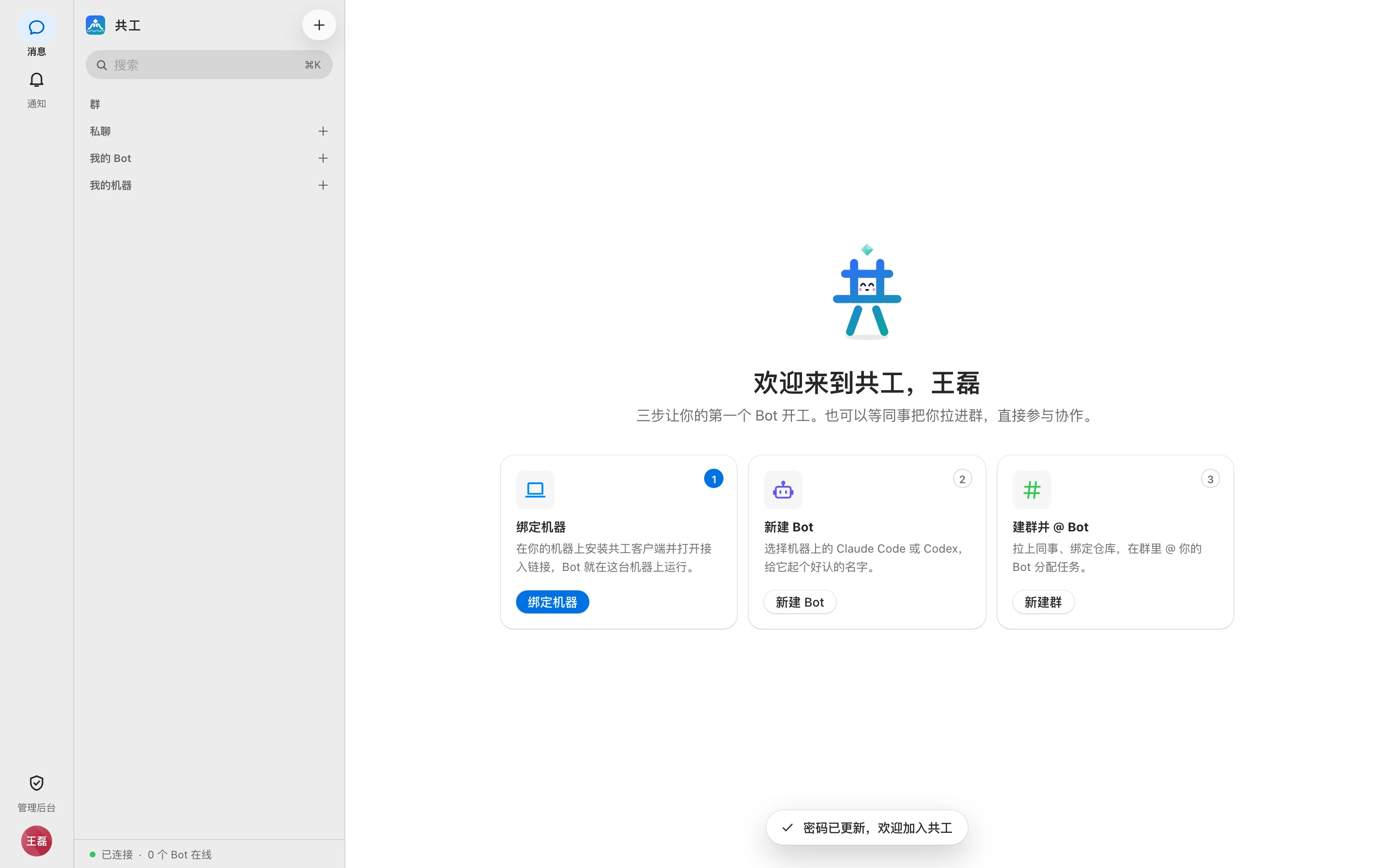
- Bind a machine: Install the Gonggong Space client on your machine and open the connect link — see Bind a machine.
- Create a Bot: Pick Claude Code or Codex on the machine — see Create a Bot.
- Create a group and @ the Bot: Add colleagues and bind a repository — see Groups and direct chats.
Completed steps get a check mark and 「已完成」 (Done). You can also skip all of this and wait for a colleague to add you to a group. After you join a group, a 「开始使用」 (Get started) card still appears at the top of the sidebar until all three steps are done.
Overall layout
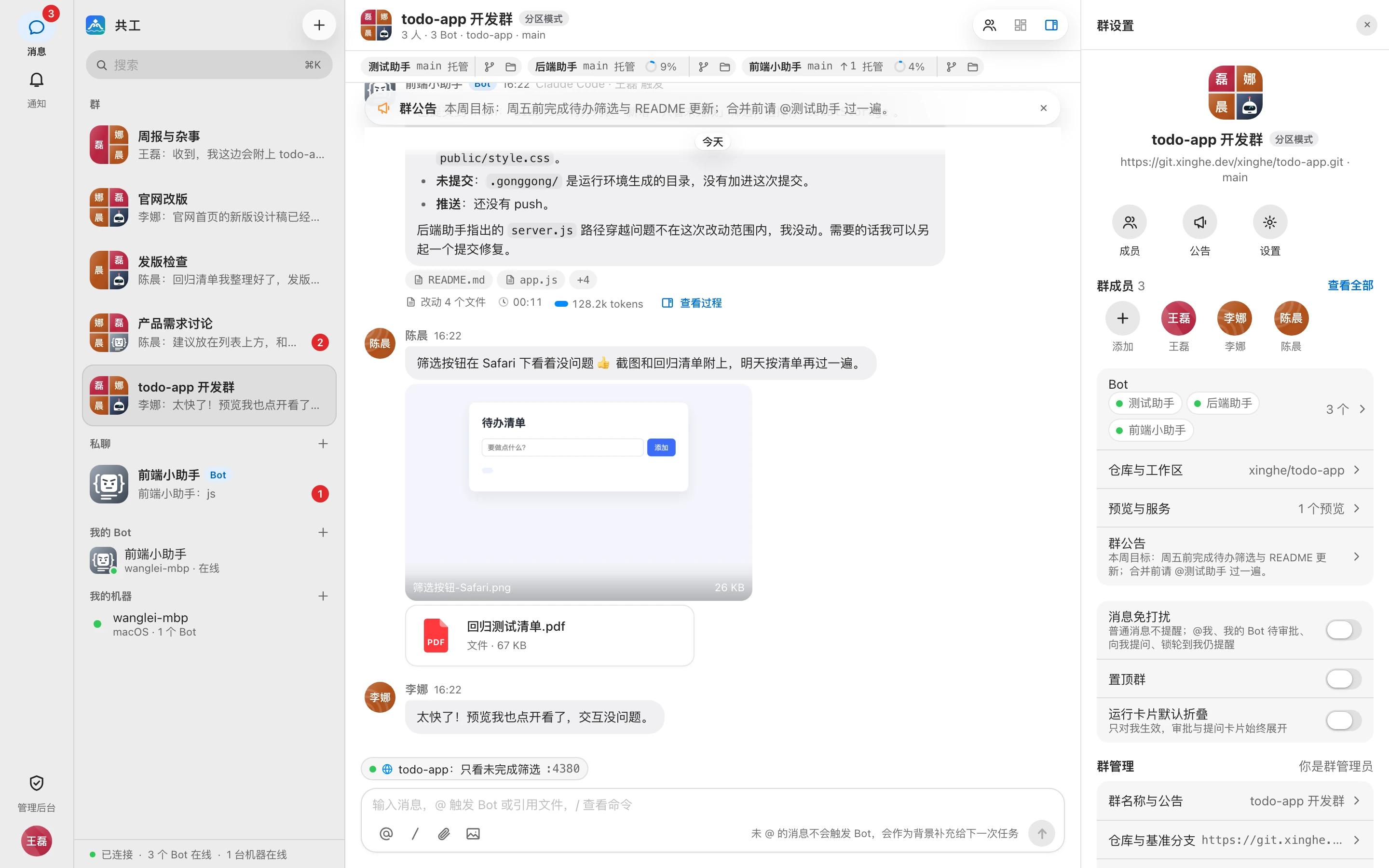
From left to right:
| Area | Contents |
|---|---|
| Navigation bar | 「消息」 (Messages), 「通知」 (Notifications), plus 「管理后台」 (admin console) for sysadmins; the avatar menu is at the bottom |
| Conversation sidebar | Search, groups, direct chats, my Bots, my machines |
| Message area | Messages and the input box for the current group or direct chat |
| Right side | The group info sidebar, or the workbench when tabs are open |
On wide screens, reopening the web app automatically returns you to the group you had open last.
Navigation bar
- Messages: Returns to the conversation list. The badge is the unread count across all groups that aren't muted.
- Notifications: Opens the notification panel. The badge is the number of unread notifications — see Notifications.
- Admin console: Visible to sysadmins only — see Admin console.
- Avatar: Opens the avatar menu (Bind new machine, My usage, Settings…, Sign out) — see Login and account.
Conversation sidebar
The top row holds the 「共工空间」 (Gonggong Space) title and the 「新建群」 (New group) button, with a search box below. Click the search box or press ⌘K (Ctrl K on Windows / Linux) to search messages, files, and runs.
The sidebar has several sections:
- Groups: Groups you've joined. Pinned groups come first. Each row shows the latest message, or the member count and sync mode if there are no messages yet. Running groups, unread counts, drafts, and muted status are all marked on the row.
- Direct chats: One-on-one conversations between you and your own Bots. Click 「+」 to start a new direct chat.
- My Bots: Bots you own. The dot at the bottom-right of the avatar shows status (green online, blue running, gray offline, orange agent missing). Click to open the Bot overview page. Bots an admin created for you that need your confirmation show a 「确认」 (Confirm) button. Click 「+」 to create a Bot.
- My machines: Machines you've bound. A green dot means online, gray means offline; below it are the OS and the number of Bots running. Click to open machine details. Click 「+」 to bind a new machine.
The bottom of the sidebar is a status line: the server connection (「已连接」 connected / 「连接中…」 connecting… / 「已断开 · 重连中」 disconnected · reconnecting), the number of online Bots, and the number of online machines.
Keyboard navigation
When focus is on the conversation list, use ↑ ↓ Home End to move between and open conversations.
Message area
The top of the message area is the group header: group avatar, group name, and sync-mode tag. The subtitle shows the member count, Bot count, and the bound repository and branch (without a bound repository it shows 「未绑定仓库 · 各 Bot 使用本机目录」 — "no repository bound · each Bot uses a local directory"). Three buttons on the right:
- Group members (not in direct chats): Opens the member list in the group info sidebar.
- Workbench: Shows or hides the workbench on the right. The number is the count of open tabs; it's disabled when there are no tabs yet.
- Group settings: Opens or closes the group info sidebar.
Below the group header are the Git bar and the Bot bar (branch, sync status, context usage, and so on), followed by the message list and the input box. See Directing Bots in a group, Runs, and Diffs and files.
Right side: group info sidebar
Opened via 「群设置」 (Group settings) or 「群成员」 (Group members), it shows group members, Bots, announcements, and more — see Groups and direct chats. Drag the sidebar's left edge to resize it (or focus it and use ← →); the width is remembered in the current browser. When the window is narrower than 1100px, the sidebar is collapsed by default.
Right side: workbench
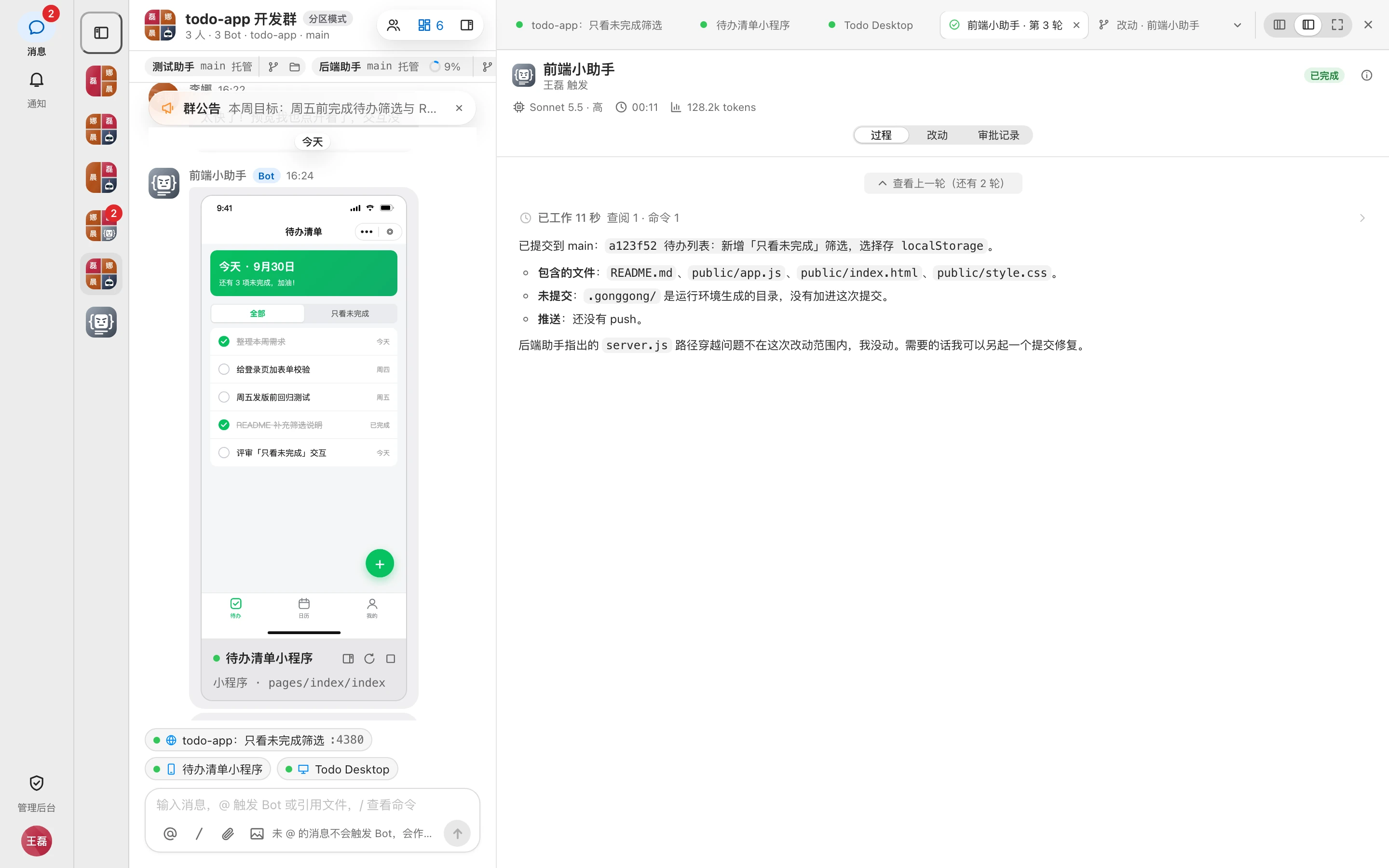
When you open a run's process, code changes, files, or a preview from a message, the content appears as a tab in the workbench to the right of the message area. Each group has its own set of tabs, up to 12.
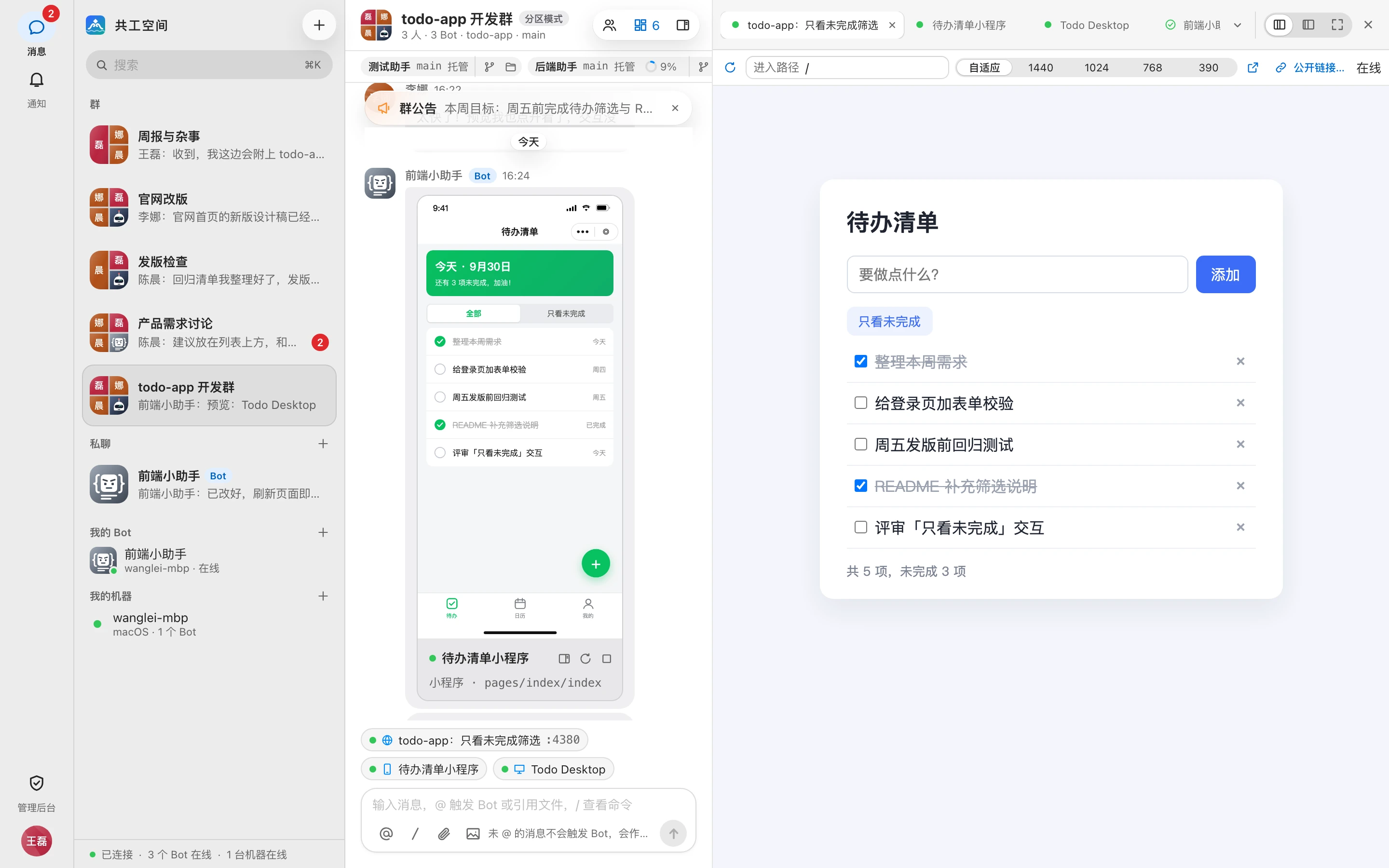
Common tabs:
| Tab | Contents |
|---|---|
Run (Bot name · 第 N 轮, i.e. turn N) | A turn's 「过程」 (Process), 「改动」 (Changes), and 「审批记录」 (Approval log) — see Runs |
| Changes | Uncommitted changes in the Bot's workspace — see Diffs and files |
| Files | The file tree and file contents of the Bot's workspace |
| Preview / Mini program / Desktop app | Web pages, mini programs, or live views published by a Bot — see Previews |
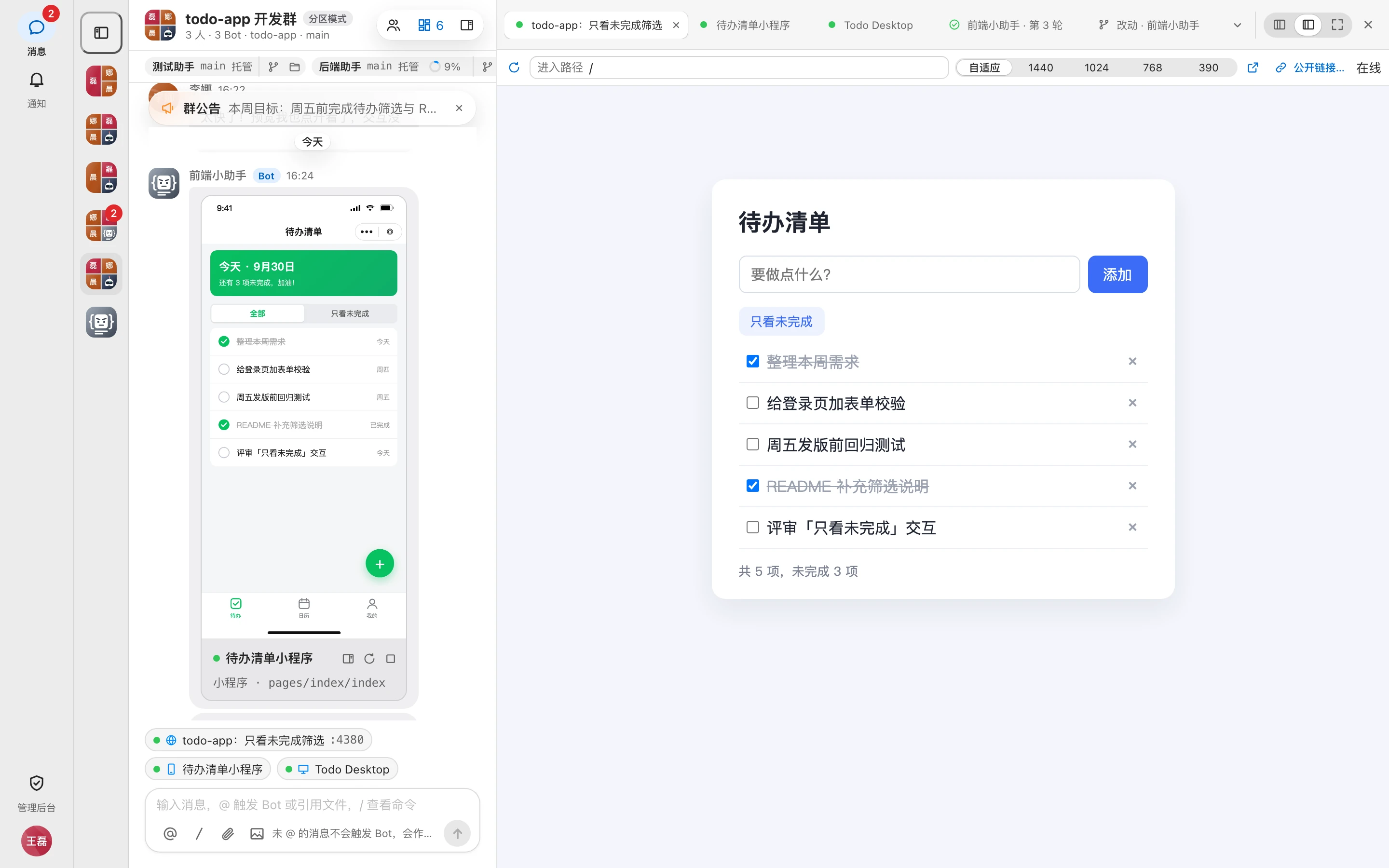
Web preview
The toolbar lets you refresh, enter a path, switch viewport width (responsive / 1440 / 1024 / 768 / 390), open in a new window, and create a 「公开链接…」 (Public link…).
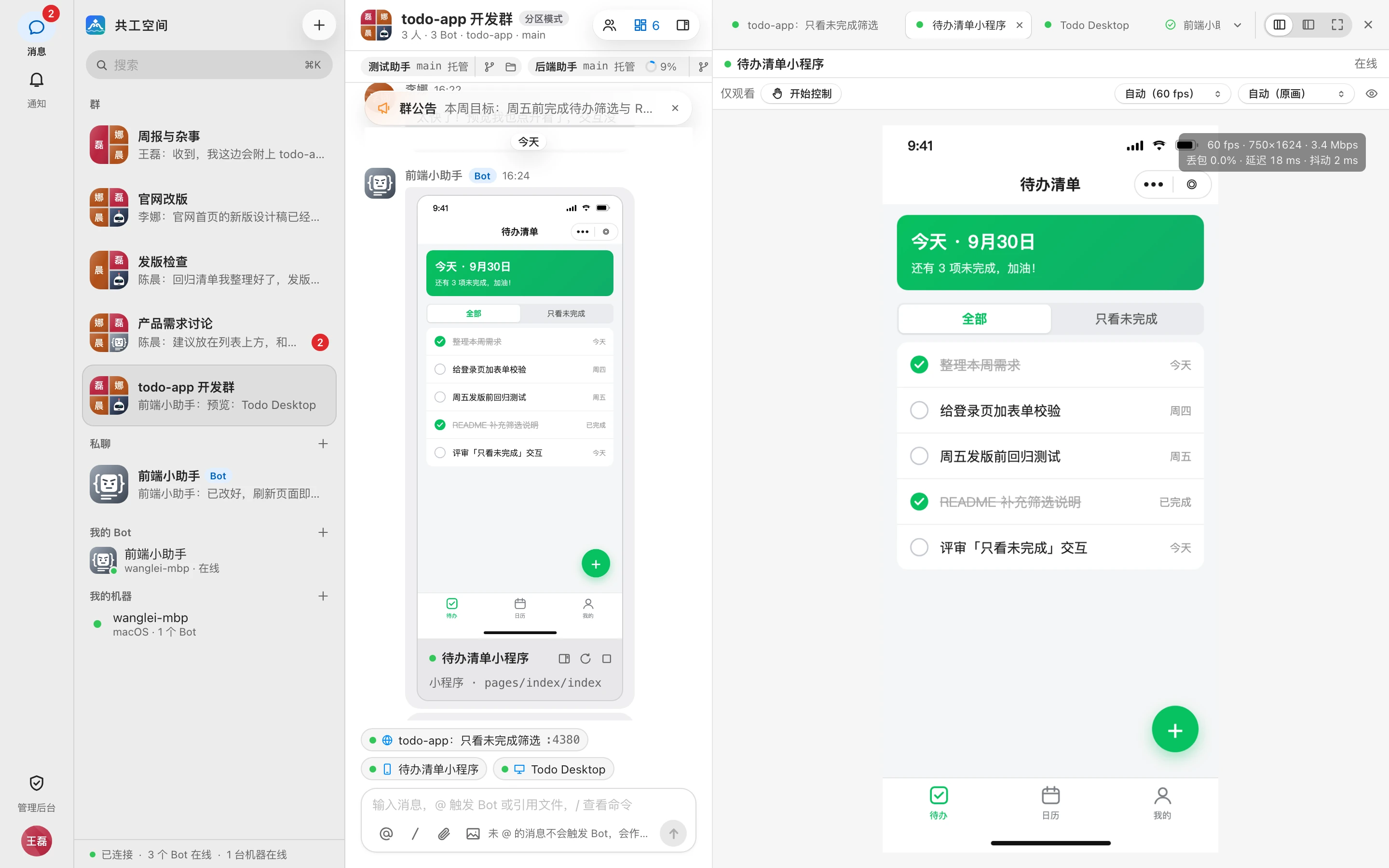
Mini programs and desktop apps
Mini programs and desktop apps are shown as a live view. The default is 「仅观看」 (View only); click 「开始控制」 (Take control) to operate remotely. You can adjust frame rate and quality, and show stream stats in the top-right corner.
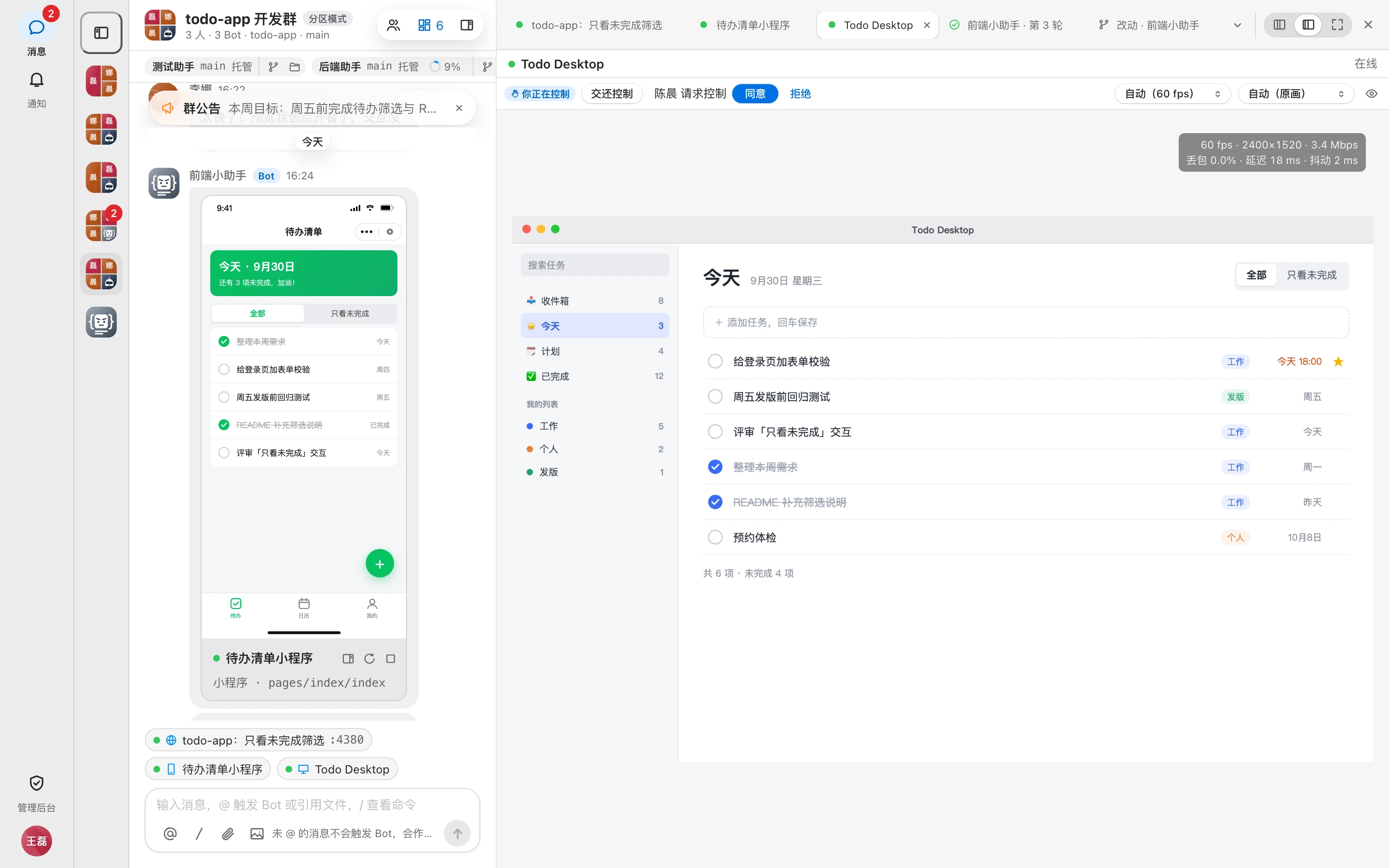
When several people are watching, others can request control; the current controller chooses 「同意」 (Allow) or 「拒绝」 (Deny), and can 「交还控制」 (Release control) at any time.
Layouts
Switch between three layouts in the top-right corner of the workbench:
| Layout | Effect | Shortcut |
|---|---|---|
| 分栏 (Split) | Conversation list, message area, and workbench side by side | ⌘\ toggles between Split and Focus |
| 专注 (Focus) | The conversation list collapses into a column of avatars, giving the workbench more room | ⌘\ |
| 全屏 (Fullscreen) | The message area collapses into a narrow strip and the workbench fills the rest; press Esc to return | ⌘⇧\ |
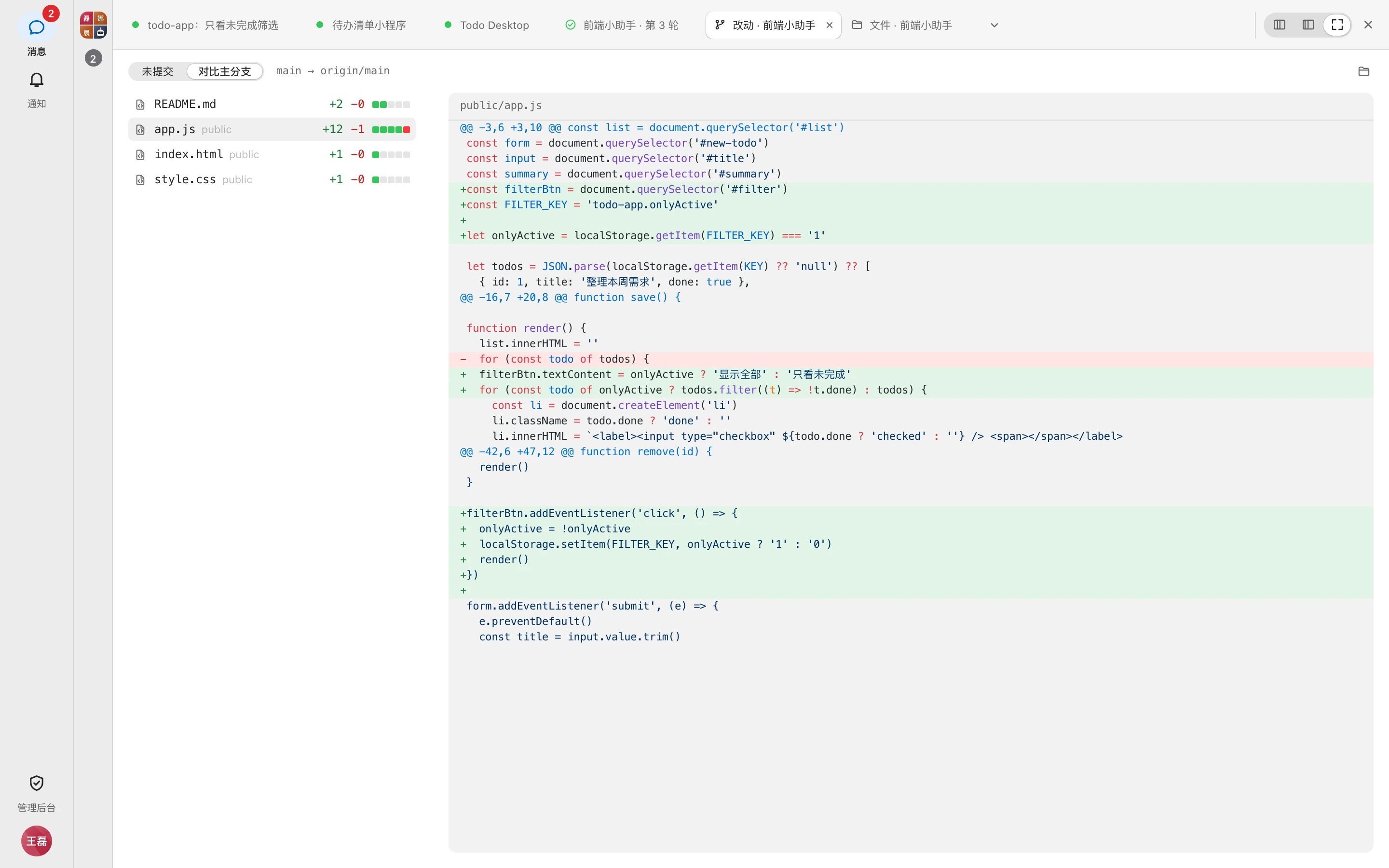
Other shortcuts: ⌃Tab / ⌃⇧Tab switch tabs, ⌥W closes the current tab (on Windows / Linux, replace ⌘ with Ctrl). Right-click a tab for 「关闭其他标签页」 (Close other tabs) and 「关闭右侧标签页」 (Close tabs to the right). Drag the divider between the message area and the workbench to resize the chat column.
TIP
When the window is narrower than 1100px, Split isn't available and Focus is used automatically. Only the 4 most recently used web preview tabs stay active; the rest go to sleep (a moon icon on the tab) to save memory and resume when you click them again. Tabs can be dragged to reorder.
Narrow-screen layout
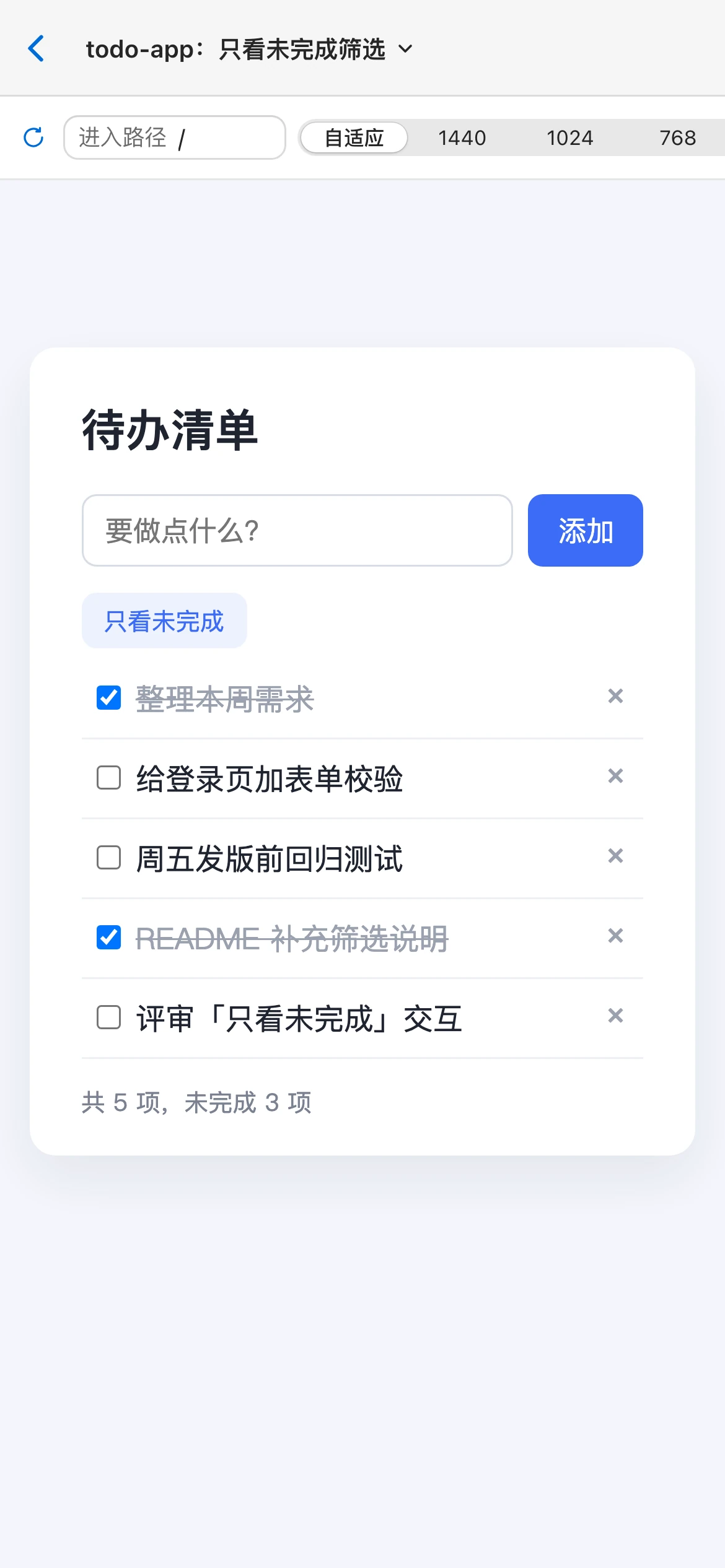
When the window is narrower than 768px (for example, on a phone), the interface becomes a single column:
- The home screen is the conversation list, and the navigation bar becomes a bottom tab bar (Messages, Notifications, admin console, and avatar).
- Opening a group shows only the message area; the back button in the top-left returns to the conversation list.
- The group info sidebar appears as an overlay on top of the message area.
- The workbench becomes a full-screen page with tabs in a drop-down menu at the top. Tap 「返回聊天」 (Back to chat) to return to the message area; your draft and scroll position are kept.
- When disconnected from the server, 「连接已断开,正在重连…」 ("connection lost, reconnecting…") appears at the top.