
Pages
This page goes through each page in the desktop app's left sidebar and what it's for.
The sidebar has three groups: 「概览」 (Overview); the 「执行」 (Execution) group with 「Agent」, 「Bot」, 「工作区」 (Workspaces), 「穿透与服务」 (Tunnels & services), and 「实时画面」 (Live view); and the 「本机」 (This machine) group with 「日志与诊断」 (Logs & diagnostics) and 「设置」 (Settings). The bottom of the sidebar shows the machine's owner, the machine name, and the operating system.
The connection status in the top-right corner of the window is visible on every page:
| Status | Meaning |
|---|---|
| 已连接 服务器地址 (Connected <server address>) | Online and able to take tasks |
| 连接中 / 重连中 (Connecting / Reconnecting) | Connecting; when the server is unavailable, it reconnects automatically with exponential backoff |
| 协议不兼容 (Protocol incompatible) | This machine's version is too old and the server refuses the connection; upgrade required |
| token 已吊销 (Token revoked) | The account has been deactivated or the machine has been revoked |
| 未运行 (Not running) | Another daemon is already running on this machine (usually gg run) |
| 未绑定 (Not bound) | Not yet bound to a server |
The status bar at the bottom of the window shows the heartbeat, latency to the server, the number of running and queued tasks, the ACP adapter version, and this machine's daemon version and protocol version.
Overview
The status of this machine's executor and the turns currently running.
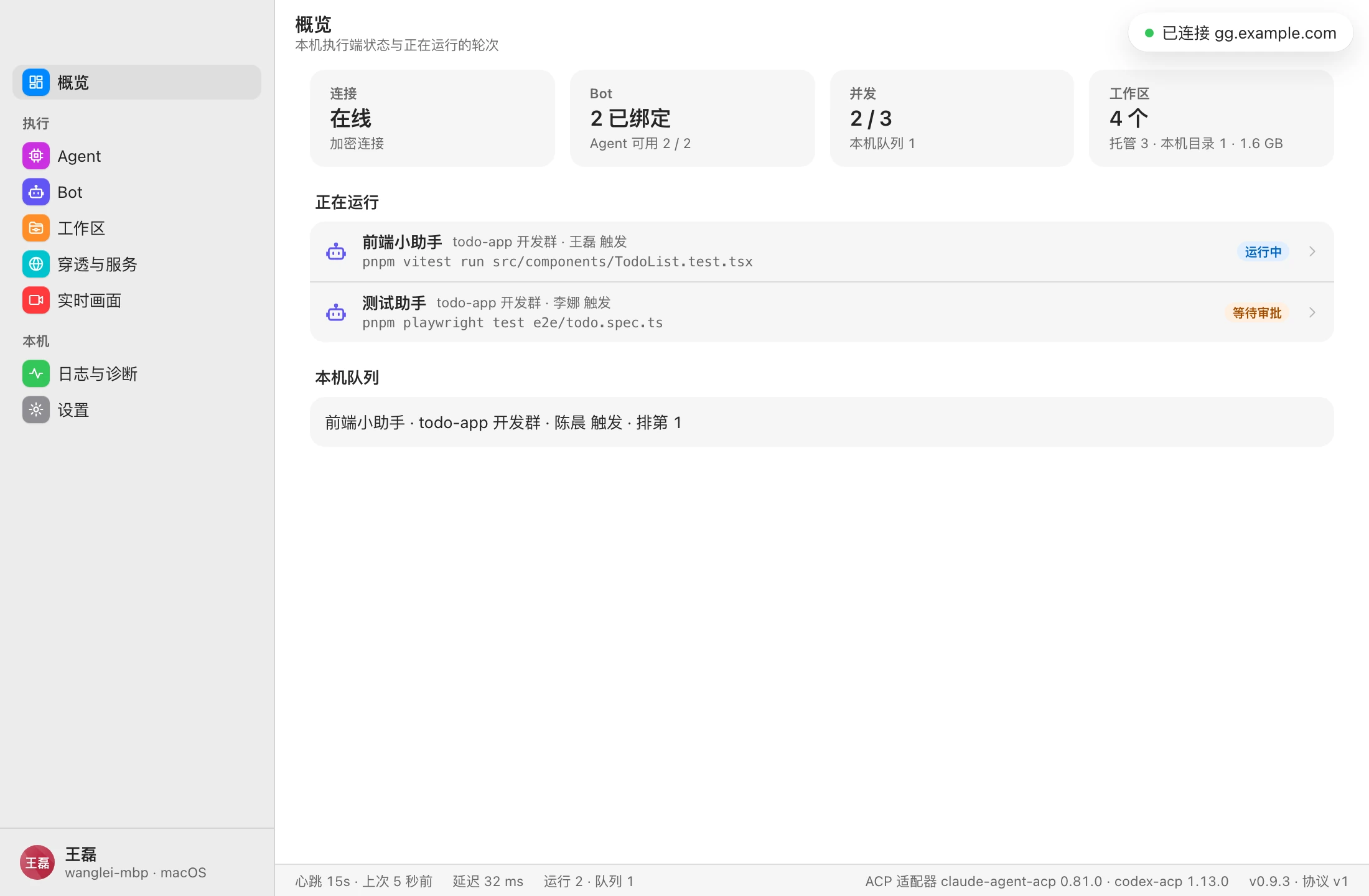
- Four stat cards: Connection (online or not, and whether the connection is encrypted), Bot (number of bound Bots and available Agents), Concurrency (running / sum of this machine's Bot concurrency limits, plus the local queue length), and Workspaces (count and disk usage).
- 「正在运行」 (Running): each row is a running turn, showing the Bot, group, requester, current step, and status (运行中 running / 等待审批 awaiting approval / 等待回答 awaiting answer). Click a row to open that turn's 「运行过程」 (Run process), which matches the 「过程」 (Process) panel on the right side of the web app; click 「返回」 (Back) to return to the Overview.
- 「本机队列」 (Local queue): tasks that exceeded the concurrency limit and are waiting in this machine's queue, with their positions.
- Banners: when there's a connection problem, the daemon isn't running, a system permission isn't granted, or live view streaming fails, a banner appears at the top of the page with a matching button (such as 「重试」 Retry, 「去授权」 Grant, 「查看」 View, or 「重新绑定」 Rebind).
Agent
The local Node.js and CLI runtimes: install and upgrade, detection, and providers.
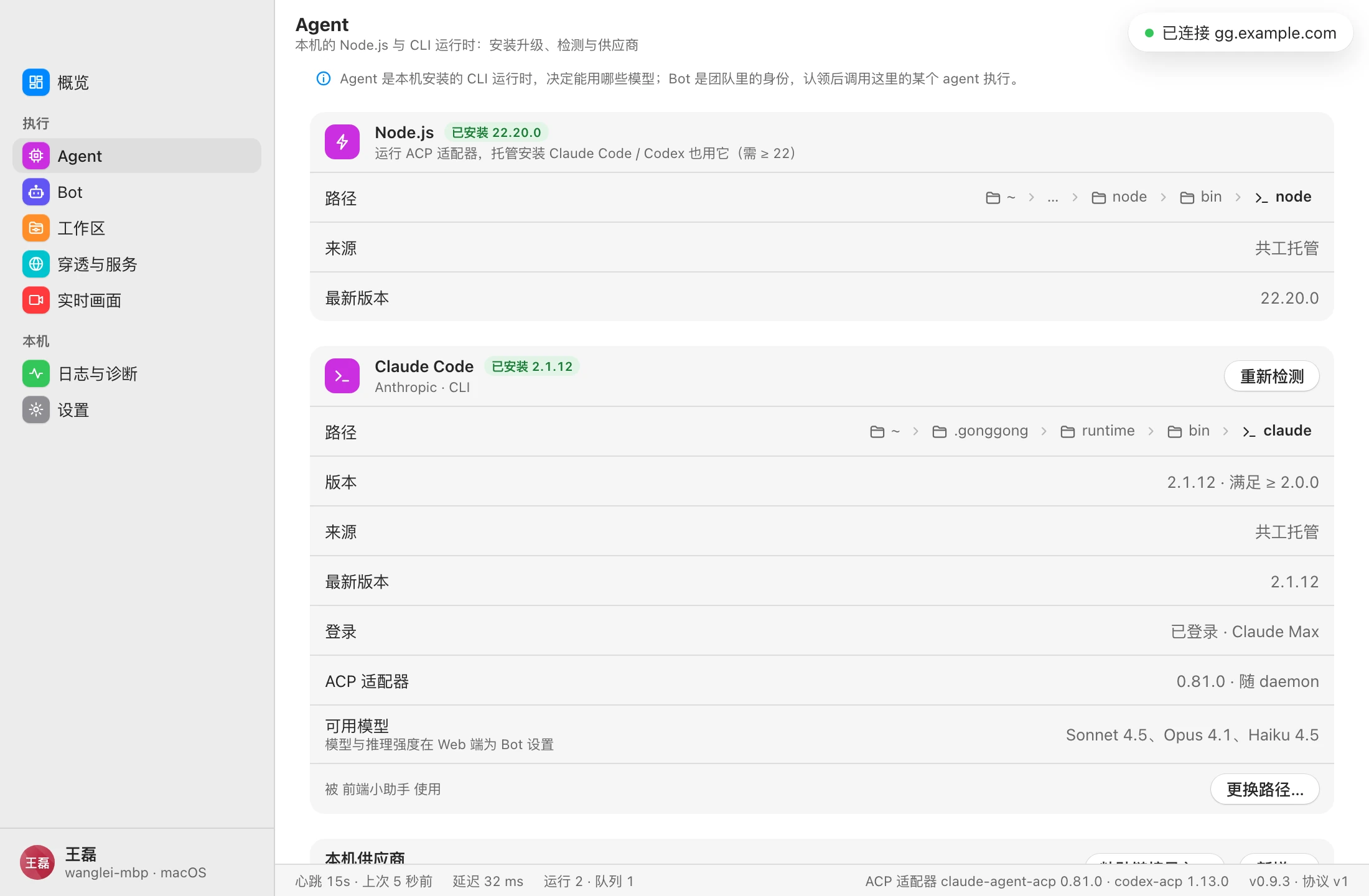
The page has three sections, from top to bottom:
Node.js: the ACP adapters need Node.js 22 or later, and managed installs of Claude Code / Codex use it too. If there's no suitable Node.js on this machine, clicking 「安装」 (Install) installs the version managed by Gonggong Space into ~/.gonggong/runtime, without touching the system environment.
Claude Code / Codex: one card per Agent, showing:
- Path, version (and whether it meets the minimum version), source (共工空间托管 managed by Gonggong Space / 自行安装 self-installed), and latest version (marked 「有更新」 "update available" when a newer version exists)
- Sign-in status, ACP adapter version, and available models (models and reasoning effort are set per Bot on the web)
- Which Bots use it
Available actions:
| Button | What it does |
|---|---|
| 安装 (Install) | When not detected on this machine, installs the version managed by Gonggong Space from the mirror; no admin privileges needed |
| 升级到 x.y.z (Upgrade to x.y.z) | Appears when a newer version of the managed install is available |
| 安装共工空间托管版 (Install managed version) | When a self-installed version exists, installs an additional copy managed by Gonggong Space |
| 重新检测 / 已安装,重新检测 (Re-detect / Installed, re-detect) | Re-detects after you've just installed or upgraded in a terminal |
| 更换路径… / 手动指定路径… (Change path… / Specify path manually…) | Choose the CLI executable to use |
| 恢复自动检测 (Restore auto-detection) | Clears the manually specified path |
Install and upgrade logs stream live in the card. The download source is set by 「镜像源」 (Mirror) in Settings.
「本机供应商」 (Local providers): below each Agent card is its provider list, which lets Bots use a third-party model service instead. The selected item is this machine's default and is used by new sessions:
- 「官方登录」 (Official sign-in): uses the local CLI's own sign-in and configuration.
- 「新增…」 (Add…): choose a built-in vendor or a custom one and enter the API key, model, and so on.
- 「粘贴链接导入…」 (Import from pasted link…) and 「从 CC Switch 导入…」 (Import from CC Switch…, shown when CC Switch is installed on this machine).
- Each provider can be edited (「编辑…」 Edit…) or deleted (「删除」 Delete).
Switching providers doesn't interrupt sessions in progress. If some groups' sessions are still using the old provider, a dialog first lists the affected groups; after you confirm, new sessions switch to the new provider. Providers and API keys are stored only on this machine; see Permissions and system settings.
Bot
The Bots running on this machine and their providers. Change all other settings on the web.
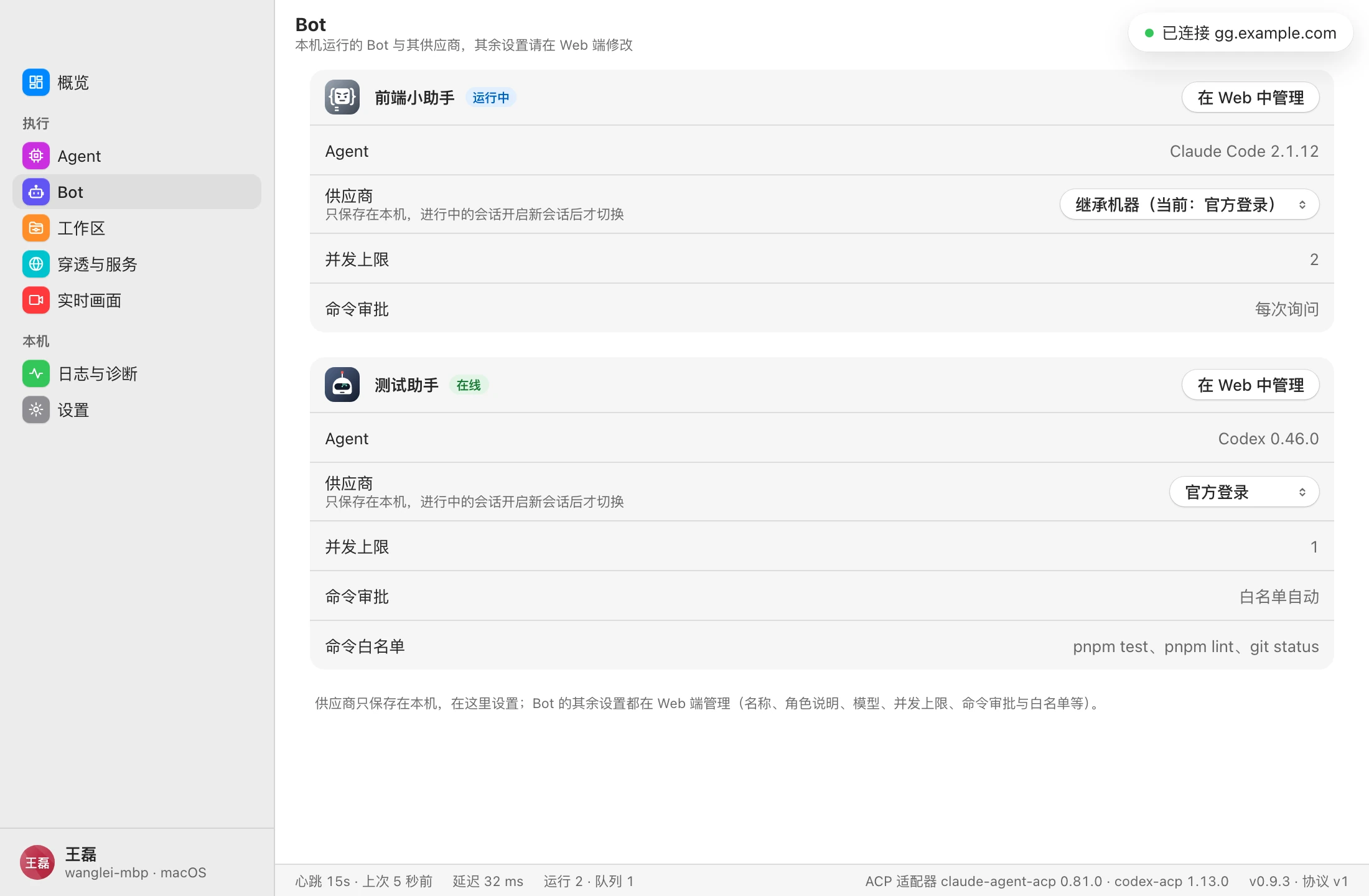
One card for each Bot assigned to this machine:
- Status: 在线 (online) / 运行中 (running) / 离线 (offline) / agent 缺失 (agent missing) / 待确认 (pending confirmation).
- Agent: the Agent used and its version; shown in red when not installed on this machine, with a 「前往 Agent」 (Go to Agent) button.
- Provider: a dropdown to choose 「继承机器(当前:…)」 (Inherit from machine (current: …)), 「官方登录」 (Official sign-in), or one of this machine's providers. Stored only on this machine; sessions in progress switch only after a new session is started.
- Concurrency limit, command approval, command allowlist: shown read-only.
- 「在 Web 中管理」 (Manage on web): opens the Bot's settings on the web. Bots someone else created for you show 「待确认」 (pending confirmation), and the button becomes 「在 Web 中确认」 (Confirm on web).
Name, role description, model, concurrency limit, command approval, allowlist, and so on are all changed on the web; see Bot settings and permissions.
Workspaces
One managed directory per "group × Bot", or a bound local directory.
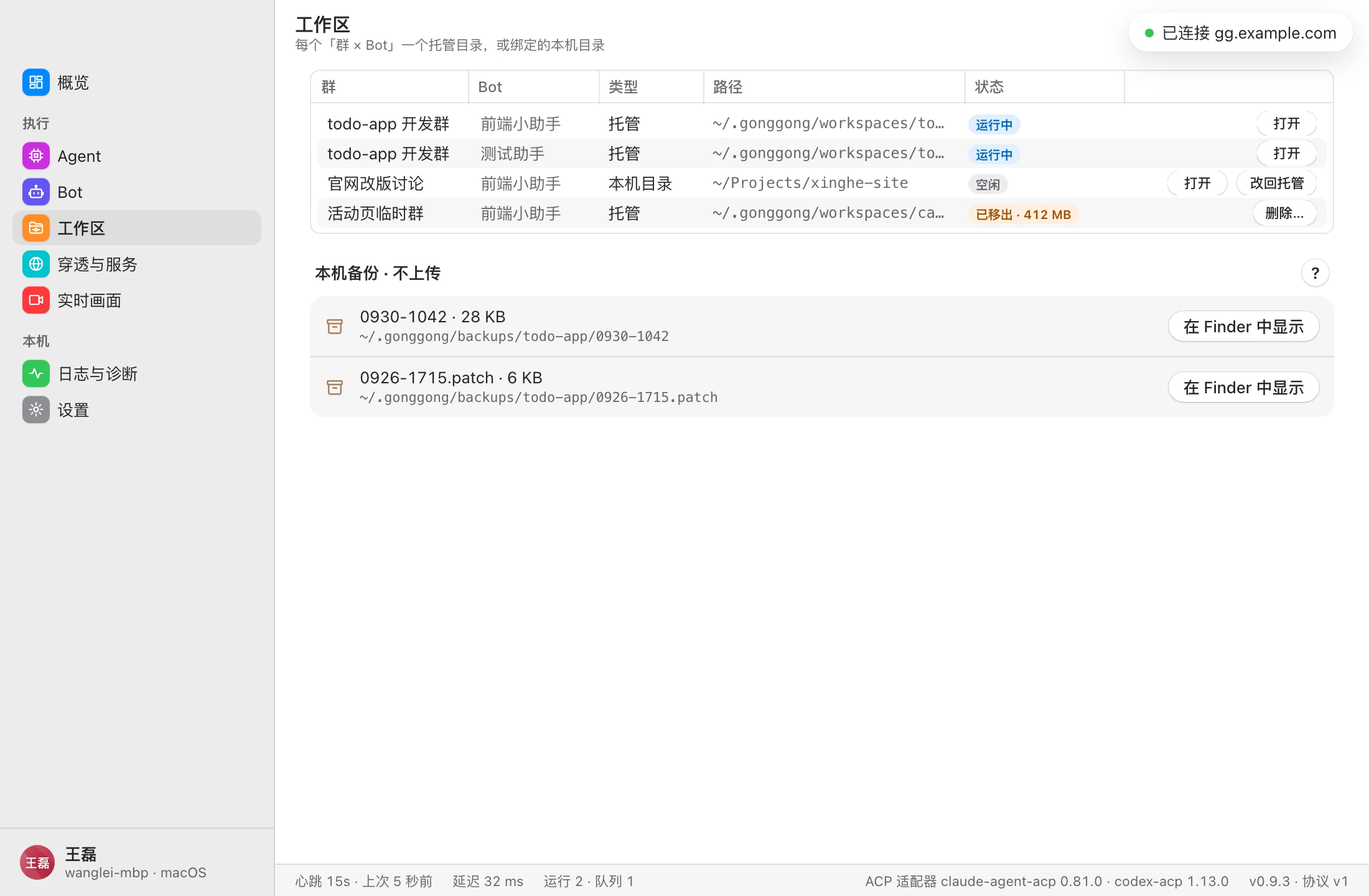
The table lists every workspace on this machine: group, Bot, type, path, and status. Double-click a row to open it in Finder.
- Managed workspaces: can be opened (「打开」 Open). Managed workspaces that have been removed or are unused can be deleted (「删除…」 Delete…); after you confirm, the directory is deleted from this machine. This only affects the local directory; the group's messages and history are not affected.
- Local directories (bound with
/cd): can be opened, or switched back with 「改回托管」 (Switch back to managed) so the Bot returns to its managed workspace; the result is posted to the group. Directories bound with/cdare never deleted.
The 「本机备份 · 不上传」 (Local backups · not uploaded) section below lists overwritten local changes and half-finished work from interrupted runs. They're stored only on this machine; click 「在 Finder 中显示」 (Show in Finder) to view them.
When the server can't be reached, the top of the page shows 「无法连接服务器」 ("Can't connect to server"); group and Bot names can't be shown for now, and workspaces are listed by local directory only. For the workspace concept, see Repositories and workspaces.
Tunnels & services
Preview tunnels opened by Bots and services running in the background; you can stop them from this machine.
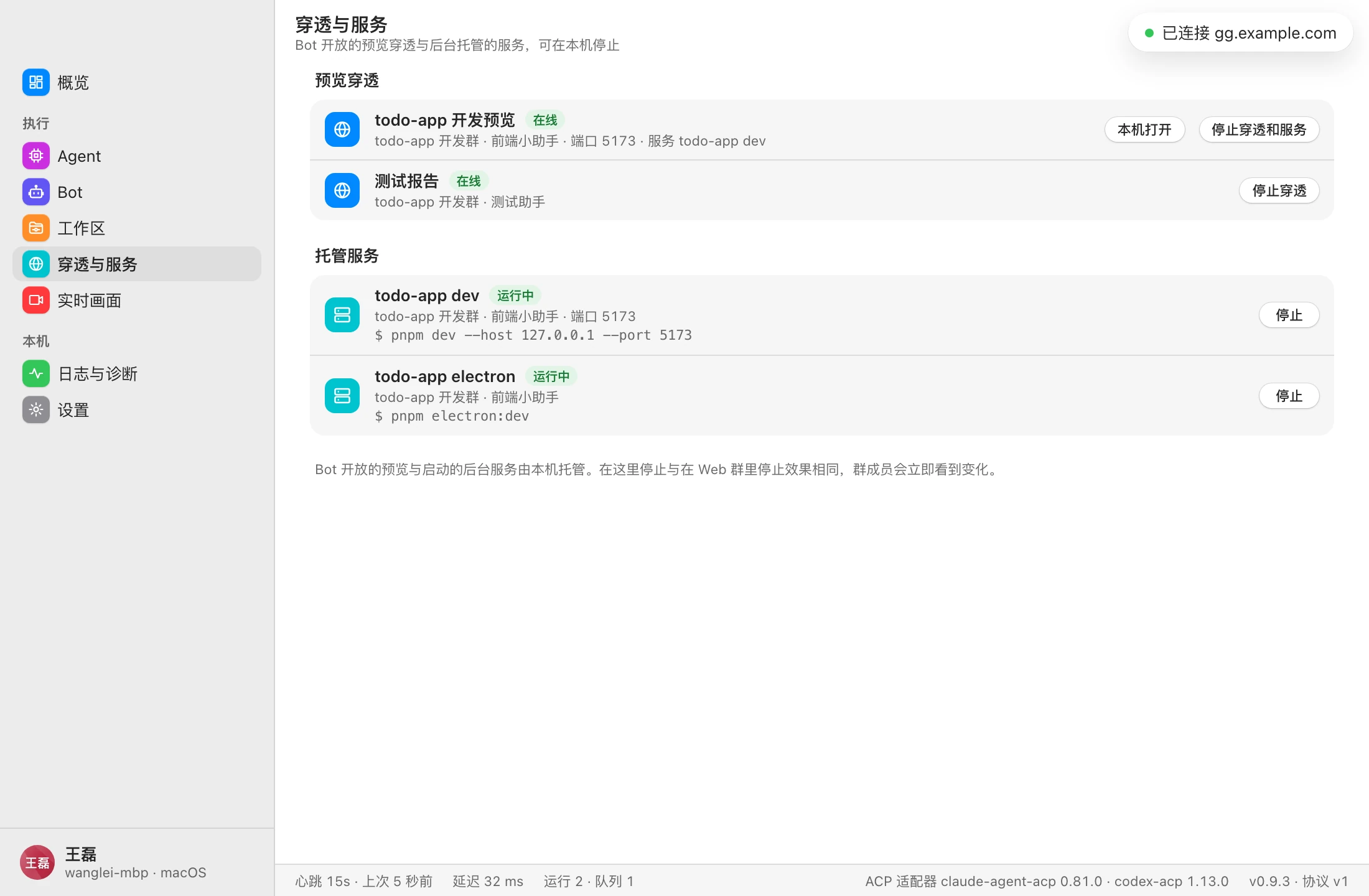
- 「预览穿透」 (Preview tunnels): web previews that Bots open to group members, showing the group, Bot, port, and online status. Use 「本机打开」 (Open locally) to open it in a browser on this machine, or 「停止穿透」 (Stop tunnel); for tunnels with a managed service, the button reads 「停止穿透和服务」 (Stop tunnel and service).
- 「托管服务」 (Managed services): background services started by Bots (such as dev servers), showing status (启动中 starting / 运行中 running / 已退出 exited / 启动失败 failed to start), port, and start command. Can be stopped with 「停止」 (Stop).
Stopping here has the same effect as stopping from the group on the web; group members see the change immediately. For the preview feature, see Previews.
Live view
Live views of desktop apps and mini programs streamed by Bots: the streaming component, system permissions, and streaming status.
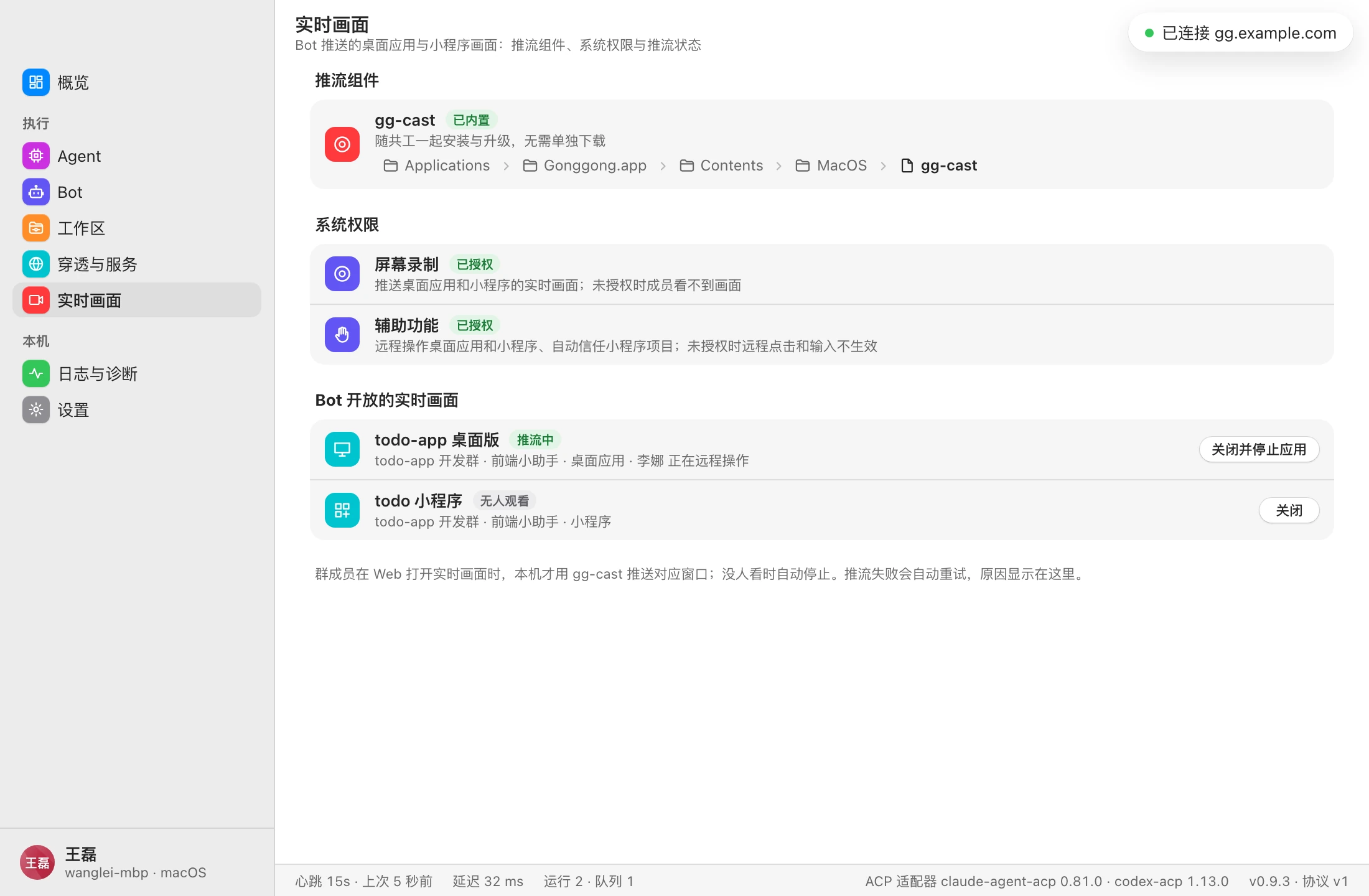
- 「推流组件」 (Streaming component): status of gg-cast. Official installers show 「已内置」 (Bundled); it's installed and upgraded together with Gonggong Space.
- 「系统权限」 (System permissions): whether Screen Recording and Accessibility are granted. If not, click 「去授权」 (Grant); see Permissions and system settings.
- 「Bot 开放的实时画面」 (Live views opened by Bots): each view shows its type (桌面应用 desktop app / 小程序 mini program), streaming status (无人观看 no viewers / 启动中 starting / 推流中 streaming / 推流失败 streaming failed / 等待操作 waiting for action), and who's currently controlling it remotely. When streaming fails, the reason is shown and it retries automatically. Can be closed with 「关闭」 (Close); for views with a managed app, the button reads 「关闭并停止应用」 (Close and stop app).
This machine streams a window only when a group member opens its live view on the web; streaming stops automatically when nobody is watching.
Logs and diagnostics
Connection, ACP, git, and sync logs; run process data is redacted before it's stored.
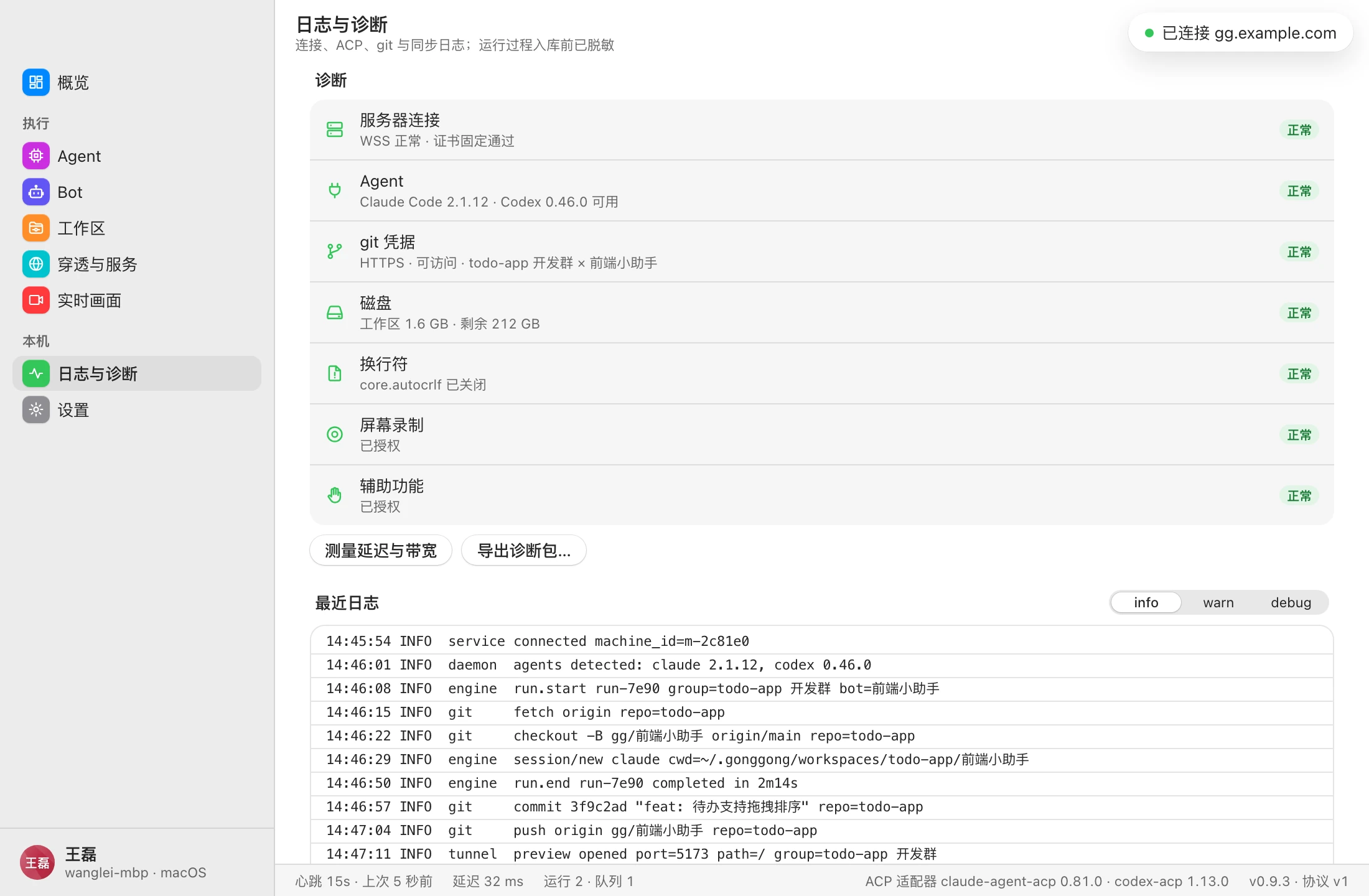
Diagnostics: the following checks run automatically when you open the page. They may take up to half a minute, and each is marked 正常 (OK) / 注意 (warning) / 异常 (error) / 跳过 (skipped):
| Check | What it checks |
|---|---|
| 服务器连接 (Server connection) | Whether the server is reachable over HTTPS, or over unencrypted HTTP for an http:// server |
| Agent | Whether Claude Code / Codex are installed and meet the version requirement |
| git 凭据 (git credentials) | Whether this machine's managed repositories can access their remotes |
| 磁盘 (Disk) | Workspace usage and free space |
| 换行符 (Line endings) | Whether core.autocrlf is turned off for managed repositories |
| 屏幕录制、辅助功能 (Screen Recording, Accessibility) | macOS only; whether they're granted |
Two buttons below:
- 「测量延迟与带宽」 (Measure latency and bandwidth): measures latency and bandwidth to the server; results are reported to the server (visible to admins only).
- 「导出诊断包…」 (Export diagnostics bundle…): choose where to save, and export a zip containing redacted logs, diagnostic results, version information, and configuration with credentials removed. You can send it to your admin for troubleshooting.
「最近日志」 (Recent logs): the daemon log, refreshed live. Switch between info / warn / debug levels in the top-right corner.
Settings
Appearance, upgrades, mirror, launch at login, and storage locations.
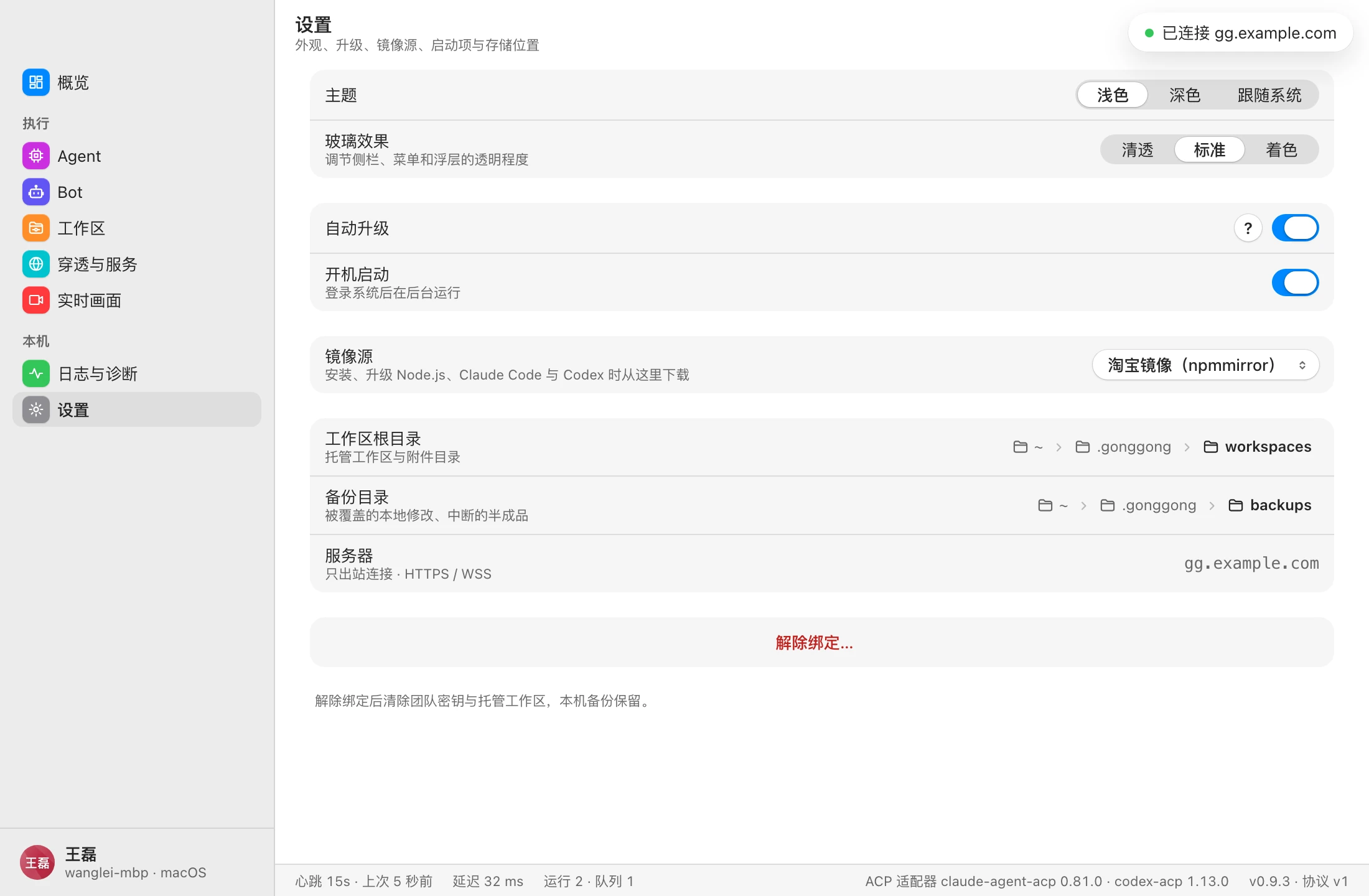
| Setting | Description |
|---|---|
| 主题 (Theme) | Light / Dark / Follow system |
| 玻璃效果 (Glass effect) | Clear / Standard / Tinted; adjusts the transparency of the sidebar, menus, and overlays |
| 自动升级 (Auto-upgrade) | Auto-upgrade switch shared with the command-line gg run |
| 开机启动 (Launch at login) | Runs in the background after you log in |
| 镜像源 (Mirror) | Download source for installing and upgrading Node.js, Claude Code, and Codex: Taobao mirror (npmmirror, default) / official / custom. For custom, enter the npm registry and the Node.js download URL (the directory containing index.json), then click 「保存」 (Save) |
| 工作区根目录 (Workspace root) | Directory for managed workspaces and attachments; shown read-only |
| 备份目录 (Backup directory) | Overwritten local changes and half-finished work from interrupted runs; shown read-only |
| 服务器 (Server) | The currently bound server; outbound connections only (HTTPS / WSS, or HTTP / WS for an http:// server) |
「解除绑定…」 (Unbind…): after you confirm, this machine disconnects, clears the team key and managed workspaces (directories bound with /cd and local backups are kept), and returns to First-run setup. This can't be undone.